ArgoCD Installation
This article guides users through the installation of ArgoCD and its CLI on a Kubernetes cluster.
In this lesson, we will guide you through installing ArgoCD and its CLI. We follow the official ArgoCD documentation from the Getting Started page to ensure you have the latest best practices. The installation process includes creating a dedicated Kubernetes namespace, applying the official manifest, and configuring the ArgoCD server for external access.
Installing ArgoCD
Start by creating the "argocd" namespace and applying the stable manifest:
kubectl create namespace argocd
kubectl apply -n argocd -f https://raw.githubusercontent.com/argoproj/argo-cd/stable/manifests
You can also install the ArgoCD CLI on your machine. For Homebrew users, execute:
After installing the CLI, patch the ArgoCD server service to expose it externally as a LoadBalancer and then forward the port:
For this lesson, we are using version 2.4.11 of ArgoCD. If you need to install a specific version, run:
kubectl create namespace argocd
kubectl apply -n argocd -f https://raw.githubusercontent.com/argoproj/argo-cd/v2.4.12/manifests/install.yaml
There are two installation options available: non-HA and HA. For simplicity, this lesson utilizes the non-HA version. Copy and execute the following commands:
kubectl create namespace argocd
kubectl apply -n argocd -f https://raw.githubusercontent.com/argoproj/argo-cd/V2.4.11/manifests/install.yaml
This installation is performed on a single-node Kubernetes cluster running version 1.24.3. Verify your node status with:
Expected output:
Verifying the Installation
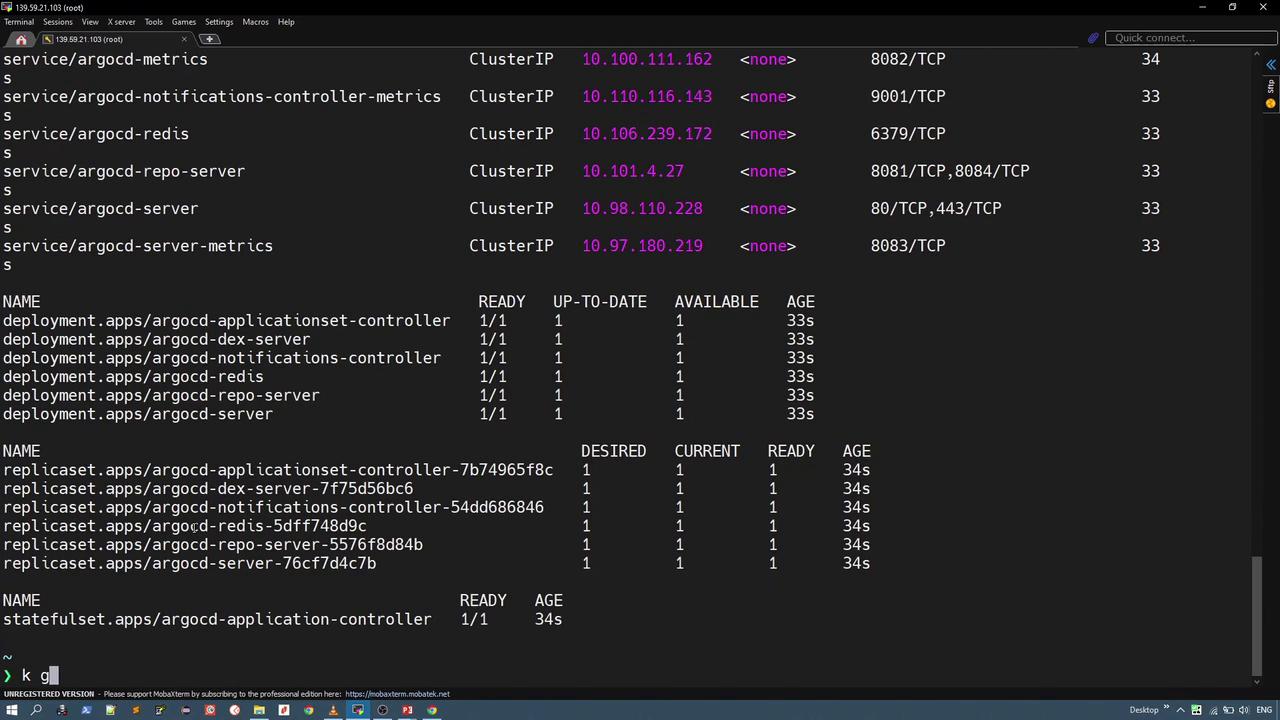
After installation, check the resources created in the "argocd" namespace. The following command displays all deployments, pods, and services:
A sample output might be:
NAME                                           READY   UP-TO-DATE   AVAILABLE   AGE
deployment.apps/argocd-applicationset-controller   0/1     1           0           11s
deployment.apps/argocd-dex-server                  0/1     1           0           11s
deployment.apps/argocd-notifications-controller     1/1     1           1           11s
deployment.apps/argocd-redis                        0/1     1           0           11s
deployment.apps/argocd-repo-server                  0/1     1           0           11s
deployment.apps/argocd-server                       0/1     1           0           11s

NAME                                               DESIRED   CURRENT   READY   AGE
replicaset.apps/argocd-applicationset-controller-7b74965f8c   1       1           0         11s
replicaset.apps/argocd-dex-server-7f75d56bc6                  1       1           0         11s
replicaset.apps/argocd-notifications-controller-54dd686846   1       1           1         11s
replicaset.apps/argocd-redis-5dff748d9c                       1       1           0         11s
replicaset.apps/argocd-repo-server-5576f8d84b                  1       1           0         11s
replicaset.apps/argocd-server-76cf74d4c7b                      1       1           0         11s

NAME
statefulset.apps/argocd-application-controller   0/1      11s
After a few minutes, when all deployments are fully initialized, verify that all pods are running:
Example output once the pods are running:
NAME                                     READY   STATUS    RESTARTS   AGE
pod/argocd-application-controller-0      1/1     Running   0          33s
pod/argocd-applicationset-controller-7b74965f8c-7fnw4   1/1     Running   0          33s
pod/argocd-dex-server-77d56b6c6-nvj96   1/1     Running   0          33s
pod/argocd-notifications-controller-54d686846-4b4r4   1/1     Running   0          33s
pod/argocd-redis-5dff748d9c-psrw        1/1     Running   0          33s
pod/argocd-repo-server-5576f8d84b-whtsg  1/1     Running   0          33s
pod/argocd-server-76c7d4c7b-fnkdk       1/1     Running   0          33s
To check the status of services:
Example output:
NAME                                      TYPE        CLUSTER-IP      EXTERNAL-IP   PORT(S)                 AGE
service/argocd-applicationset-controller   ClusterIP   10.100.58.34    <none>        7000/TCP,8080/TCP       34s
service/argocd-dex-server                  ClusterIP   10.109.179.192  <none>        5556/TCP,5557/TCP,5558/TCP 34s
service/argocd-metrics                     ClusterIP   10.100.111.162  <none>        8082/TCP                34s
service/argocd-notifications-controller-metrics ClusterIP 10.110.116.143 <none>       9001/TCP                33s
service/argocd-redis                       ClusterIP   10.106.239.172  <none>        6379/TCP                33s
service/argocd-repo-server                 ClusterIP   10.101.4.27     <none>        8081/TCP,8084/TCP       33s
service/argocd-server                      ClusterIP   10.98.110.228   <none>        80/TCP,443/TCP          33s
service/argocd-server-metrics              ClusterIP   10.97.180.219   <none>        8083/TCP                33s
Exposing the ArgoCD Server
By default, ArgoCD services are configured with the ClusterIP type, which restricts external access. To access the ArgoCD UI, modify the ArgoCD server service to use the NodePort type. Edit the service and change the "type" field:
creationTimestamp: "2022-09-23T14:01:00Z"
labels:
  app.kubernetes.io/component: server
  app.kubernetes.io/name: argocd-server
  app.kubernetes.io/part-of: argocd
name: argocd-server
namespace: argocd
resourceVersion: "81300"
uid: 23c477a6-23ad-4c14-8874-2f144ba396e3
spec:
  clusterIP: 10.98.110.228
  clusterIPs:
  - 10.98.110.228
  internalTrafficPolicy: Cluster
  ipFamiles:
  - IPv4
  ipFamilyPolicy: SingleStack
  ports:
  - name: http
    port: 80
    protocol: TCP
    targetPort: 8080
  - name: https
    port: 443
    protocol: TCP
    targetPort: 8080
  selector:
    app.kubernetes.io/name: argocd-server
  sessionAffinity: None
  type: ClusterIP
  loadBalancer: {}
After editing, verify the change by listing the services:
You should now see the ArgoCD server service type as NodePort:
NAME                              TYPE        CLUSTER-IP     EXTERNAL-IP   PORT(S)                      AGE
argocd-applicationset-controller   ClusterIP   10.100.58.34   <none>        7000/TCP,8080/TCP            105s
argocd-dex-server                  ClusterIP   10.109.179.192 <none>        5556/TCP,5557/TCP,5558/TCP   105s
argocd-metrics                     ClusterIP   10.100.111.162 <none>        8082/TCP                    104s
argocd-notifications-controller-metrics ClusterIP 10.110.116.143 <none>        9001/TCP                    104s
argocd-redis                       ClusterIP   10.106.239.177 <none>        6379/TCP                    104s
argocd-repo-server                 ClusterIP   10.101.4.27    <none>        8081/TCP,8084/TCP           104s
argocd-server                      NodePort    10.98.110.228  <none>        80:30663/TCP,443:31194/TCP   104s
argocd-server-metrics              ClusterIP   10.97.180.219  <none>        8083/TCP                    104s
With the NodePort configuration, the ArgoCD server is now accessible externally via the server’s IP address and its designated NodePort (for example, 30663).
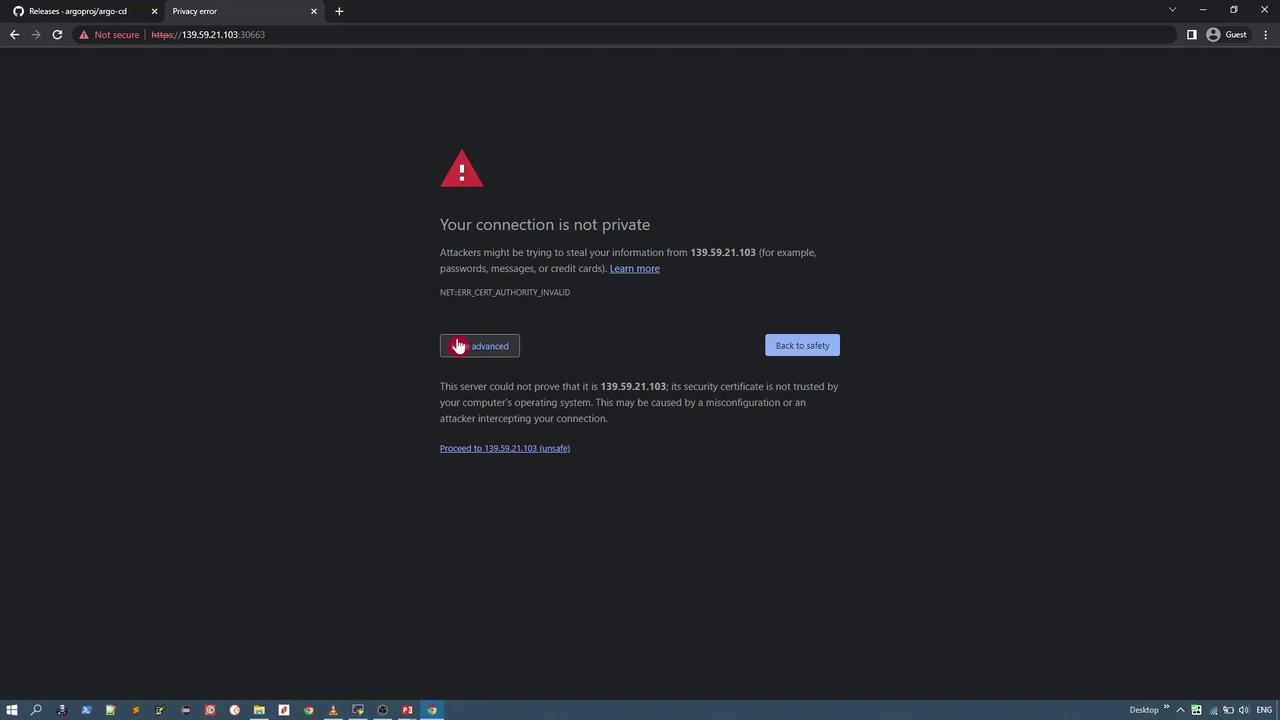
Open your web browser and navigate to the server’s IP (such as 139.59.21.103) along with the NodePort. Note that because the server uses a self-signed certificate, your browser will display a warning regarding the connection's privacy.
Logging into the ArgoCD UI
The default login credentials for ArgoCD are:
- Username: admin
- Password: Retrieved from the initial admin secret
To retrieve the initial admin password, inspect the secret within the "argocd" namespace. First, list the secrets:
Expected output:
NAME                           TYPE     DATA   AGE
argocd-initial-admin-secret    Opaque   1      2m44s
argocd-notifications-secret    Opaque   0      3m4s
argocd-secret                  Opaque   5      3m4s
Next, retrieve the secret in JSON format:
To decode the password, run:
Then decode the base64 output:
Copy the decoded password and use it with the username "admin" to log in. Once logged in, update your password via the UI by visiting the user settings page, where you can configure repositories, certificates, clusters, projects, and accounts.
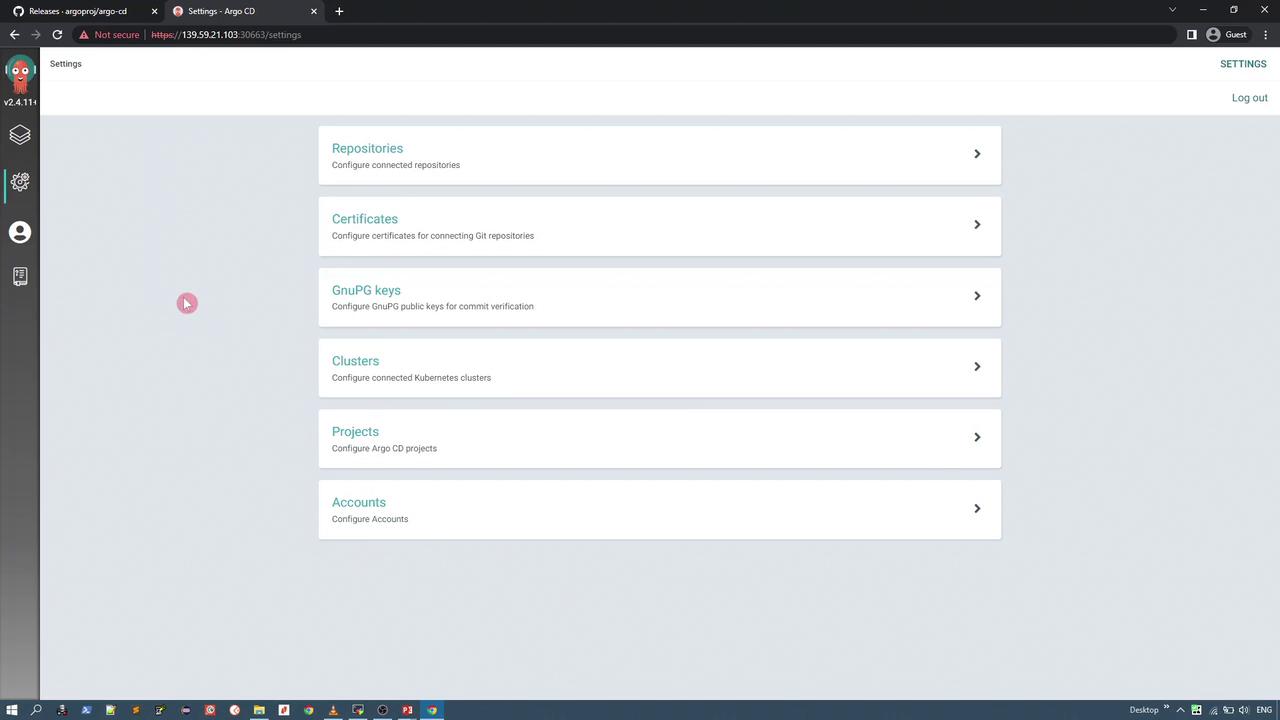
To update your password, enter the current password, specify your new password, and confirm the new password:
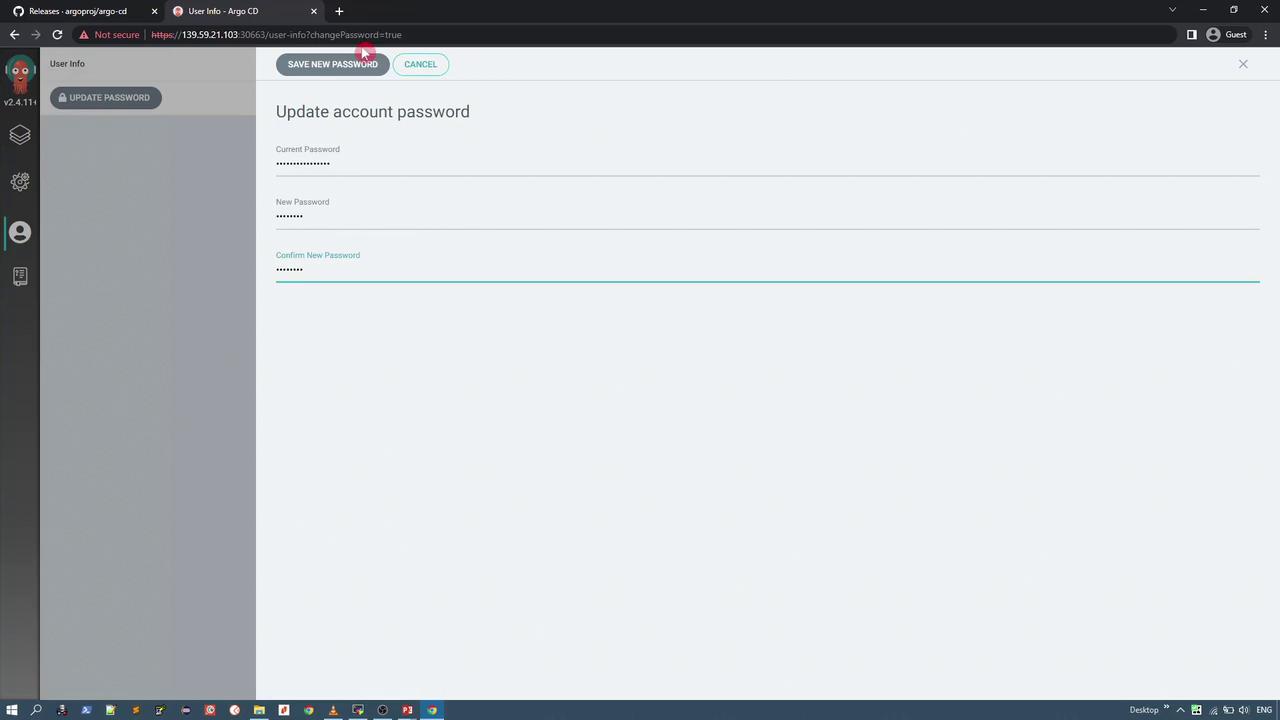
After updating, the UI will automatically log you out. Log back in using your new credentials.
Installing the ArgoCD CLI
Managing ArgoCD from the command line is facilitated by the ArgoCD CLI. Download the appropriate CLI binary for your system from the releases page. For version 2.4.11 on Linux AMD64, run:
After downloading, rename the file, make it executable, and move it to your system's binary path:
Test the CLI by checking its available commands:
Logging into ArgoCD via CLI
Access the ArgoCD server using the CLI by executing the login command with the server’s IP address:
Since the server uses a self-signed certificate, you will be prompted with a certificate warning:
WARNING: server certificate had error: x509: cannot validate certificate for 10.98.110.228 because it doesn't contain any IP SANs. Proceed insecurely (y/n)? y
Username: admin
Password:
Once logged in, you can list applications and clusters.
To list applications:
Expected output (initially empty as no applications are deployed):
To display available clusters, run:
Example output:
SERVER                             NAME         VERSION   STATUS    MESSAGE
https://kubernetes.default.svc    in-cluster   Unknown   Cluster has no applications and is not being monitored.
By default, the Kubernetes cluster on which ArgoCD is installed becomes the target cluster. In future lessons, we will explore how to deploy applications across multiple clusters.
Summary of Commands and Resource Checks
Below is a summary of the most important commands executed during this installation process:
| Command | Description |
|---|---|
kubectl get svc -n argocd |
Displays the ArgoCD service configuration in the argocd namespace. |
argocd login 10.98.110.228 |
Logs into the ArgoCD server via the CLI. |
argocd app list |
Lists the deployed applications (empty initially). |
argocd cluster list |
Lists the available clusters, showing the default in-cluster configuration. |
Example command outputs:
NAME                              TYPE        CLUSTER-IP     EXTERNAL-IP   PORT(S)                      AGE
argocd-applicationset-controller   ClusterIP   10.100.58.34   <none>        7000/TCP,8080/TCP            7m42s
argocd-dex-server                  ClusterIP   10.109.179.192 <none>        5556/TCP,5557/TCP,5558/TCP   7m42s
argocd-metrics                     ClusterIP   10.100.111.162 <none>        8082/TCP                   7m42s
argocd-notifications-controller-metrics ClusterIP 10.110.116.143 <none>      9001/TCP                   7m41s
argocd-redis                       ClusterIP   10.106.239.172 <none>        6379/TCP                   7m41s
argocd-repo-server                 ClusterIP   10.101.4.27    <none>        8081/TCP,8084/TCP          7m41s
argocd-server                      NodePort    10.98.110.228  <none>        80:30663/TCP,443:31194/TCP  7m41s
argocd-server-metrics              ClusterIP   10.97.180.219  <none>        8083/TCP                   7m41s
WARNING: server certificate had error: x509: cannot validate certificate for 10.98.110.228 because it doesn't contain any IP SANs. Proceed insecurely (y/n)? y
Username: admin
Password:
'admin:login' logged in successfully
Context '10.98.110.228' updated
SERVER                             NAME         VERSION   STATUS     MESSAGE
https://kubernetes.default.svc    in-cluster   Unknown   Cluster has no applications and is not being monitored.
This completes the installation and initial setup of ArgoCD and its CLI. In subsequent lessons, we will dive deeper into using the UI and managing applications across multiple clusters.
Thank you for following along!