Deployments
This guide explores Kubernetes deployments, simplifying application management with features like rolling updates, rollbacks, and high availability.
Hello and welcome! My name is Mumshad Mannambeth. In this guide, we dive into Kubernetes deployments—an abstraction that simplifies managing your applications in a production environment. Rather than interacting directly with pods and ReplicaSets, deployments offer advanced features that enable you to:
- Deploy multiple instances of your application (like a web server) to ensure high availability and load balancing.
- Seamlessly perform rolling updates for Docker images so that instances update gradually, reducing downtime.
- Quickly roll back to a previous version if an upgrade fails unexpectedly.
- Pause and resume deployments, allowing you to implement coordinated changes such as scaling, version updates, or resource modifications.
Previously, we discussed how individual pods encapsulate containers and how ReplicaSets maintain multiple pod copies. A deployment, however, sits at a higher level, automatically managing ReplicaSets and pods while providing enhanced features like rolling updates and rollbacks.
Creating a Deployment
To create a deployment, start by writing a deployment definition file. This file is similar to a ReplicaSet definition, with the key difference being that the kind is set to Deployment instead of ReplicaSet. Below is an example of a correct deployment definition file:
Once your deployment definition file (for example, named deployment-definition.yml) is ready, create the deployment with the following command:
The command output should confirm that the deployment has been created:
To verify the deployment, run:
The output will look similar to this:
Behind the Scenes: How Deployments Work
When you create a deployment, Kubernetes automatically creates an associated ReplicaSet. To see this in action, run:
You'll notice a new ReplicaSet with a name derived from your deployment. This ReplicaSet oversees the creation and management of pods. To view the pods managed by the ReplicaSet, run:
While deployments and ReplicaSets work together seamlessly, deployments provide additional functionalities such as rolling updates, rollbacks, and the ability to pause/resume changes.
This gives you a comprehensive overview of your deployment's components.
A sample output of the "kubectl get all" command might be:
NAME                            DESIRED   CURRENT   UP-TO-DATE   AVAILABLE   AGE
deploy/myapp-deployment         3         3         3            3           9h

NAME                                        DESIRED   CURRENT   READY   AGE
rs/myapp-deployment-6795844b58              3         3         3       9h

NAME                                      READY   STATUS    RESTARTS   AGE
po/myapp-deployment-6795844b58-5rbjl        1/1     Running   0          9h
po/myapp-deployment-6795844b58-h4w55         1/1     Running   0          9h
po/myapp-deployment-6795844b58-1fjhv         1/1     Running   0          9h
In this output, you can clearly see the deployment, its associated ReplicaSet, and the managed pods.
Conclusion
This article has covered the fundamentals of creating a deployment in Kubernetes. By leveraging deployments, you gain powerful capabilities like rolling updates and rollbacks that make managing application updates and maintenance in production more efficient. Whether you are scaling your application or rolling out new features, Kubernetes deployments provide a robust solution for modern application management.
---
This article provides a comprehensive guide on Kubernetes Deployments, focusing on simplifying application rollouts and ensuring seamless updates with zero downtime.
Welcome to this comprehensive guide on Kubernetes Deployments. In this article, we explore how Deployments simplify the rollout of production applications and ensure seamless updates with zero downtime.
Imagine having a web server that needs to run reliably in production. You require multiple instances of this web server to handle load distribution and high availability. Moreover, when a new version of the application is available on the Docker registry, you want to upgrade your instances one by one—a process known as a rolling update—to minimize user disruption. In case an update introduces an error, a quick rollback mechanism is essential. Additionally, you might need to modify various aspects of your environment, such as the web server version, deployment scaling, or resource allocations, and apply these changes simultaneously after a planned pause.
While individual Pods run your application instances, ReplicaSets (or Replication Controllers) manage these Pods, ensuring the correct number are always running. A Deployment builds on these components by offering a higher-level abstraction. It not only handles rolling updates and rollbacks but also lets you pause and resume deployments as needed.
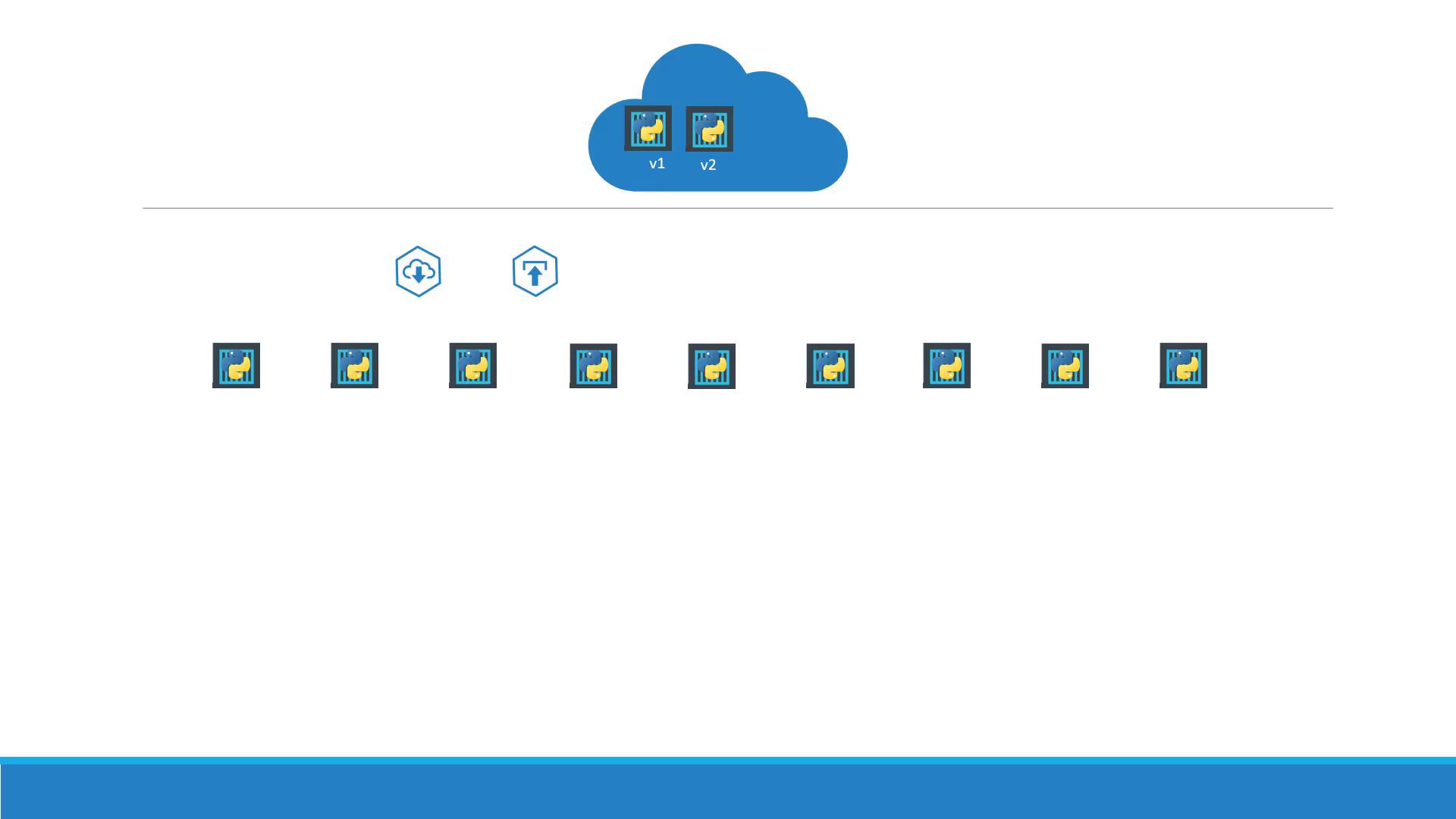
The diagram above demonstrates a scenario where you deploy and upgrade versions of your web application incrementally, ensuring continuous availability.

This second diagram details how a Deployment coordinates with a ReplicaSet, which in turn creates and maintains multiple application Pods. The Deployment sits at the top of this hierarchy, enabling advanced management features such as rolling updates, rollbacks, and dynamic pausing/resuming of deployments.
Creating a Kubernetes Deployment
To create a Deployment, you first define a deployment configuration file. This file's structure is similar to that of a ReplicaSet, with the key difference being that the kind is set to "Deployment". Below is an example of a Deployment manifest:
apiVersion: apps/v1
kind: Deployment
metadata:
  name: myapp-deployment
  labels:
    app: myapp
    type: front-end
spec:
  replicas: 3
  selector:
    matchLabels:
      type: front-end
  template:
    metadata:
      name: myapp-pod
      labels:
        app: myapp
        type: front-end
    spec:
      containers:
      - name: nginx-container
        image: nginx
In this configuration:
- The
apiVersionis set toapps/v1. - The
kindis "Deployment". - The metadata section provides the name and relevant labels.
- The
specsection defines the desired state, including the number of replicas, the pod selector, and the pod template which details metadata and container specifications.
Once you have your deployment definition file (e.g., deployment-definition.yml), create the Deployment with the following command:
Verifying the Deployment
After creation, verify the Deployment, ReplicaSet, and Pods using these commands:
- Check Deployments:
Example output:
- View the ReplicaSet:
Example output:
- Examine the Pods:
Example output:
NAME                                         READY   STATUS    RESTARTS   AGE
myapp-deployment-6795844b58-5rbj1            1/1     Running   0          2m
myapp-deployment-6795844b58-h4w5t             1/1     Running   0          2m
myapp-deployment-6795844b58-1fjhv             1/1     Running   0          2m
Viewing All Created Objects
To see all Kubernetes objects associated with your Deployment at once, run:
Example output:
NAME                                    DESIRED   CURRENT   UP-TO-DATE   AVAILABLE   AGE
deploy/myapp-deployment                 3         3         3            3           9h
NAME                                    DESIRED   CURRENT   READY   AGE
rs/myapp-deployment-6795844b58         3         3         3       9h
NAME                                    READY   STATUS    RESTARTS   AGE
po/myapp-deployment-6795844b58-5rbjl   1/1     Running   0          9h
po/myapp-deployment-6795844b58-h4w55    1/1     Running   0          9h
po/myapp-deployment-6795844b58-1fjhv    1/1     Running   0          9h
This comprehensive view confirms that your Deployment has successfully created all associated resources—Deployment, ReplicaSet, and Pods.
That concludes our guide on Kubernetes Deployments. Happy deploying!
For more insights and in-depth tutorials, explore the following resources: