Session Policies
This article explains how to grant temporary upload access to an S3 bucket using IAM session policies.
In this lesson, we’ll explore how to grant an IAM user temporary upload access to an S3 bucket by using session policies. Our user currently has a policy allowing only the s3:GetObject action, but now needs permission to upload files (s3:PutObject). We’ll create a session policy, attach the upload permissions to it, and generate temporary credentials that enforce both the user’s existing rights and the new session policy.
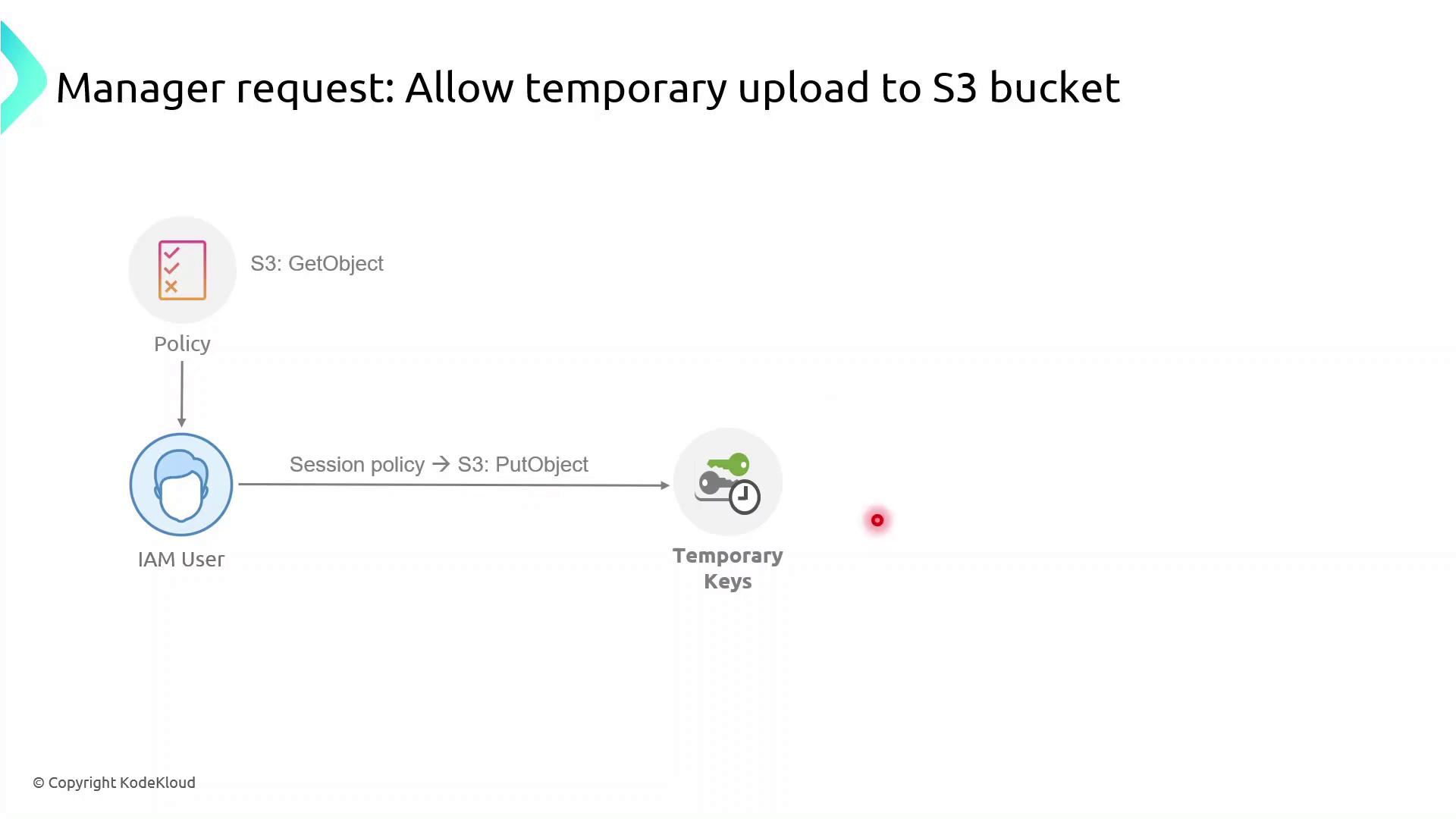
What Are Session Policies?
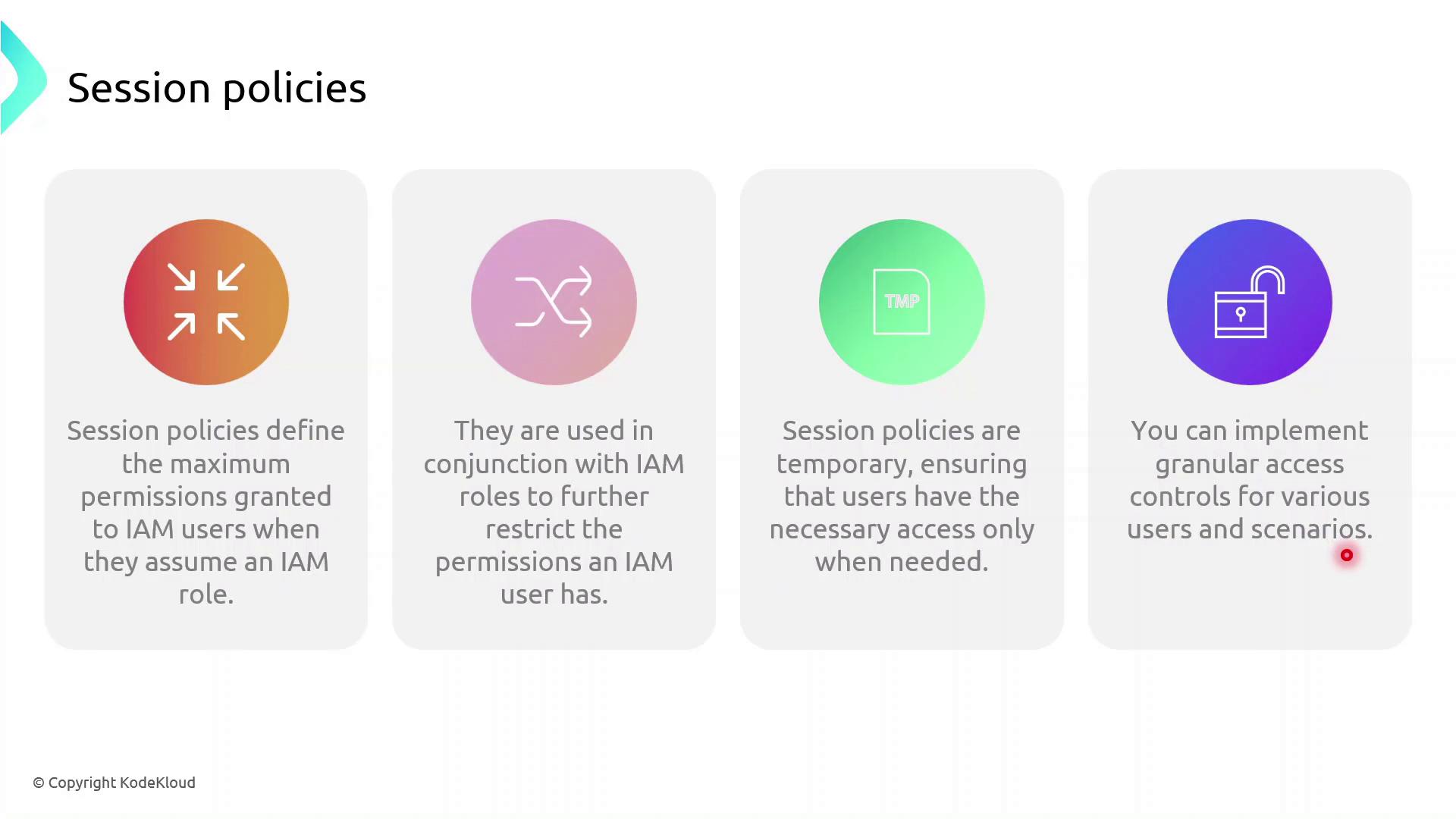
Session policies are inline JSON policies you pass when you assume a role. They:
- Define the maximum permissions an IAM principal can have during a session
- Are temporary and apply only for the session’s duration
- Further restrict permissions granted by identity or resource policies
- Enable fine-grained, scenario-specific access control
Demo: Granting Temporary Upload Access
In this demo, we will:
- Identify an IAM user with read-only S3 access
- Create a session policy granting
s3:PutObject - Assume a role with that session policy to obtain temporary credentials
- Verify the ability to upload objects to the bucket
First, sign in to the AWS Management Console, navigate to IAM, and begin creating the session policy.
1. Create the Session Policy JSON
Save the following JSON as session-policy.json. Replace YOUR_BUCKET_NAME with your actual bucket name.
```json theme={null} { "Version": "2012-10-17", "Statement": [ { "Effect": "Allow", "Action": "s3:PutObject", "Resource": "arn:aws:s3:::YOUR_BUCKET_NAME/*" } ] }
### 2. Assume the Role with Session Policy

Use the AWS CLI to assume the role and apply your session policy:

```bash  theme={null}
aws sts assume-role \
  --role-arn arn:aws:iam::ACCOUNT_ID:role/ROLE_NAME \
  --role-session-name uploadSession \
  --policy file://session-policy.json \
  --duration-seconds 3600
This returns temporary credentials:
```json theme={null} { "Credentials": { "AccessKeyId": "ASIAXXXX...", "SecretAccessKey": "wJalrXUtnFEMI/K7MDENG/bPxRfiCYzEXAMPLEKEY", "SessionToken": "IQoJb3JpZ2luX2VjEO3//////////wEaCXVzLWVhc3QtMSJGMEQCH3...", "Expiration": "2023-08-01T12:34:56Z" } }
### 3. Export Temporary Credentials

```bash  theme={null}
export AWS_ACCESS_KEY_ID="ASIAXXXX..."
export AWS_SECRET_ACCESS_KEY="wJalrXUtnFEMI/K7MDENG/bPxRfiCYzEXAMPLEKEY"
export AWS_SESSION_TOKEN="IQoJb3JpZ2luX2VjEO3//////////wEaCXVzLWVhc3QtMSJGMEQCH3..."
4. Verify Upload Capability
Now try uploading a file:
```bash theme={null} echo "Hello, S3!" > test.txt aws s3 cp test.txt s3://YOUR_BUCKET_NAME/
If successful, you’ve confirmed that the session policy is working as expected.

## Policy Comparison

| Policy Type     | Scope        | Duration  | Purpose                                |
| --------------- | ------------ | --------- | -------------------------------------- |
| Identity Policy | User or Role | Permanent | Grants base permissions                |
| Session Policy  | STS Session  | Temporary | Restricts permissions during a session |

## Links and References

* [AWS IAM Documentation](https://docs.aws.amazon.com/IAM/latest/UserGuide/introduction.html)
* [AWS CLI: sts assume-role](https://docs.aws.amazon.com/cli/latest/reference/sts/assume-role.html)
* [Amazon S3 Documentation](https://docs.aws.amazon.com/s3/index.html

---

> This tutorial explains how to grant temporary S3 upload permissions to an IAM user using AWS STS session policies.

In this tutorial, you’ll grant the IAM user **John** temporary file-upload permissions to the S3 bucket `company1-hr` using an AWS STS session policy and a dedicated IAM role. By the end, John will be able to upload objects for a limited time without altering his long-term permissions.

## Prerequisites

* AWS CLI installed and configured for user **John**
* Bucket `company1-hr` already exists in account `629470240201`
* Basic familiarity with IAM, STS, and S3 permissions

***

## Step 1: Verify Current AWS Identity

Confirm you’re authenticated as **John**:

```bash  theme={null}
aws sts get-caller-identity
Expected output:
```json theme={null} { "UserId": "AIDAZFDZUTSTSYQ6QFLS", "Account": "629470240201", "Arn": "arn:aws:iam::629470240201:user/john" }
***

## Step 2: List Bucket Contents and Test Upload

Check existing objects and verify that upload is currently denied:

```bash  theme={null}
aws s3 ls s3://company1-hr
aws s3 cp new-file.txt s3://company1-hr
# fatal error: An error occurred (AccessDenied) when calling the PutObject operation: Access Denied
Step 3: Define the Session Policy
Create a JSON policy that allows listing, reading, and uploading:
```json theme={null} { "Version": "2012-10-17", "Statement": [{ "Effect": "Allow", "Action": [ "s3:ListBucket", "s3:GetObject", "s3:PutObject" ], "Resource": [ "arn:aws:s3:::company1-hr", "arn:aws:s3:::company1-hr/*" ] }] }
| Action        | Description                      |
| ------------- | -------------------------------- |
| s3:ListBucket | List the bucket’s objects        |
| s3:GetObject  | Download or read bucket objects  |
| s3:PutObject  | Upload new objects to the bucket |

<Callout icon="lightbulb" color="#1CB2FE">
  Save this policy as `SessionPolicy-UploadFile.json` and upload it as a **customer-managed policy** named **SessionPolicy-UploadFile**.
</Callout>

***

## Step 4: Create and Configure the IAM Role

1. In the IAM console or via AWS CLI, create a role **JohnUploadRole**.
2. Attach the `SessionPolicy-UploadFile` policy to this role.

Update the role’s trust policy so that **John** can assume it:

```json  theme={null}
{
  "Version": "2012-10-17",
  "Statement": [{
    "Effect": "Allow",
    "Principal": {
      "AWS": "arn:aws:iam::629470240201:user/john"
    },
    "Action": "sts:AssumeRole"
  }]
}
Step 5: Assume the Role and Export Temporary Credentials
Have John run the following to get short-lived credentials:
```bash theme={null} aws sts assume-role \ --role-arn arn:aws:iam::629470240201:role/JohnUploadRole \ --role-session-name JohnUploadSession
Sample response:

```json  theme={null}
{
  "Credentials": {
    "AccessKeyId": "ASIAFD2ZUTS3J3PIX55",
    "SecretAccessKey": "iqhGcv6Lp3Y4wUgmIiRiRHhS4KinLURta92SW5V",
    "SessionToken": "IQoJb3JpZ2luX2VjE/////////WwECAa...",
    "Expiration": "2023-10-08T21:53:20Z"
  }
}
Export these values to the environment:
```bash theme={null} export AWS_ACCESS_KEY_ID="ASIAFD2ZUTS3J3PIX55" export AWS_SECRET_ACCESS_KEY="iqhGcv6Lp3Y4wUgmIiRiRHhS4KinLURta92SW5V" export AWS_SESSION_TOKEN="IQoJb3JpZ2luX2VjE/////////WwECAa..."
***

## Step 6: Verify Upload Succeeds

With the new session credentials, repeat the list and upload:

```bash  theme={null}
aws s3 ls s3://company1-hr
aws s3 cp new-file.txt s3://company1-hr
aws s3 ls s3://company1-hr
# 2023-10-08 17:45:42      7 Test.txt
# 2023-10-08 20:55:38      3 new-file.txt
The file new-file.txt is now uploaded. These permissions automatically expire when the session token’s Expiration time is reached.