CloudTrail
Learn to track and audit S3 access using AWS CloudTrail to identify user actions and API calls.
In this lesson, you’ll learn how to track and audit S3 access using AWS CloudTrail. When an IAM user performs actions—like deleting an object in an S3 bucket—you need to know who did it, when it happened, and exactly which operation was called. AWS CloudTrail records all API calls to your AWS resources, making this audit process straightforward.
Why Audit S3 Access?
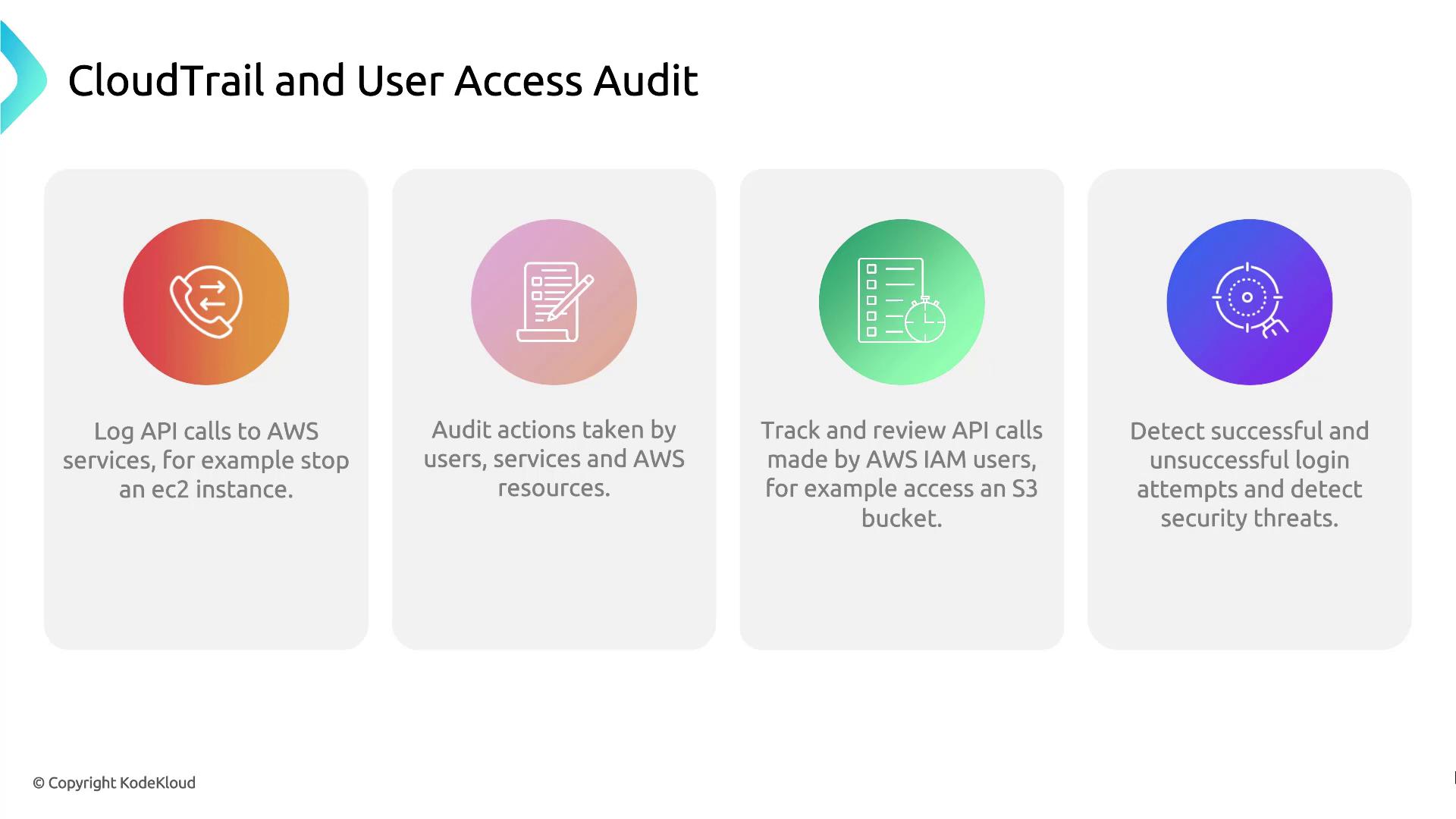
By analyzing CloudTrail logs, you can:
| Feature | Description |
|---|---|
| API call logging | Capture every AWS API request, whether from users, services, or resources. |
| Action auditing | Review who performed which operations on your resources. |
| API call tracking | Filter logs by IAM users, resources, or specific event names. |
| Security event detection | Identify both successful and failed login attempts. |
Demo: Use CloudTrail to Audit User Access
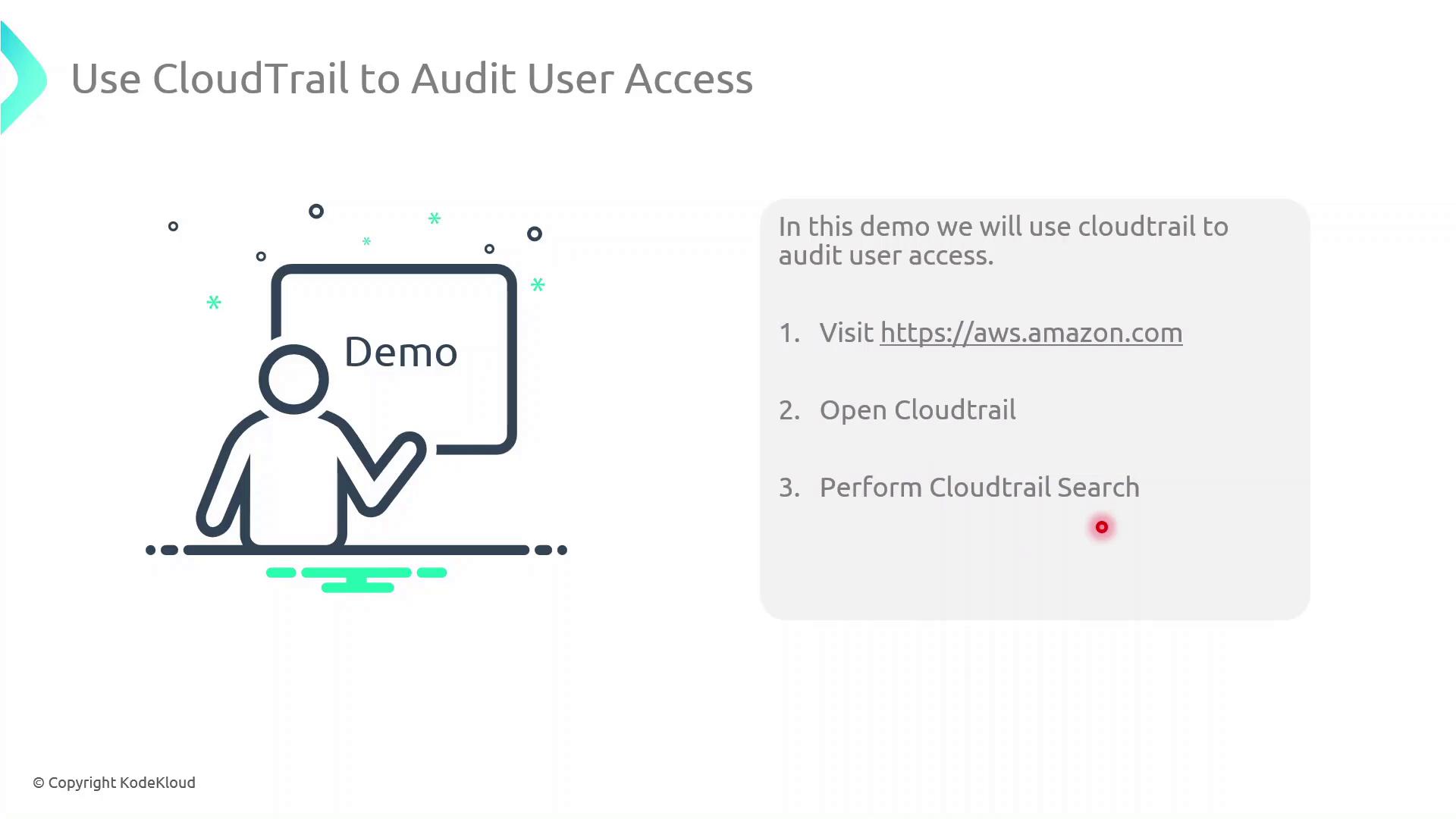
Follow these steps to search the event history in the CloudTrail console:
- Sign in to the AWS Management Console and open CloudTrail.
- In the sidebar, select Event history.
- Use the filter bar to narrow down by Event name, Username, or Resource name.
- Click an individual event to view details such as the request time, source IP, and whether the request succeeded or failed.
References
Explore the AWS CloudTrail console to audit API calls by inspecting event history and extracting key metadata.
In this lesson, you’ll explore the AWS CloudTrail console to audit API calls by inspecting event history. By the end, you’ll know how to navigate events, read their details, and extract key metadata.
Viewing Event History
- Sign in to the AWS Management Console and open CloudTrail.
- In the left navigation pane, select Event history.
You’ll see a searchable list of API events with the following details:
| Column | Description |
|---|---|
| Event name | The API action (for example, RunInstances) |
| Time | Timestamp when the action occurred |
| Username | IAM user or role that made the request |
| Event source | AWS service endpoint (e.g., ec2.amazonaws.com) |
| Resources | Affected resource types and identifiers |
Select an event (for example, RunInstances) to view its full record.
Event Summary
The Summary pane displays metadata for the selected event:
- Timestamp: When the API call occurred
- User identity: IAM user or role and access key
- Service: The AWS service that received the call
- Source IP: Originating IP address
- Region: AWS region of the operation
- Resources count: Number of resources referenced by the event
Below is a truncated JSON snippet of a RunInstances event:
```json theme={null} { "eventVersion": "1.08", "userIdentity": { "type": "IAMUser", "principalId": "AIDAZFDZ2ZUTSWJCHYKF", "arn": "arn:aws:iam::629470242021:user/kodekloud", "accountId": "629470242021", "accessKeyId": "ASIAZFDZ2ZUTSYABGGX", "userName": "kodekloud", "sessionContext": { "sessionIssuer": {}, "webIdFederationData": {}, "attributes": { "creationDate": "2023-10-08T17:21:45Z", "mfaAuthenticated": "false" } } }, "eventTime": "2023-10-08T17:50:24Z", "eventSource": "ec2.amazonaws.com", "eventName": "RunInstances" }
<Callout icon="lightbulb" color="#1CB2FE">
  The console shows the last 90 days of event history by default. For long-term retention, create a CloudTrail trail to deliver logs to an S3 bucket.
</Callout>

## Request Parameters and Response Elements

Scrolling down shows the inputs you passed to the API and AWS’s response. The example below illustrates:

* AMI ID and instance configuration
* Key pair, security group, and tags
* Network interfaces and instance state

```json  theme={null}
{
  "awsRegion": "us-east-2",
  "sourceIPAddress": "70.175.135.47",
  "userAgent": "AWS Internal",
  "requestParameters": {
    "instancesSet": {
      "items": [
        {
          "imageId": "ami-036f5574583e16426",
          "minCount": 1,
          "maxCount": 1,
          "keyName": "Ohio-Key"
        }
      ]
    }
  },
  "responseElements": {
    "instancesSet": {
      "items": [
        {
          "instanceId": "i-0123456789abcdef0",
          "instanceType": "t3.micro",
          "placement": {
            "availabilityZone": "us-east-2b"
          },
          "state": {
            "code": 0,
            "name": "pending"
          },
          "privateIpAddress": "172.31.29.166",
          "dnsName": "ip-172-31-29-166.us-east-2.compute.internal",
          "keyName": "Ohio-Key",
          "groupSet": {
            "items": [
              {
                "groupId": "sg-00ca240f71292feb2",
                "groupName": "Webserver_SG"
              }
            ]
          },
          "tagSet": {
            "items": [
              {
                "key": "Name",
                "value": "Server1"
              }
            ]
          },
          "networkInterfaceSet": {
            "items": [
              {
                "networkInterfaceId": "eni-0892be3483f983663",
                "subnetId": "subnet-d07cb873ce0ee06",
                "vpcId": "vpc-0fd1744d0f9c0fe7a",
                "attachment": {
                  "attachmentId": "eni-attach-07bbe98b3bf06adea",
                  "status": "attaching",
                  "attachTime": 1696787423000,
                  "deleteOnTermination": true,
                  "deviceIndex": 0,
                  "networkCardIndex": 0
                },
                "privateIpAddressesSet": {
                  "items": [
                    {
                      "privateIpAddress": "172.31.29.166",
                      "privateDnsName": "ip-172-31-29-166.us-east-2.compute.internal",
                      "primary": true
                    }
                  ]
                },
                "ipv6AddressesSet": {},
                "sourceDestCheck": true
              }
            ]
          }
        }
      ]
    }
  }
}
Additional CloudTrail Metadata
At the bottom of each event record, CloudTrail provides management-level details that aid traceability:
json  theme={null}
{
  "maintenanceOptions": {
    "autoRecovery": "default"
  },
  "privateDnsNameOptions": {
    "hostnameType": "ip-name",
    "enableResourceNameDnsARecord": true,
    "enableResourceNameDnsAAAARecord": false
  },
  "requestID": "b3116925-dea3-43fd-9b10-19932ce1925",
  "eventID": "e2f69382-7637-4deb-83ed-e6ee31cac1c4",
  "readOnly": false,
  "eventType": "AwsApiCall",
  "managementEvent": true,
  "recipientAccountId": "629470242021",
  "eventCategory": "Management",
  "sessionCredentialFromConsole": "true"
}
cloudtrail:LookupEvents permission to view this data.
Next Steps
- Read the AWS CloudTrail User Guide for advanced configurations.
- Integrate CloudTrail logs with Amazon Athena to run custom queries.
- Enable AWS Config to monitor resource configuration changes over time.