Users
Learn to set up IAM users and manage their access to AWS services through the Management Console, AWS CLI, or SDKs.
In this lesson, you’ll learn how to set up IAM users and grant them access to AWS services. An IAM user can interact with AWS through the Management Console, AWS CLI, or SDKs, based on the permissions you attach.
Why IAM User Permissions Matter
AWS Services and CLI Examples
| Service | Description | CLI Example |
|---|---|---|
| Amazon EC2 | Virtual machines in the cloud | aws ec2 describe-instances |
| Amazon RDS | Managed relational databases | aws rds describe-db-instances |
| Amazon EKS | Kubernetes clusters | aws eks list-clusters |
| AWS Lambda | Serverless compute for code | aws lambda list-functions |
| Amazon DynamoDB | Fast NoSQL database | aws dynamodb list-tables |
| Amazon S3 | Object storage for files | aws s3 ls s3://your-bucket |
| Elastic Load Balancing (ELB) | Distribute incoming traffic | aws elb describe-load-balancers |
| Amazon Route 53 | Scalable DNS service | aws route53 list-hosted-zones |
| Amazon VPC | Isolated virtual networks | aws ec2 describe-vpcs |
| Amazon SNS | Pub/Sub messaging and notifications | aws sns list-topics |
Methods to Attach IAM Policies
You can grant AWS permissions by attaching policies to:
- IAM Users: Directly attach policies to the user.
- IAM Groups: Assign users to groups; they inherit group policies.
- IAM Roles: Allow users or services to assume roles with temporary credentials.
Creating an IAM User
1. Using the AWS Management Console
- Sign in to the AWS Management Console.
- Navigate to IAM > Users > Add users.
- Enter a User name and select the access type:
- Programmatic access (for AWS CLI/SDK).
- AWS Management Console access (for web console).
- Click Next: Permissions and choose how to assign permissions:
- Add user to group
- Attach existing policies directly
- Copy permissions from existing user
- Review and create the user. Download or copy the Access Key ID and Secret Access Key.
2. Using the AWS CLI
Create an IAM user:
```bash theme={null} aws iam create-user --user-name alice
Generate access keys for programmatic access:

```bash  theme={null}
aws iam create-access-key --user-name alice
Attach a policy (e.g., AmazonS3ReadOnlyAccess):
```bash theme={null} aws iam attach-user-policy \ --user-name alice \ --policy-arn arn:aws:iam::aws:policy/AmazonS3ReadOnlyAccess
<Callout icon="triangle-alert" color="#FF6B6B">
Store your Access Key ID and Secret Access Key securely. Treat them like password credentials.
</Callout>
## Next Steps
After creating IAM users and attaching policies, consider:
* Enforcing Multi-Factor Authentication (MFA) for console users.
* Rotating access keys regularly.
* Applying the principle of least privilege.
## Links and References
* [IAM Users Documentation](https://docs.aws.amazon.com/IAM/latest/UserGuide/id_users.html)
* [AWS CLI IAM Commands](https://docs.aws.amazon.com/cli/latest/reference/iam/)
* [Best Practices for IAM](https://docs.aws.amazon.com/IAM/latest/UserGuide/best-practices.html)
---
> This tutorial teaches how to create an IAM user in AWS, verify console access, and configure AWS CLI credentials.
In this tutorial, you’ll learn how to create a new IAM user in AWS, verify console access, and configure AWS CLI credentials using AWS CloudShell. We’ll use `john` as our example user.
<Callout icon="lightbulb" color="#1CB2FE">
You must be signed in to the AWS Management Console with an account or IAM user that has administrator privileges.
</Callout>
***
## 1. Access the IAM Console
1. Sign in to the [AWS Management Console](https://aws.amazon.com/console/).
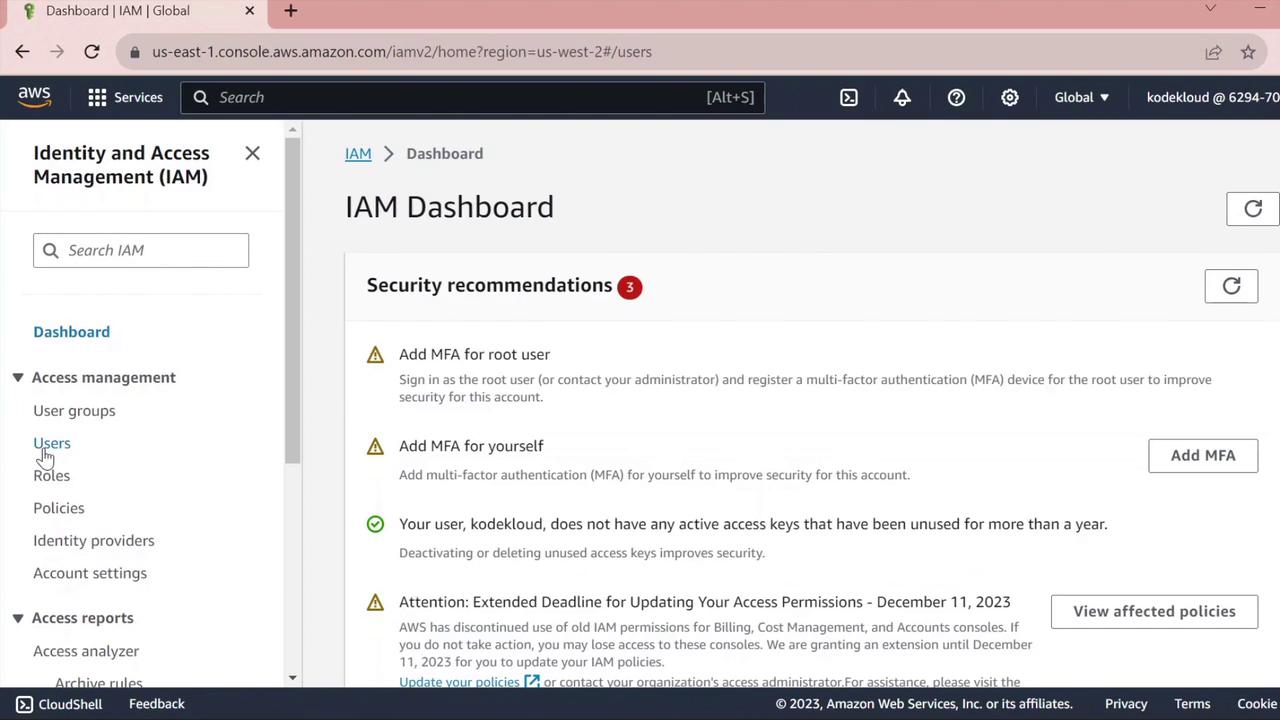
2. In the search bar, type **IAM** and select **Identity and Access Management**.
3. On the IAM dashboard, review any security recommendations (e.g., enabling MFA).
<Frame>
</Frame>
4. In the left navigation pane, click **Users** to view existing IAM users.
***
## 2. Create a New IAM User
1. Click **Add users**.
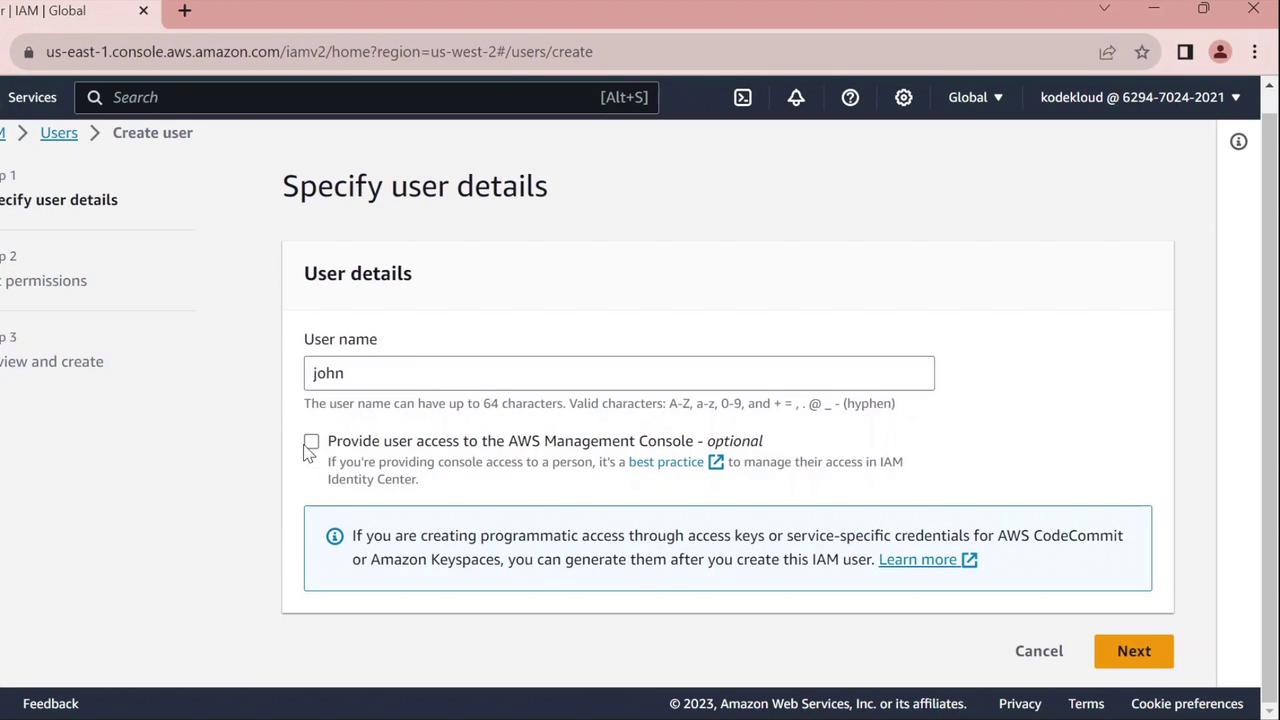
2. Enter **john** as the **User name**.
3. Under **Select AWS access type**, choose one or both of the following:
| Access Type | Description |
| ----------------------------- | --------------------------------------------- |
| AWS Management Console access | Enables web console sign-in |
| Programmatic access | Generates access keys for CLI/SDK interaction |
<Frame>
</Frame>
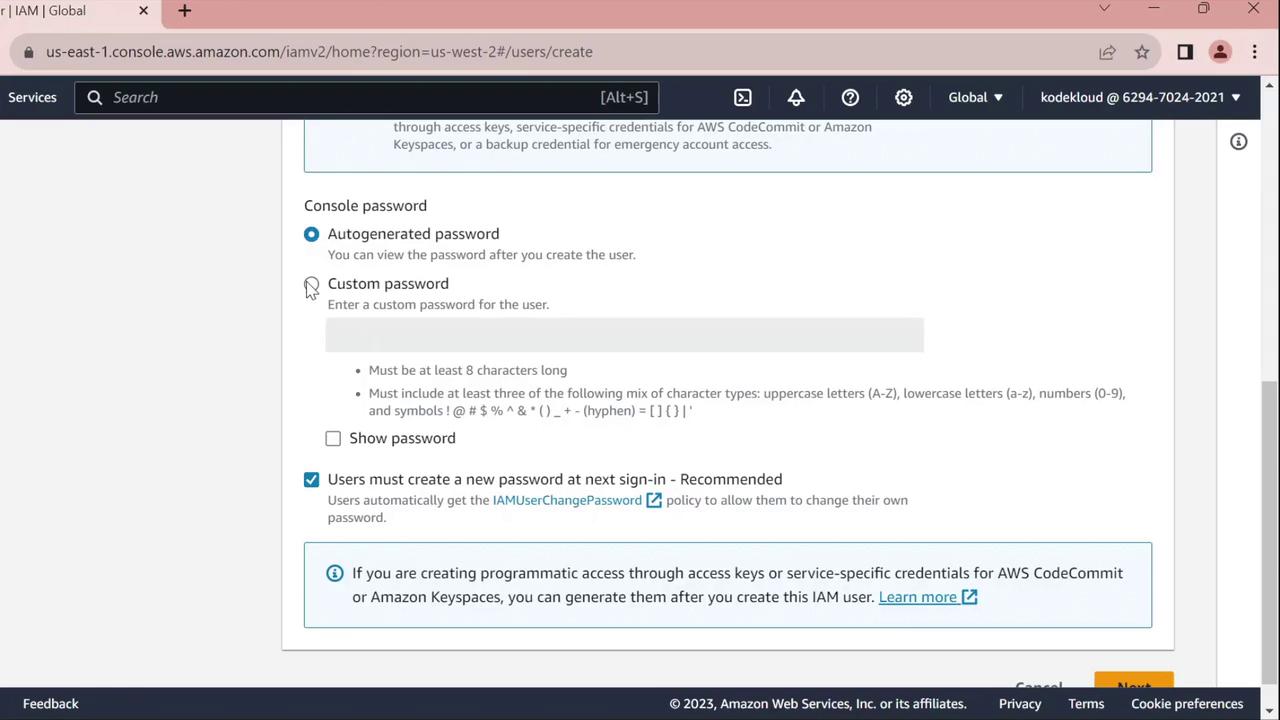
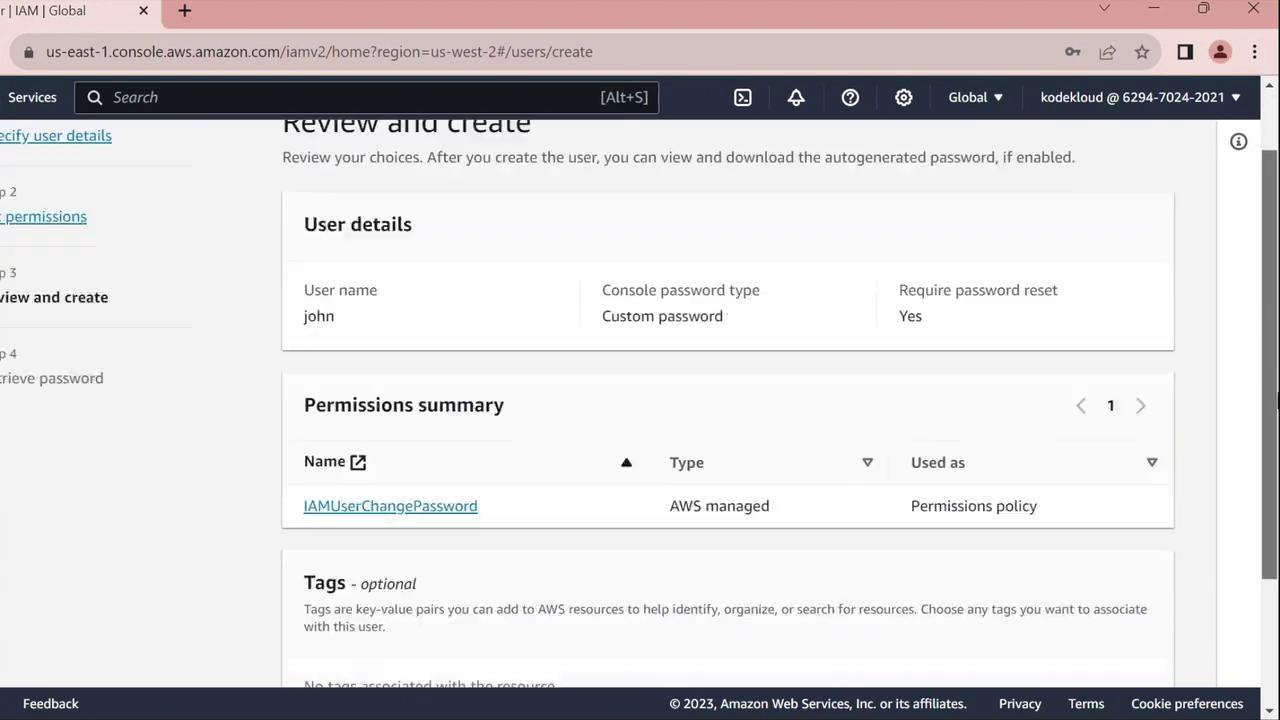
4. For **Console password**, select **Custom password** and enter your desired password.
<Frame>
</Frame>
5. Enable **Require password reset** to force `john` to set a new password at first sign-in.
<Frame>
</Frame>
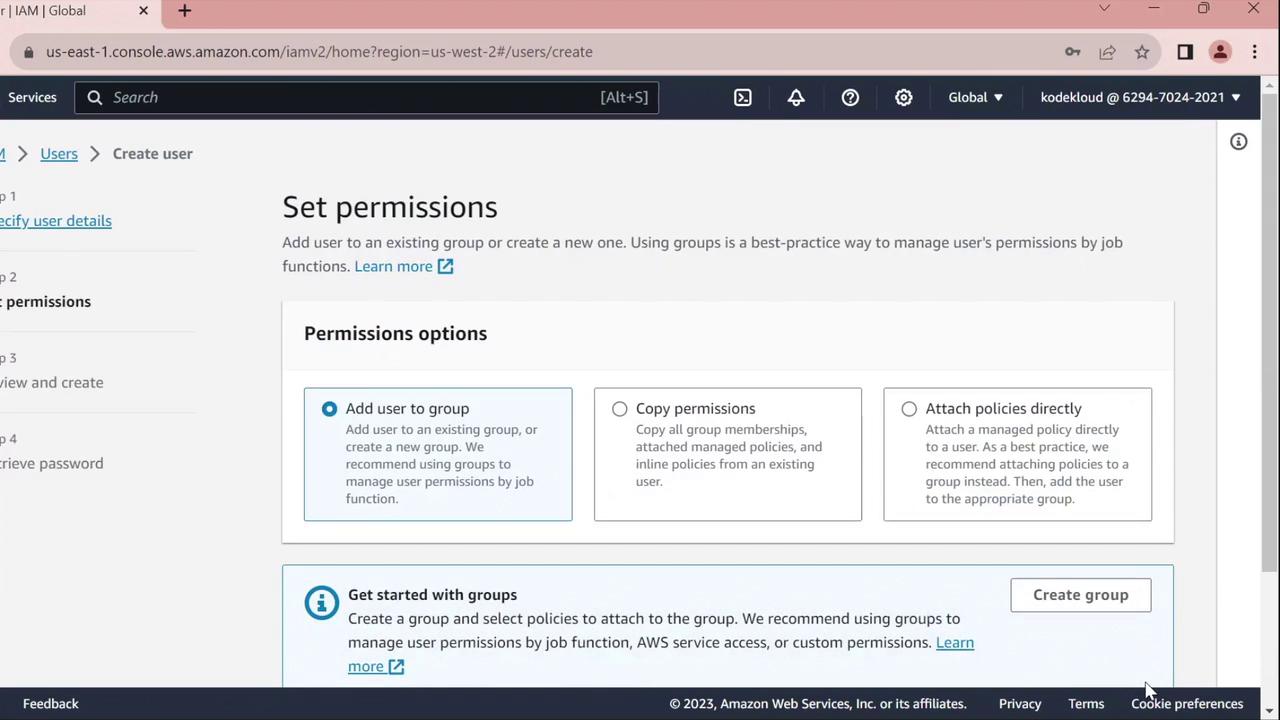
6. On the **Set permissions** page, assign policies or skip this step to configure permissions later.
7. Click **Next** until you reach the **Review** page, verify all settings, then click **Create user**.
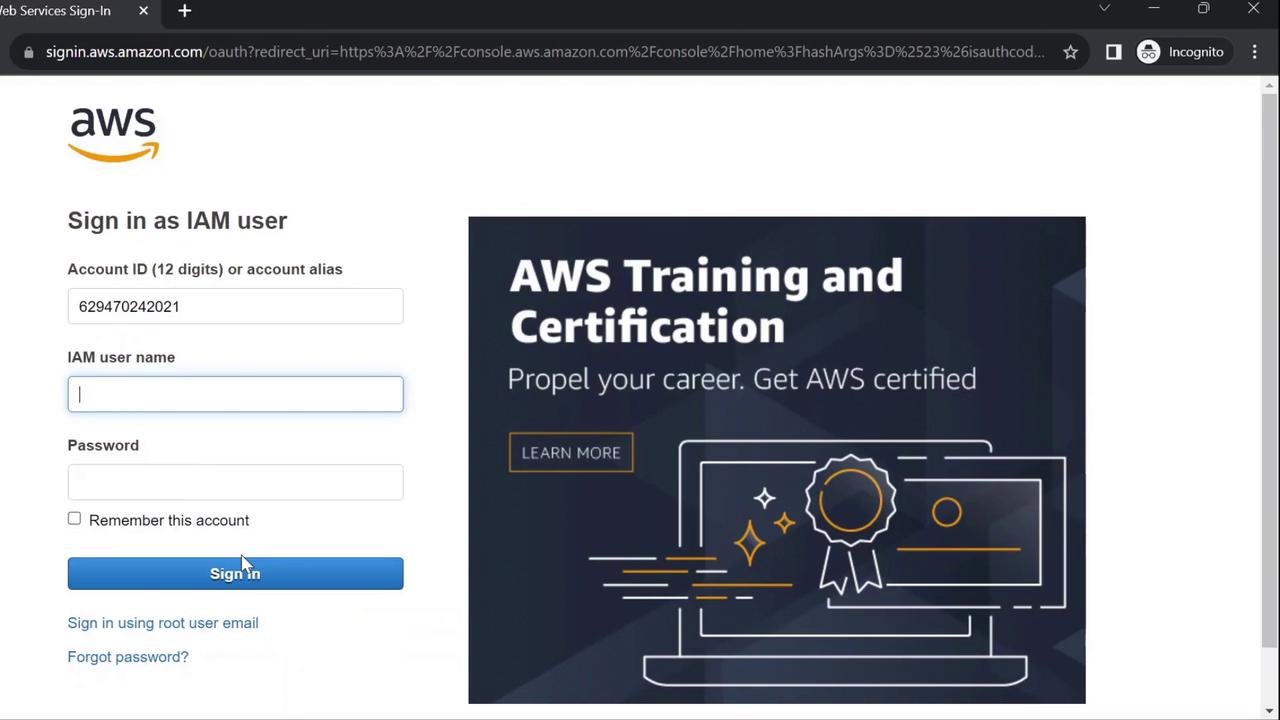
8. Choose **Return to users**.
<Frame>
</Frame>
***
## 3. Test the Console Sign-In
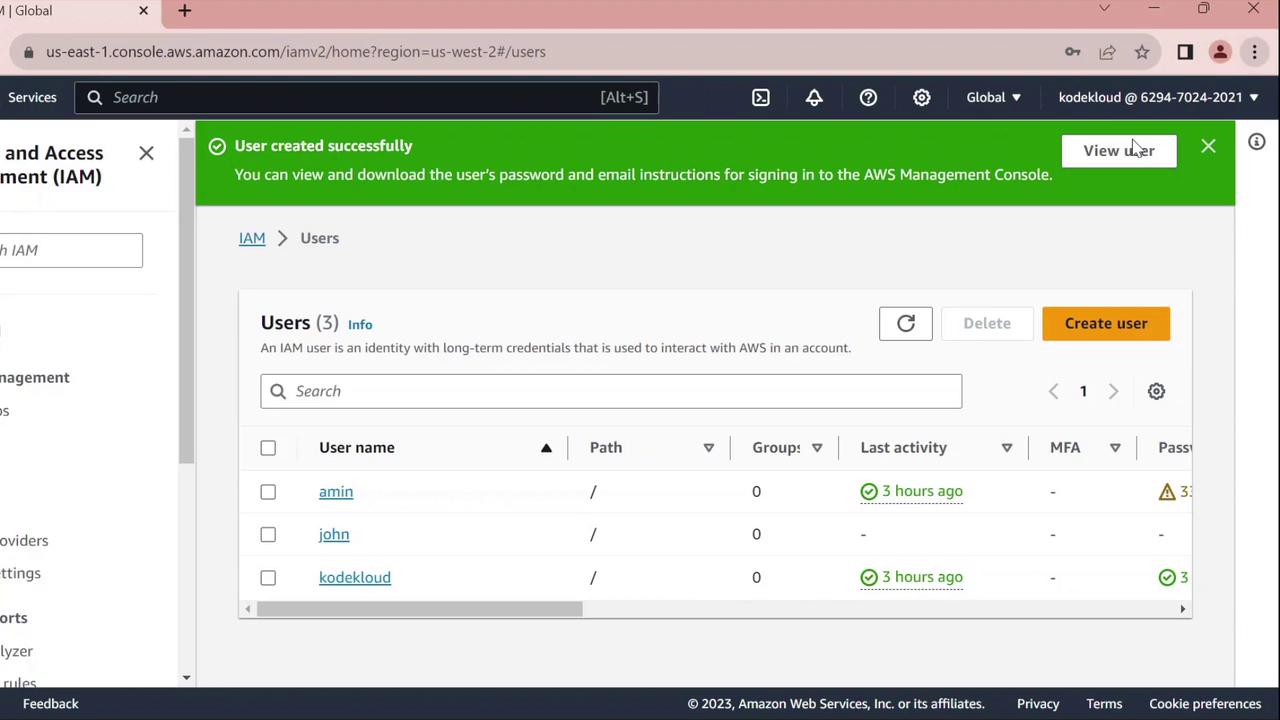
1. Open a private/incognito browser window.
2. Navigate to [https://aws.amazon.com](https://aws.amazon.com) and click **Sign In**.
3. Select **IAM user**, enter your AWS account ID, then click **Next**.
4. Provide **Username**: `john` and the initial password you set.
<Frame>
</Frame>
5. You’ll be prompted to change the password:
<Frame>
</Frame>
6. Enter the old password, choose a new one, and confirm.
<Frame>

</Frame>
After confirmation, you will be signed in as `john`.
***
## 4. Configure AWS CLI for the New User
Next, we’ll set up AWS CLI credentials in CloudShell for the `john` profile.
1. From the AWS Console, open **CloudShell**.
2. Verify your current identity (should show your admin user, e.g., `kodekloud`):
```bash theme={null}
aws sts get-caller-identity
```json theme={null} { "UserId": "AIDAZFD2ZUTSVCJWCHYKF", "Account": "629470240221", "Arn": "arn:aws:iam::629470240221:user/kodekloud" }
3. Create access keys for `john`:
* In IAM Console, go to **Users** > **john**.
* Select the **Security credentials** tab.
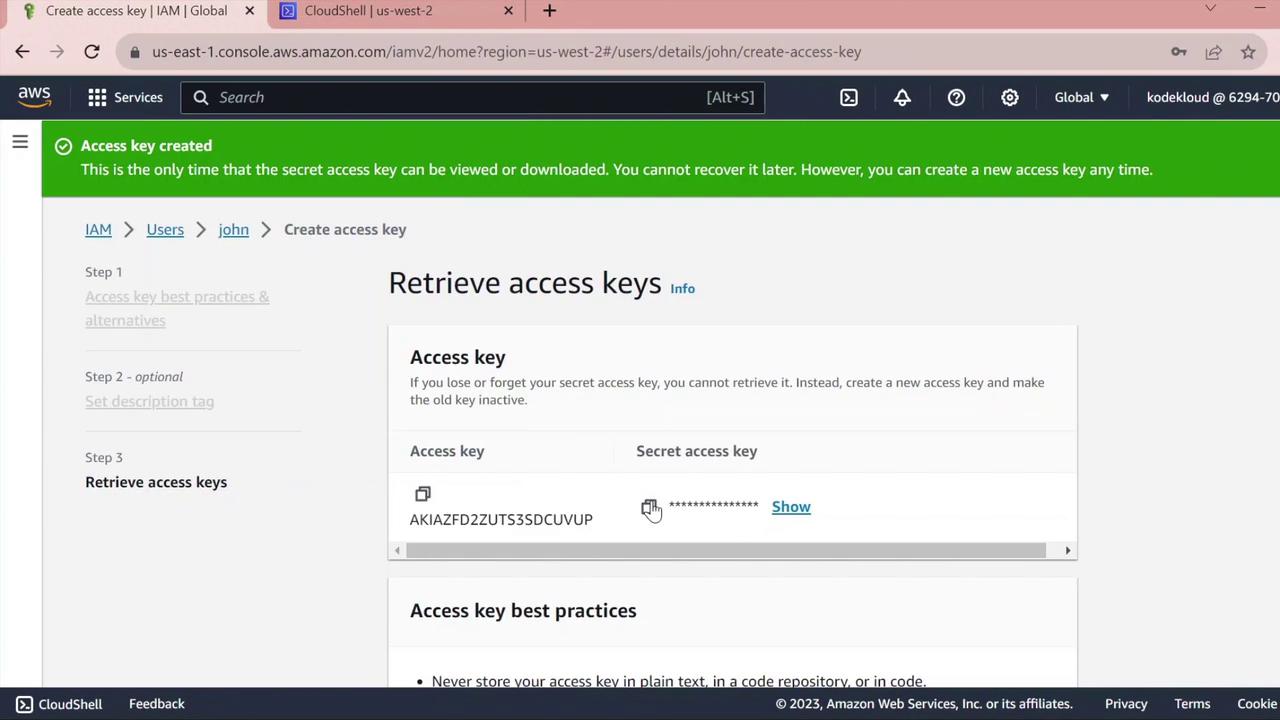
* Under **Access keys**, click **Create access key**.
* For **Use case**, pick **Command line interface** and proceed.
* Copy the **Access key ID** and **Secret access key**.
<Frame>
</Frame>
<Callout icon="triangle-alert" color="#FF6B6B">
Keep the secret access key confidential. Do not commit it to version control or share it.
</Callout>
4. Back in CloudShell, configure a dedicated profile:
```bash theme={null}
aws configure --profile john
When prompted, enter:
- AWS Access Key ID:
<paste access key ID> - AWS Secret Access Key:
<paste secret key> - Default region name:
us-west-2(or your preferred region) -
Default output format: (leave blank or choose
json) -
Validate the
johnprofile:
```bash theme={null} aws sts get-caller-identity --profile john
```json  theme={null}
{
  "UserId": "AIDAZFD2ZUTS3DCUVP",
  "Account": "629470240221",
  "Arn": "arn:aws:iam::629470240221:user/john"
}
You have now successfully created an IAM user, tested console sign-in, and configured AWS CLI access for john.