Security Groups
This article explains the differences between AWS Security Groups and Network ACLs, including their configurations, behaviors, and best practices for securing a VPC.
In this lesson, we’ll cover how firewalls work, then explore AWS implementations: Network ACLs (NACLs) and Security Groups. You’ll learn the differences between stateless and stateful filtering, how to configure rules, and best practices for securing your VPC.
Firewalls: Inbound and Outbound Traffic
A firewall monitors traffic flows and only allows connections matching predefined rules. Each rule controls:
- Inbound: Connections to your resource
- Outbound: Connections from your resource
Stateless Firewalls
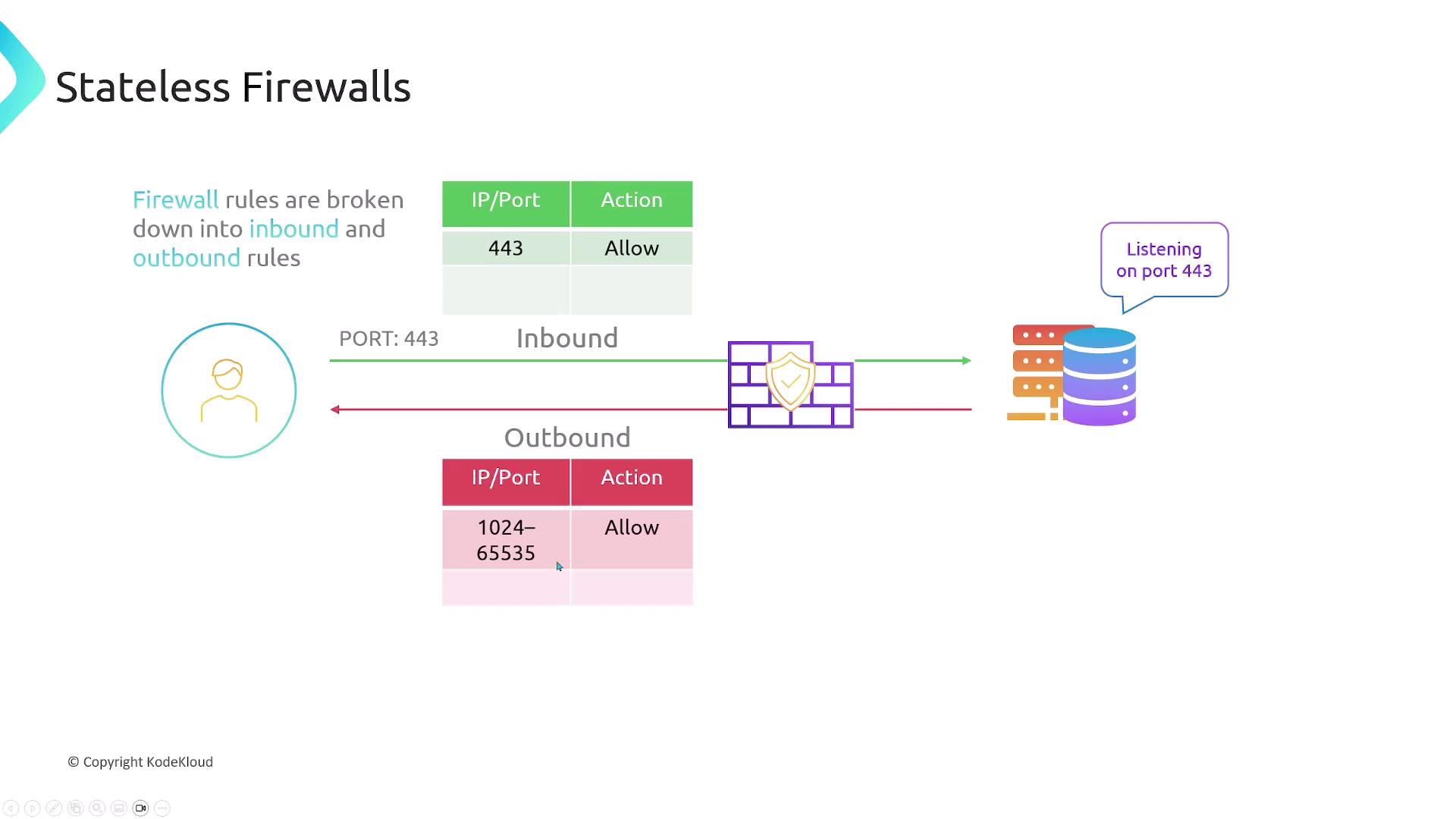
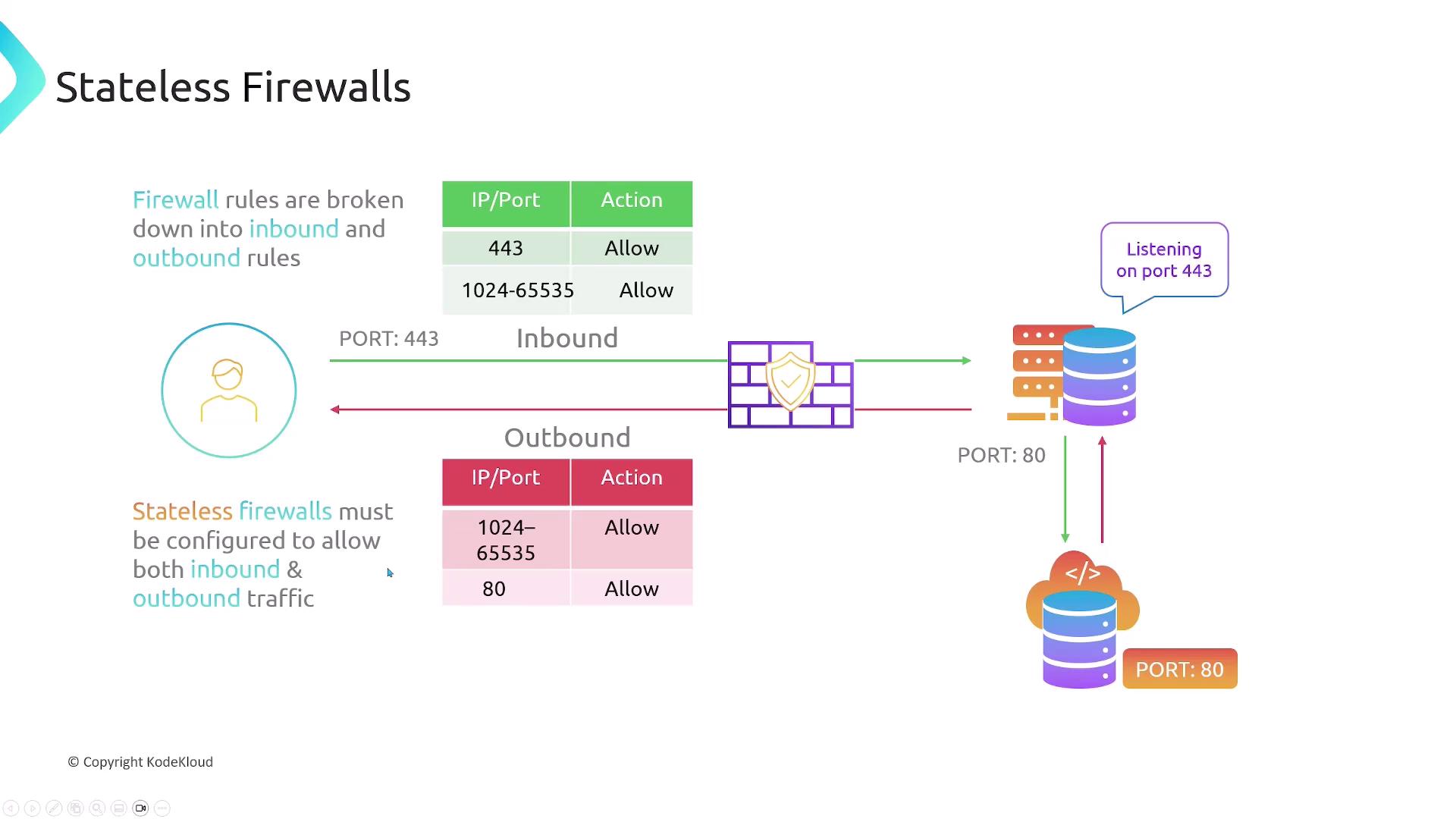
Stateless firewalls treat inbound and outbound traffic independently. You must explicitly allow both directions for every connection.
For example, a web server listening on HTTPS (port 443) needs:
- Ingress: Allow TCP 443
- Egress: Allow TCP 1024–65535 (ephemeral ports)
If the server also fetches updates over HTTP (port 80):
- Egress: Allow TCP 80
- Ingress: Allow TCP 1024–65535
Stateful Firewalls
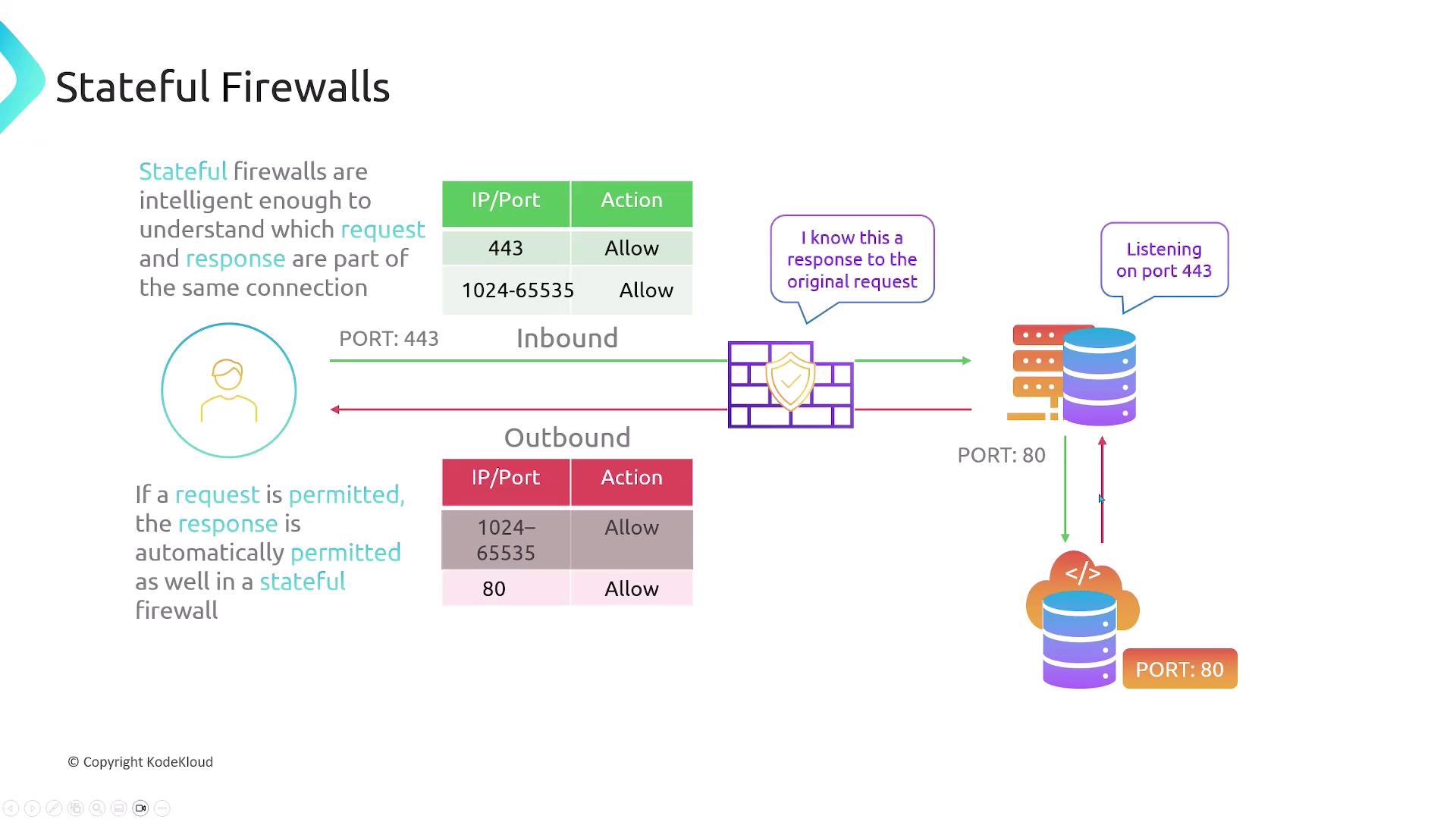
Stateful firewalls track connection state. Once you allow an incoming request, the outbound response is automatically permitted (and vice versa).
Using the same web server example:
- Ingress: Allow TCP 443
- Egress: No rule needed for ephemeral ports
- Egress: Allow TCP 80
- Ingress: No rule needed for ephemeral ports
AWS Network ACLs (NACLs)
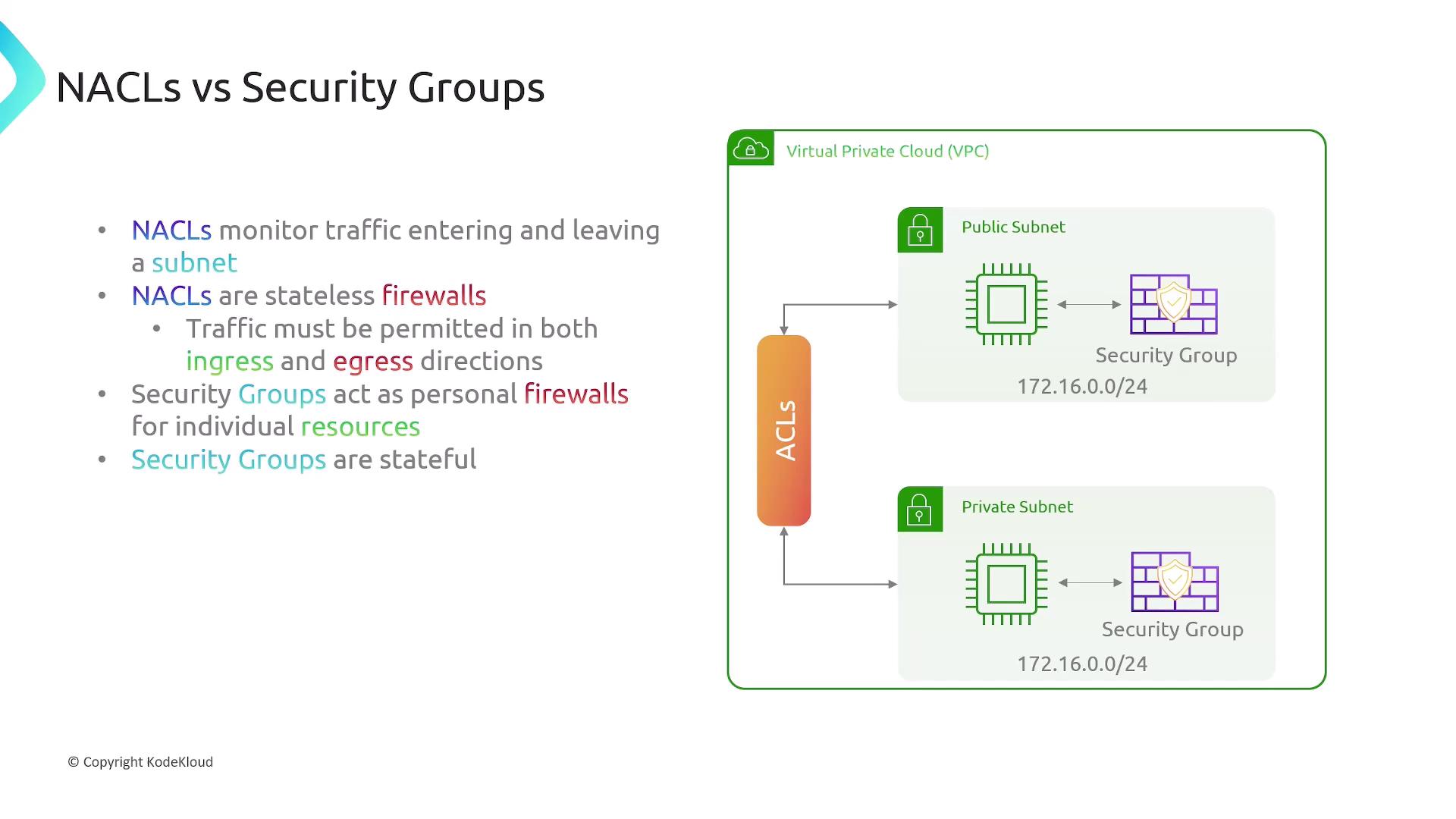
A Network ACL filters traffic entering and leaving subnets. Key points:
- Every subnet must be associated with exactly one NACL.
- A NACL can apply to multiple subnets.
- NACLs are stateless: separate ingress/egress rules.
- They do not filter intra-subnet traffic.

Comparing NACLs vs. Security Groups
| Feature | Network ACL (Stateless) | Security Group (Stateful) |
|---|---|---|
| Scope | Subnet-level | Instance/ENI-level |
| Direction | Ingress & Egress rules (explicit) | Ingress rules only (egress auto for responses) |
| Default Behavior | Default rule: Deny all | Default egress: Allow all; ingress: Deny all |
| Rule Actions | Allow or Deny | Allow only (implicit deny) |
| Rule Evaluation Order | By rule number (lowest first) | All rules are evaluated; no priority |
| Stateful Tracking | No | Yes |
AWS Security Groups
Security Groups act as stateful firewalls for individual resources (EC2, RDS, ENIs, etc.):
- Only the initiating direction is needed; return traffic is auto-allowed.
- Rules apply per resource, not per subnet.
Configuring Security Group Rules
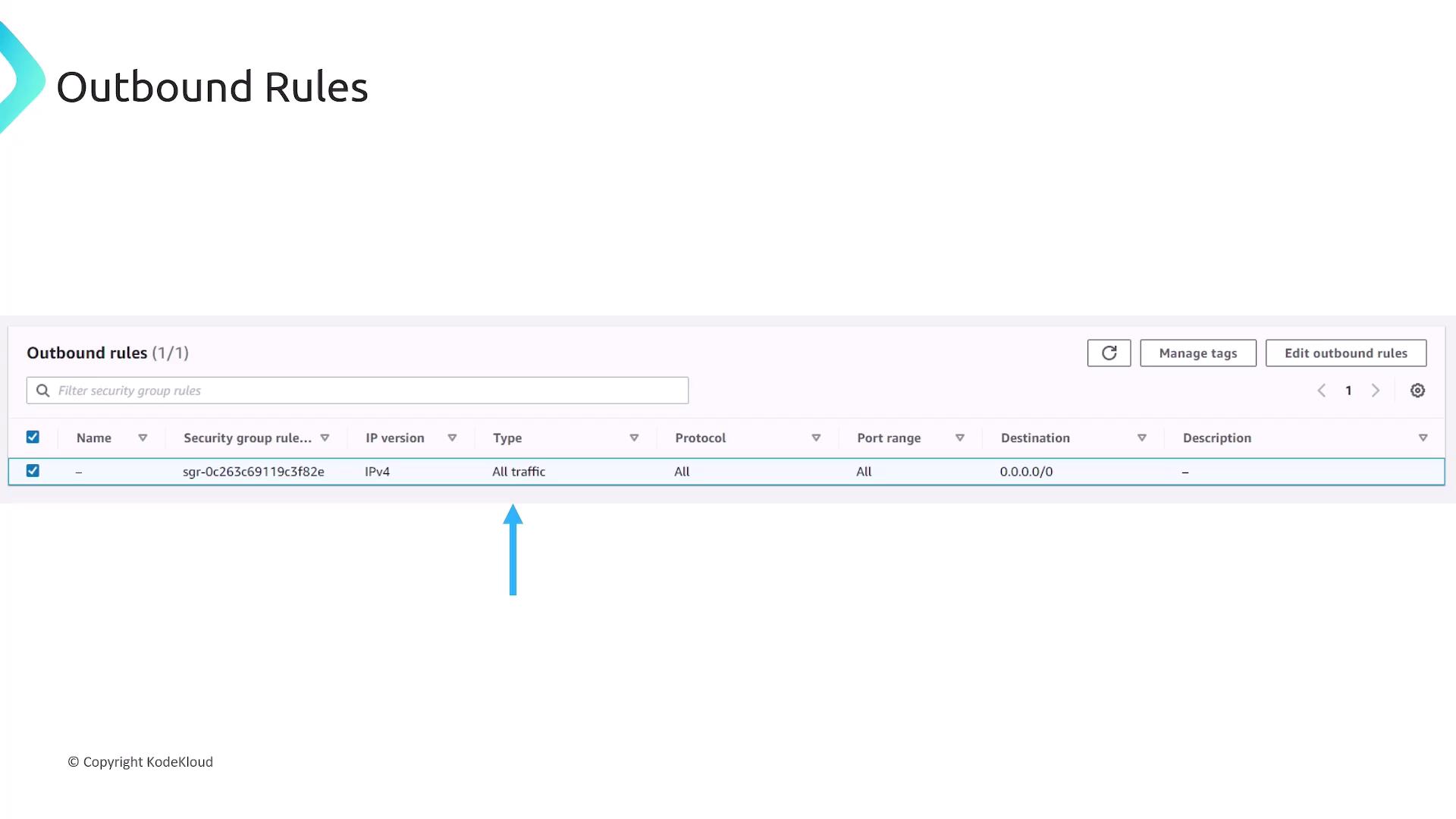
In the AWS Console, you define Inbound and Outbound rules separately. The fields are identical but apply in opposite directions.
Inbound rules
┌─────────┬─────────┬───────────┬──────────────┬────────────┐
│ Type    │ Protocol│ Port Range│ Source       │ Description│
├─────────┼─────────┼───────────┼──────────────┼────────────┤
│ HTTP    │ TCP     │ 80        │ 0.0.0.0/0    │ (optional) │
└─────────┴─────────┴───────────┴──────────────┴────────────┘
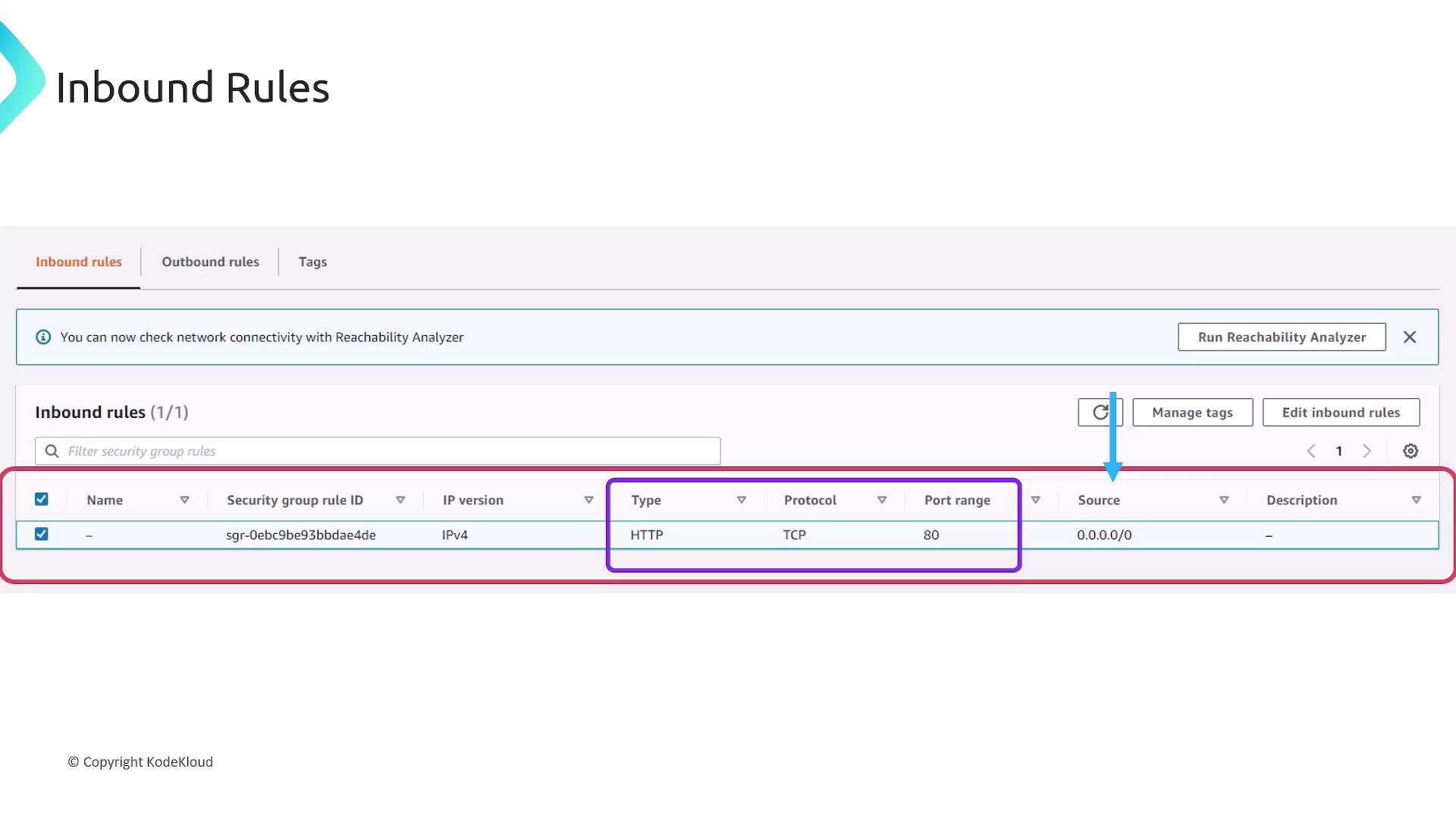
Fields you’ll configure:
- Type: Predefined (HTTP, SSH) or Custom
- Protocol: TCP, UDP, ICMP, or All
- Port Range: Single port or port range
- Source/Destination: CIDR block or security group ID
- Description: Free-form text
Outbound rules follow the same format:
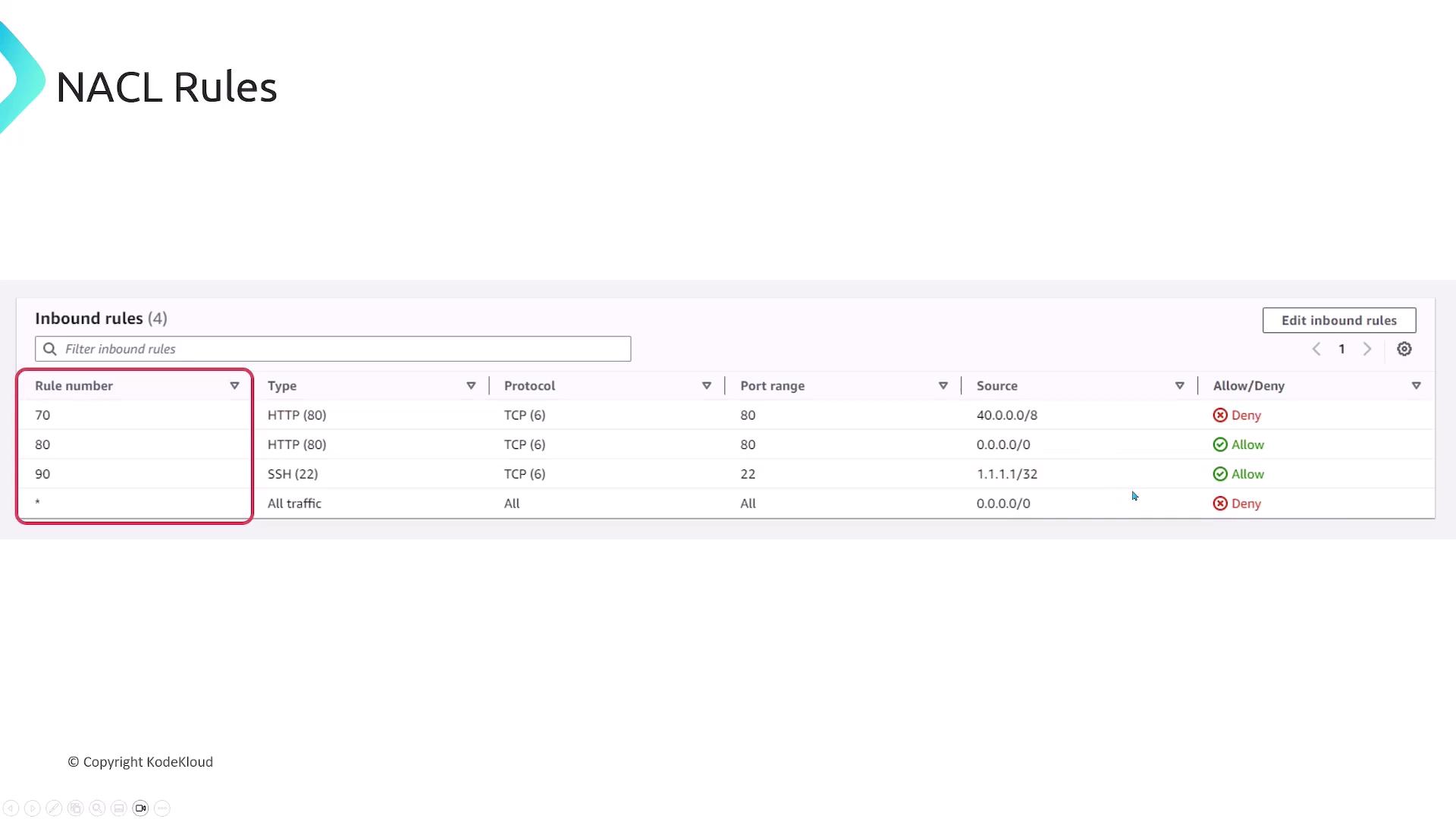
NACL Rules Example
Every NACL rule includes a rule number (priority), type, protocol, port range, CIDR, and an Allow/Deny action. Rules are processed in ascending order.
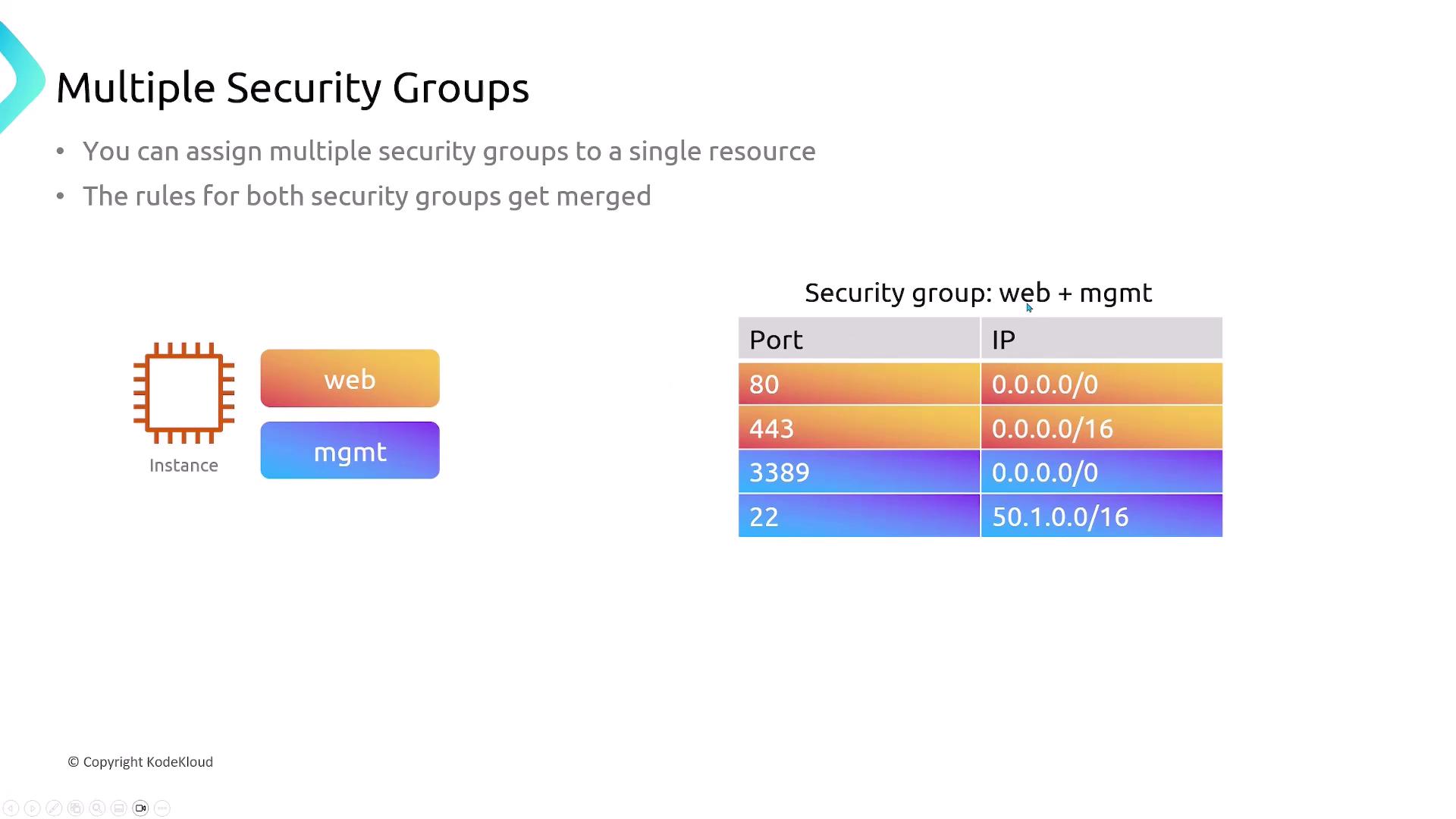
Multiple Security Groups per Resource
You can attach multiple Security Groups to a single resource. AWS merges all allow rules into one effective policy.
Default Behaviors and Associations
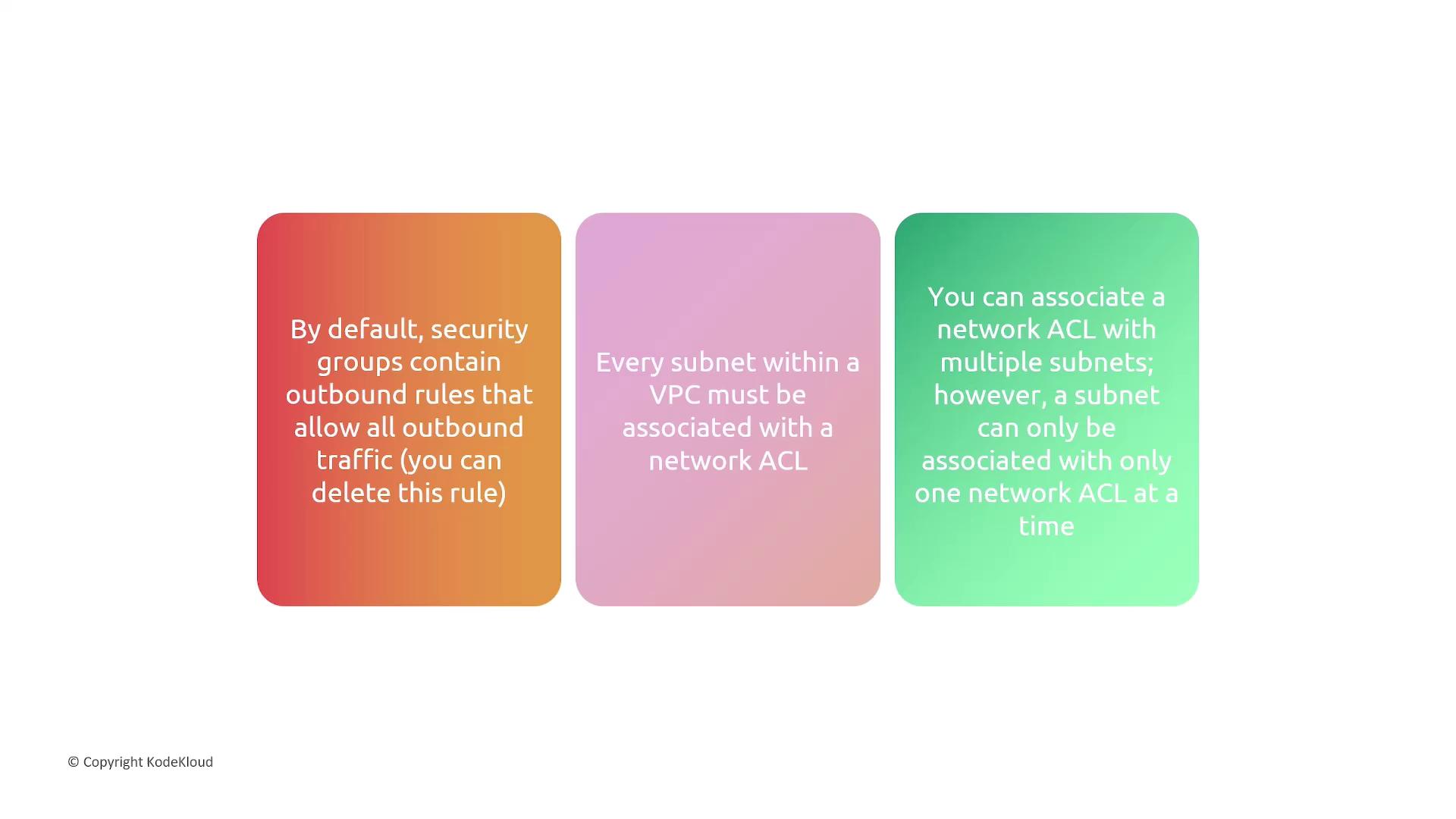
- Security Groups: Default egress allows all traffic.
- NACLs: Each subnet needs one NACL; one-to-many relationship.
- Associations: Subnet ↔ one NACL; NACL ↔ many subnets.
Traffic Exempt from NACL Filtering
Certain AWS control-plane and metadata endpoints bypass NACLs:

- Amazon DNS
- DHCP
- EC2 Instance Metadata
- ECS Task Metadata
- Windows License Activation
- Amazon Time Sync Service
- Reserved VPC Router IPs
Summary
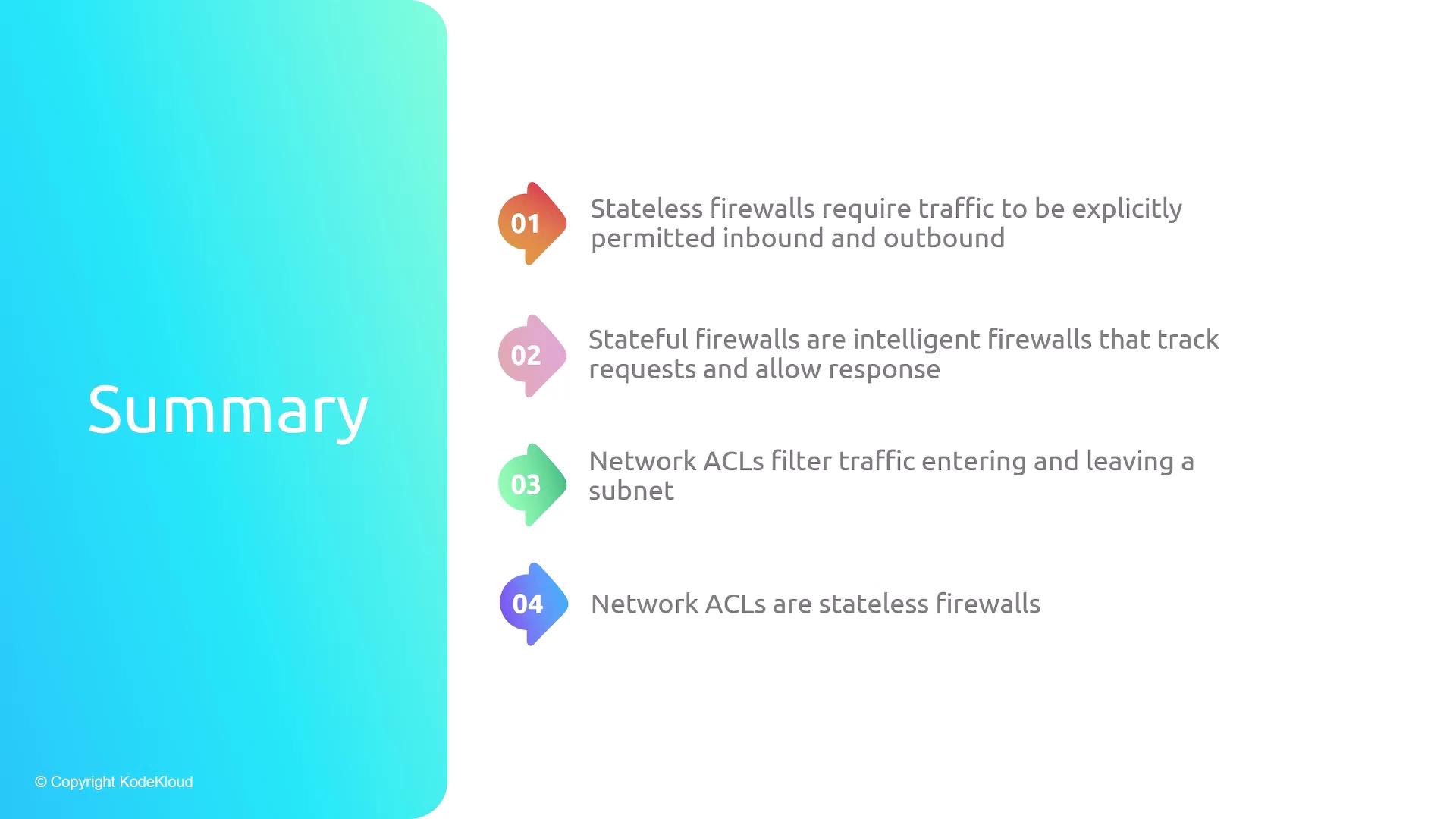
- Stateless Firewalls: Require explicit ingress and egress rules.
- Stateful Firewalls: Automatically permit response traffic.
- NACLs: Stateless, subnet-level, Allow/Deny capabilities.
- Security Groups: Stateful, resource-level, Allow-only rules.
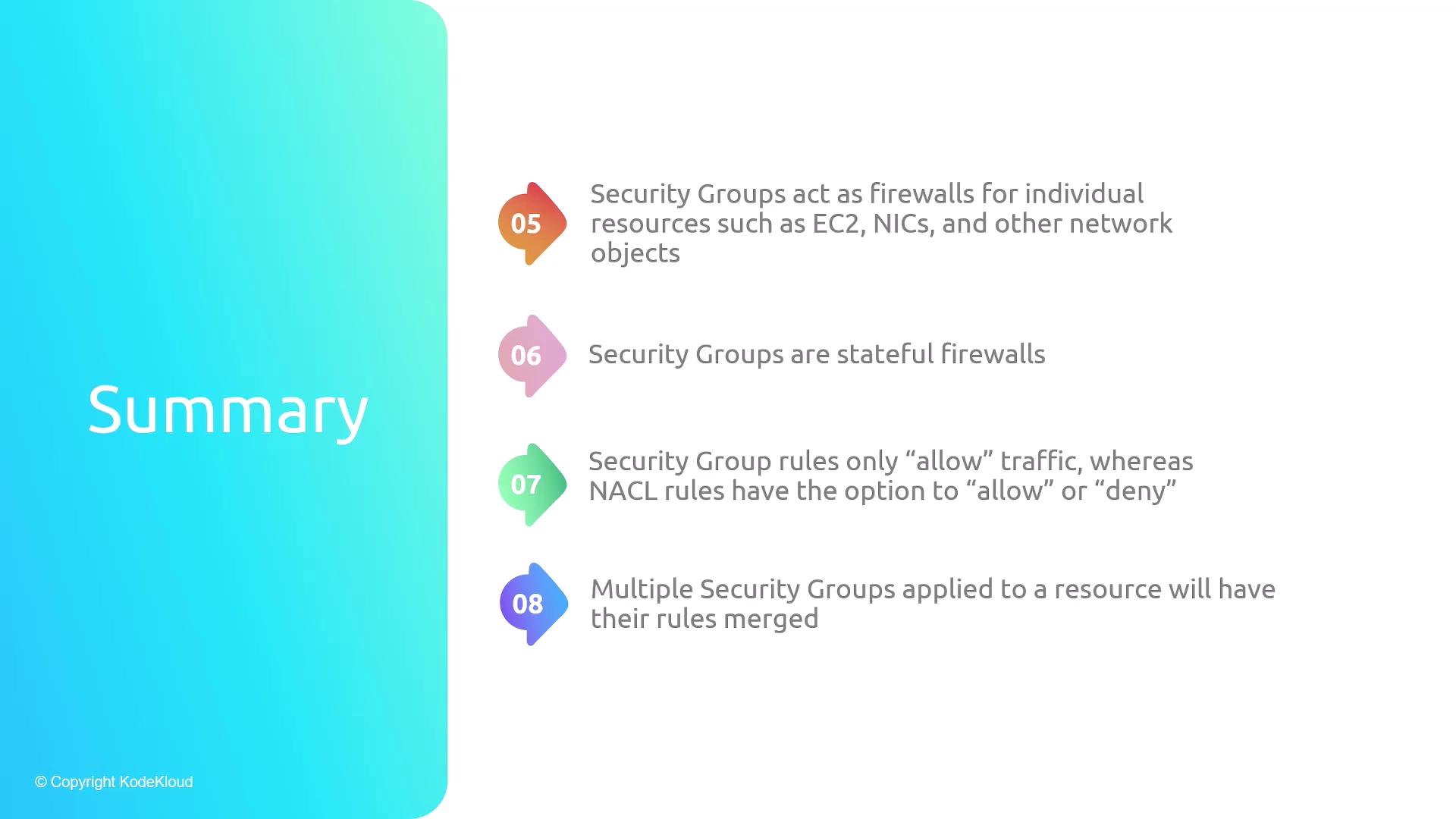
- Applied per ENI/instance; rules are merged across groups.
- Outbound is wide-open by default.
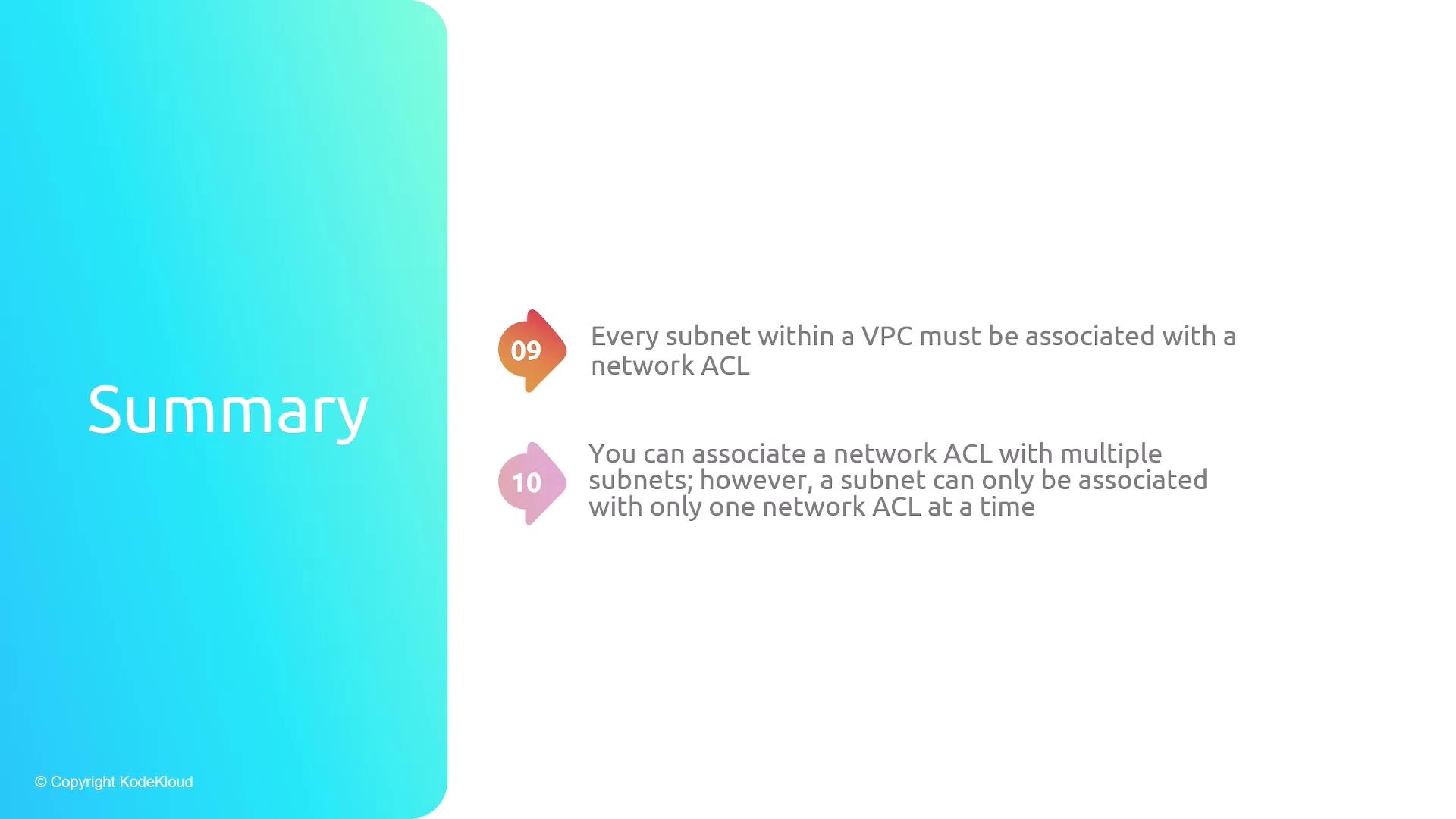
- Each subnet requires exactly one NACL.
- Rules evaluated in numeric order, ending with a catch-all rule.
Links and References
This lesson explores securing AWS resources using Security Groups and Network ACLs, covering EC2 instance launch, traffic control, and best practices for network security.
In this lesson, we’ll explore how to secure AWS resources using Security Groups and Network ACLs (NACLs). You’ll learn to:
- Launch an EC2 instance
- Configure Security Groups to control inbound/outbound traffic
- Demonstrate stateful behavior
- Split and reuse groups for modular access control
- Reference Security Groups in other rules
By the end, you’ll have hands-on experience with AWS best practices for network security.
Launching the EC2 Instance
Start by launching an EC2 instance named server-one with the default Amazon Linux 2 AMI.

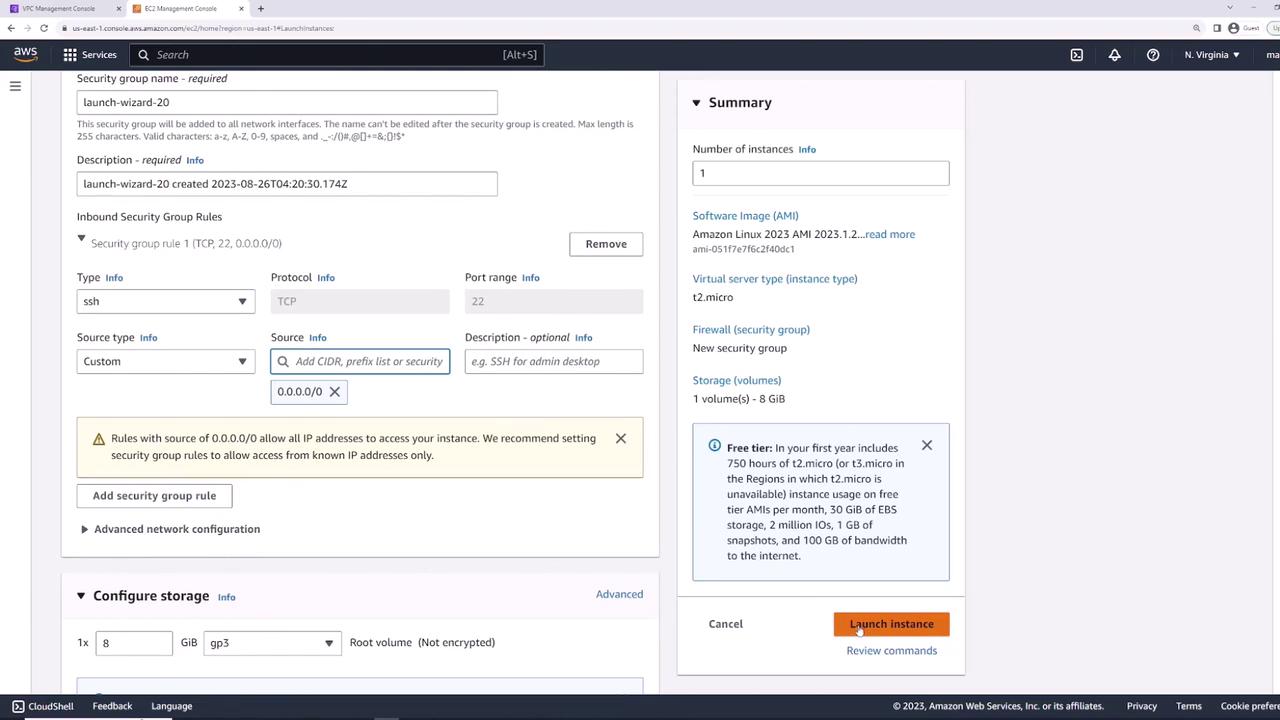
On the Networking page, choose your VPC. AWS automatically creates a default Security Group allowing inbound SSH (TCP 22) from 0.0.0.0/0. You can restrict this later.
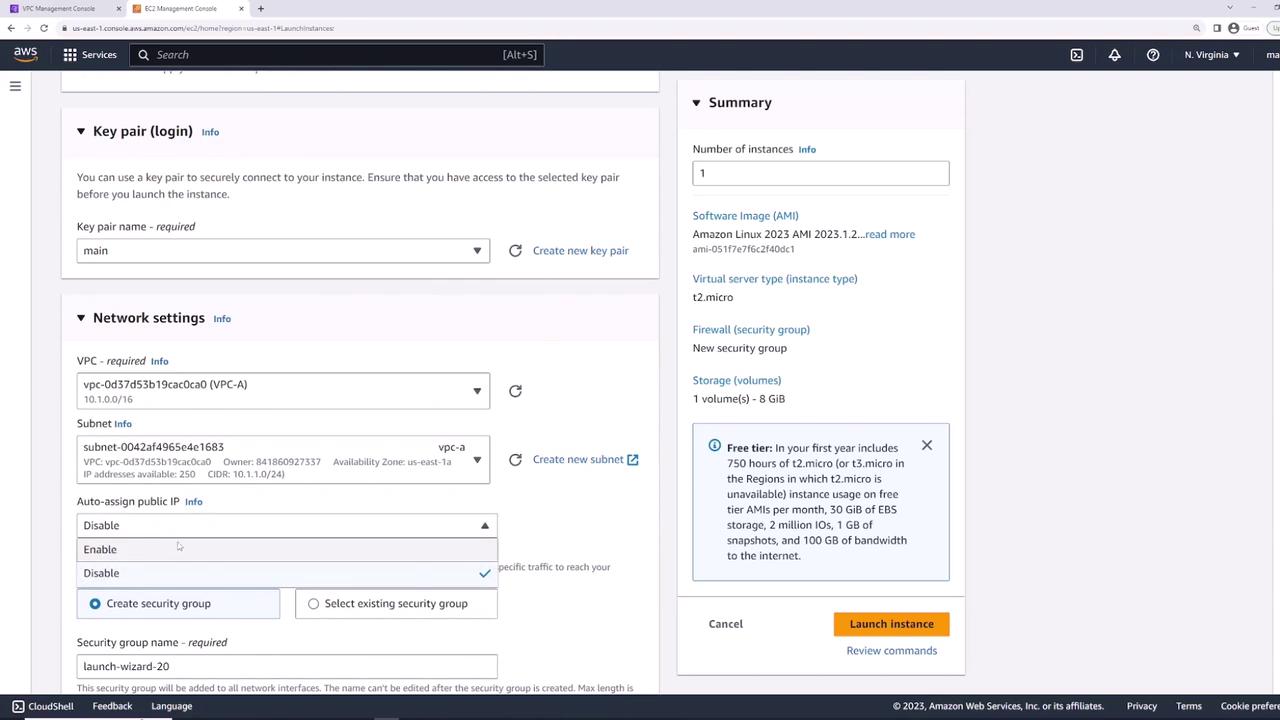
Review your settings and click Launch.
Verifying Initial Connectivity
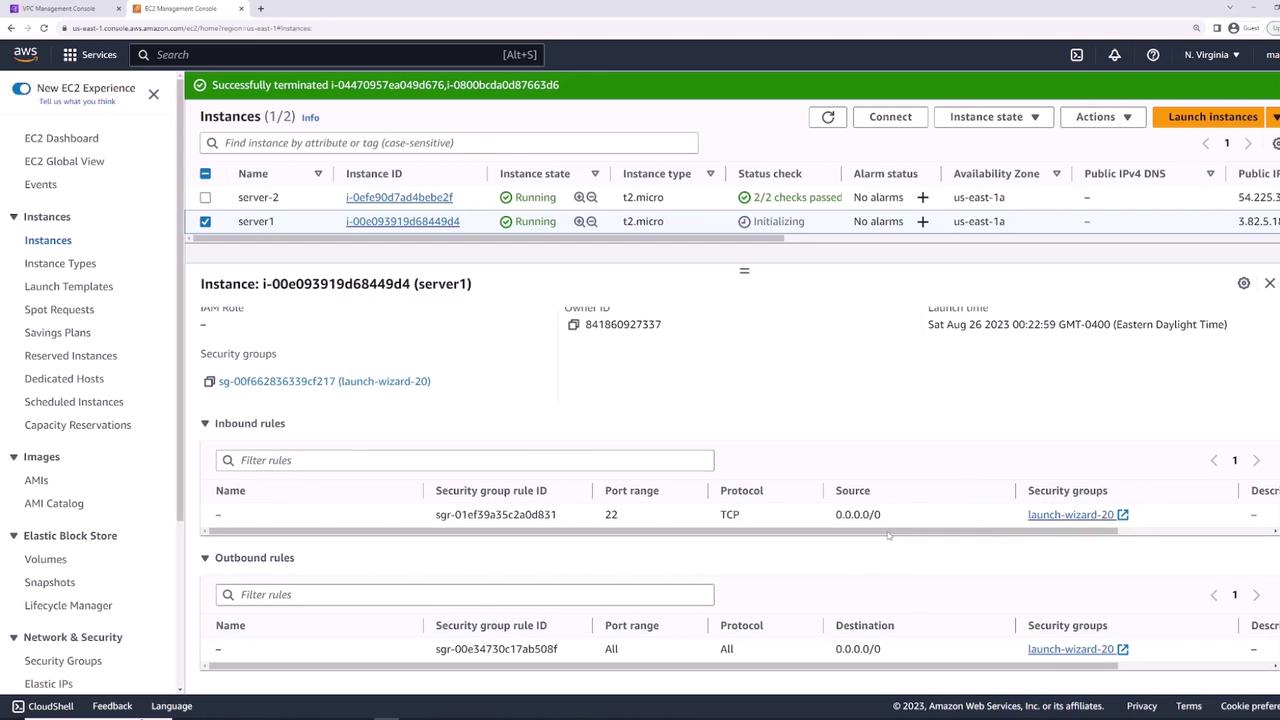
Once server-one is in the running state, select it and open the Security tab. You should see:
- Inbound: SSH (TCP 22) from
0.0.0.0/0 - Outbound: All traffic to
0.0.0.0/0
Connect via SSH to confirm:
If you see the EC2 prompt, SSH is working.
Blocking All Inbound Traffic
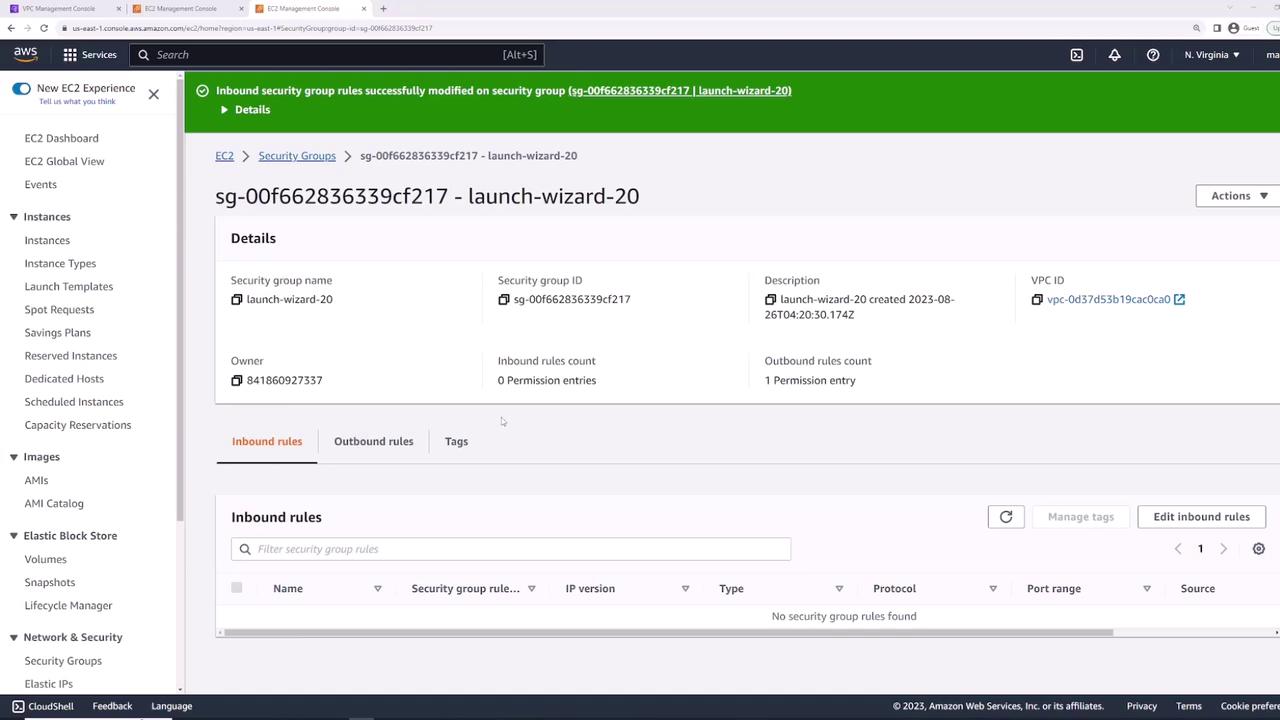
To illustrate rule enforcement, remove SSH access:
- Go to Security Groups → select the default group.
- Click Edit inbound rules.
- Delete the SSH (22) rule and Save.

Now SSH attempts will time out:
Creating a Web Server Security Group
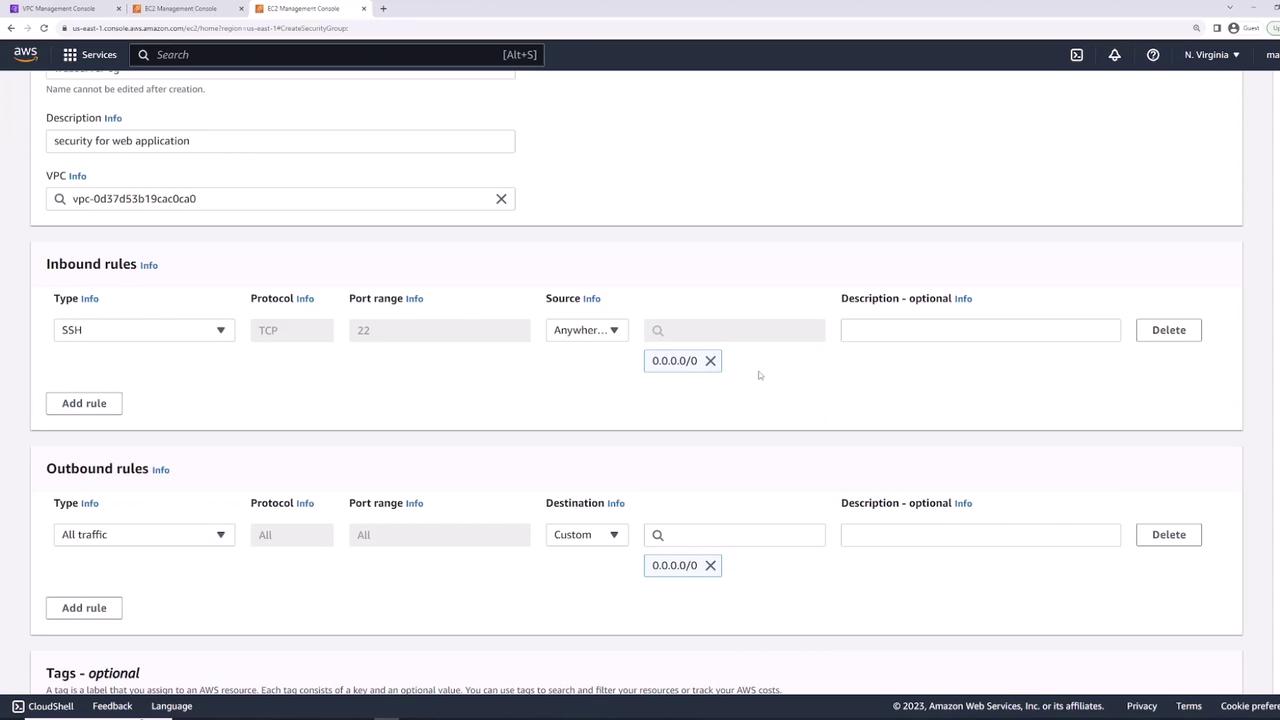
Next, create web-server-sg in the same VPC (Description: “Security group for web applications”):
- Inbound:\
• SSH (TCP 22) from
0.0.0.0/0 - Outbound: All traffic to
0.0.0.0/0
Attaching the Security Group
Attach web-server-sg to server-one:
- Select the instance.
- Actions → Security → Change security groups.
- Remove the old group and add web-server-sg.
- Save.
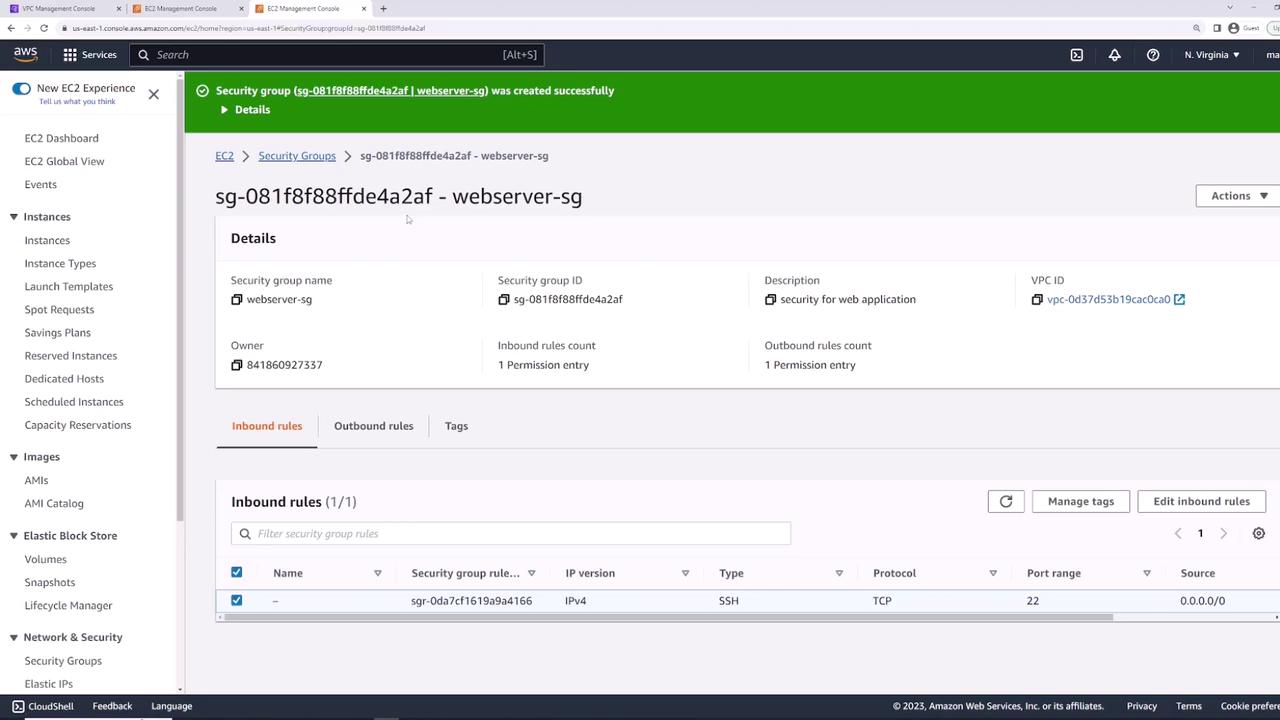

Now SSH will succeed again.
Installing and Testing Nginx
SSH into server-one and run:
Verify locally:
You should see the Nginx welcome page HTML.
Allowing HTTP and HTTPS Access
By default, HTTP (80) and HTTPS (443) are blocked. Update web-server-sg:
- Edit inbound rules.
- Add:\
• HTTP (TCP 80) from
0.0.0.0/0\ • HTTPS (TCP 443) from0.0.0.0/0 - Save.
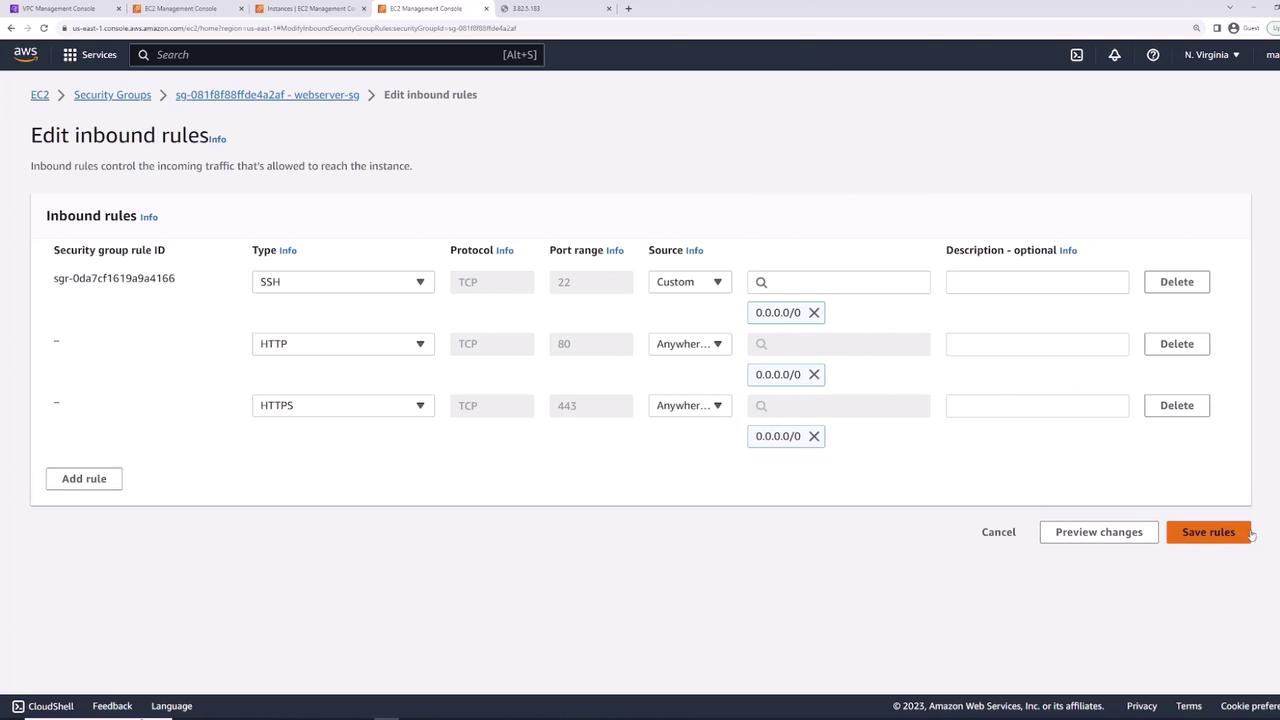
Visiting the instance’s public IP in a browser now displays the Nginx welcome page.
Demonstrating Stateful Behavior
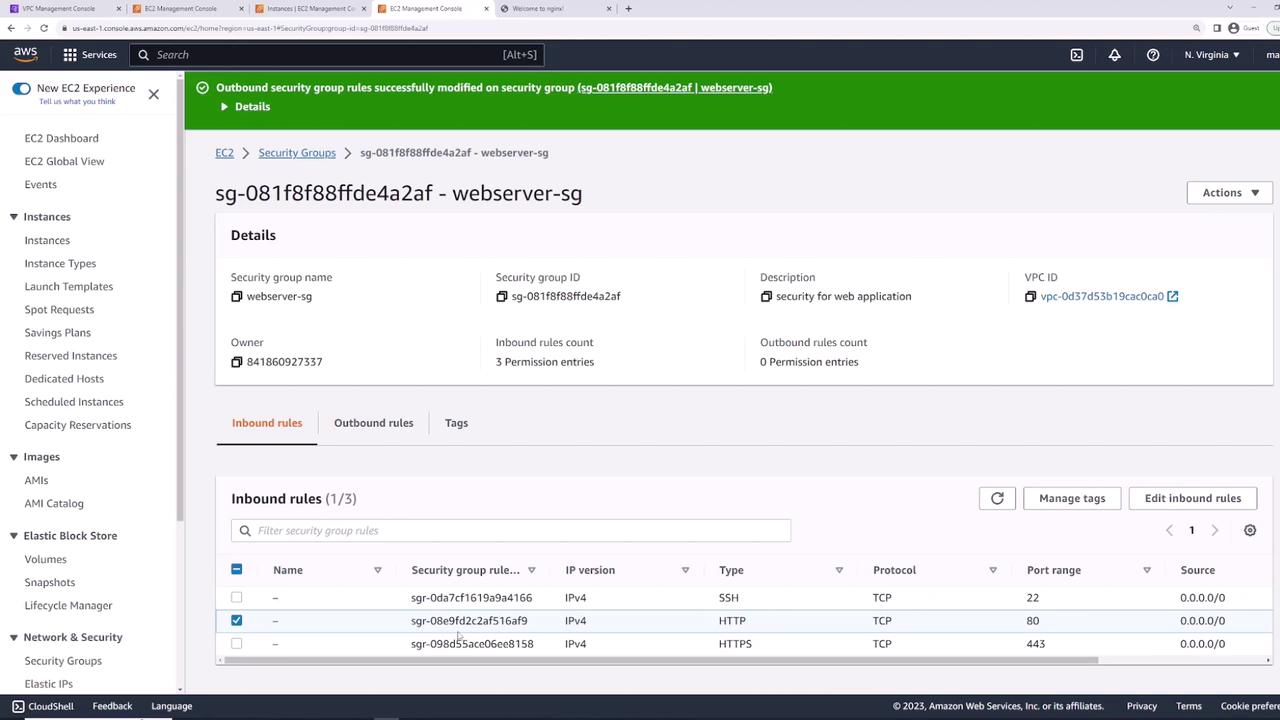
Security Groups are stateful: return traffic is automatically allowed, even if outbound rules are removed.
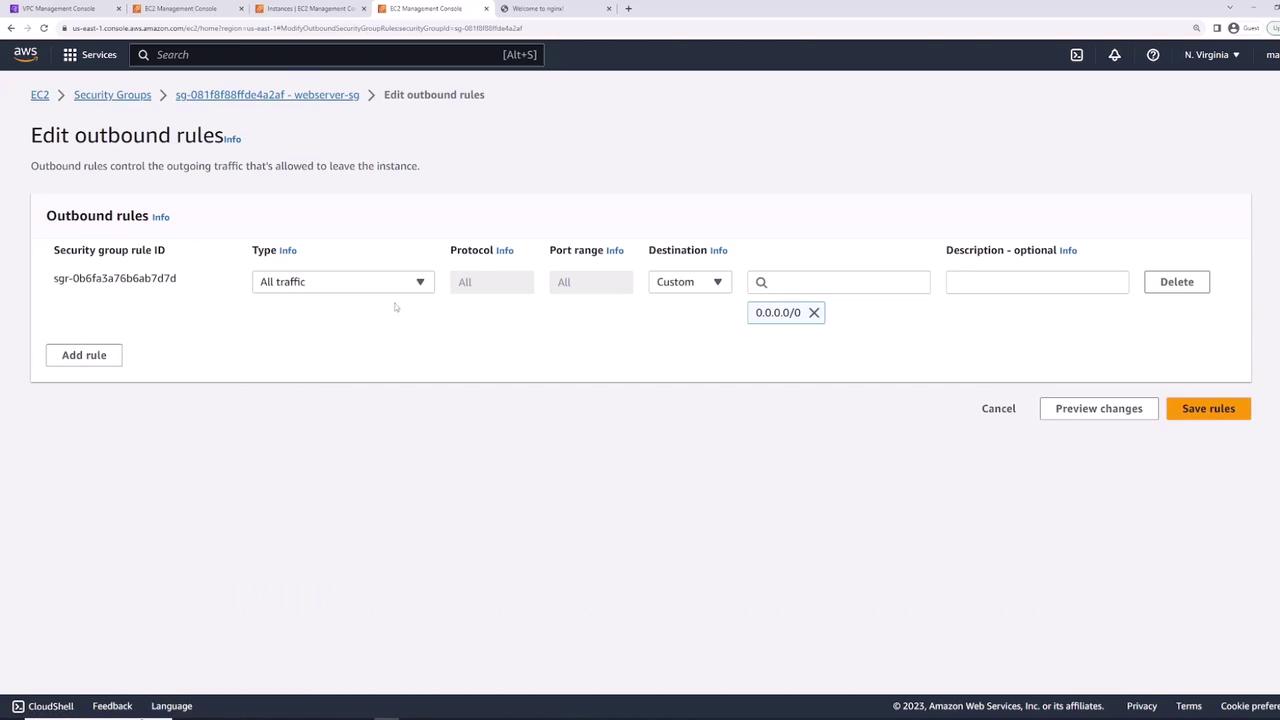
- Remove all outbound rules.
- Refresh the Nginx page in your browser—it still loads.
- From the instance, try an outbound ping:
- Re-add “All traffic” outbound rule and retry:
Splitting Rules into Multiple Security Groups
For modularity, create two groups:
- allow-ssh-sg\
• Inbound: SSH (TCP 22) from
0.0.0.0/0 - allow-http-sg\
• Inbound: HTTP (TCP 80) from
0.0.0.0/0
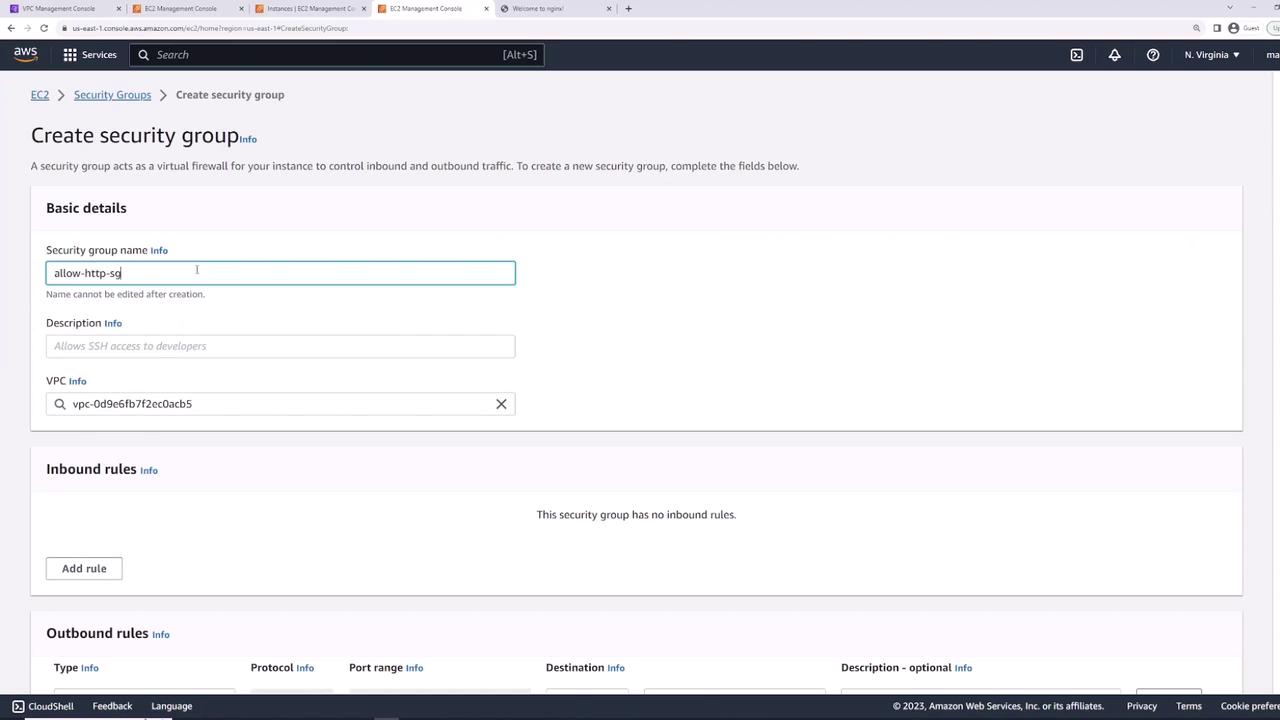
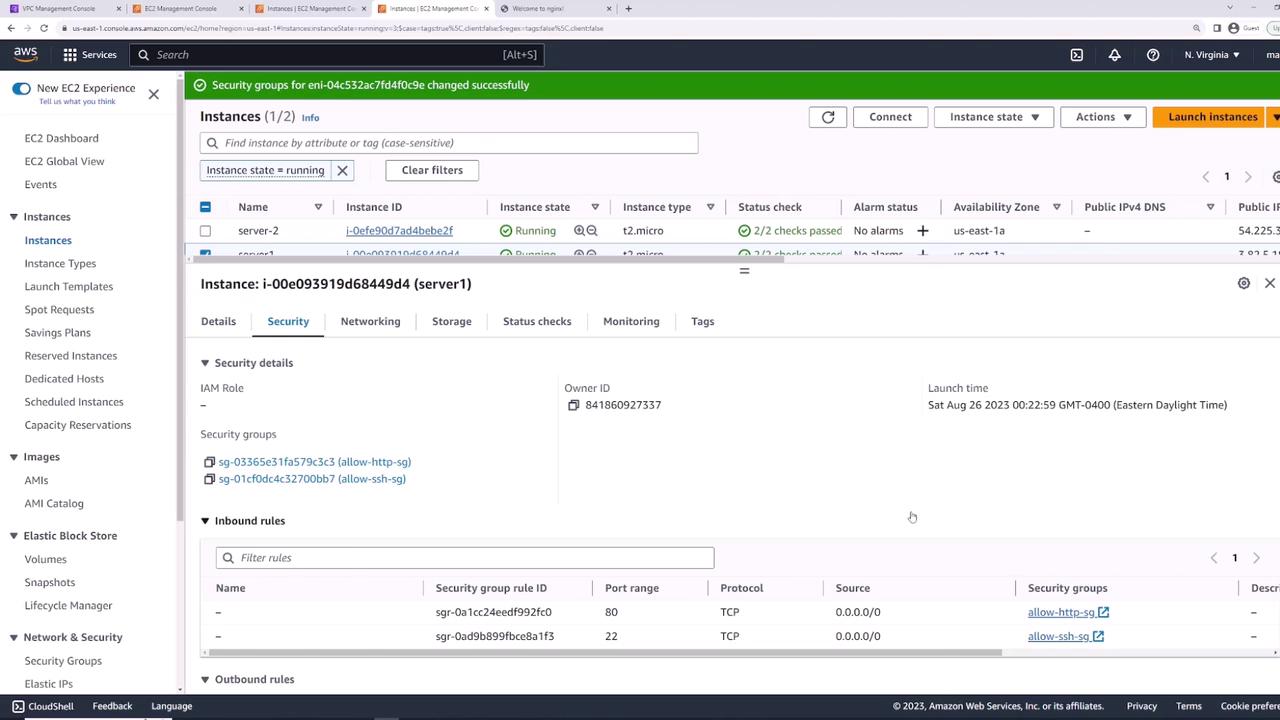
Detach web-server-sg and attach both allow-ssh-sg and allow-http-sg to server-one. You now have combined SSH + HTTP access.
Reusing Security Groups Across Instances
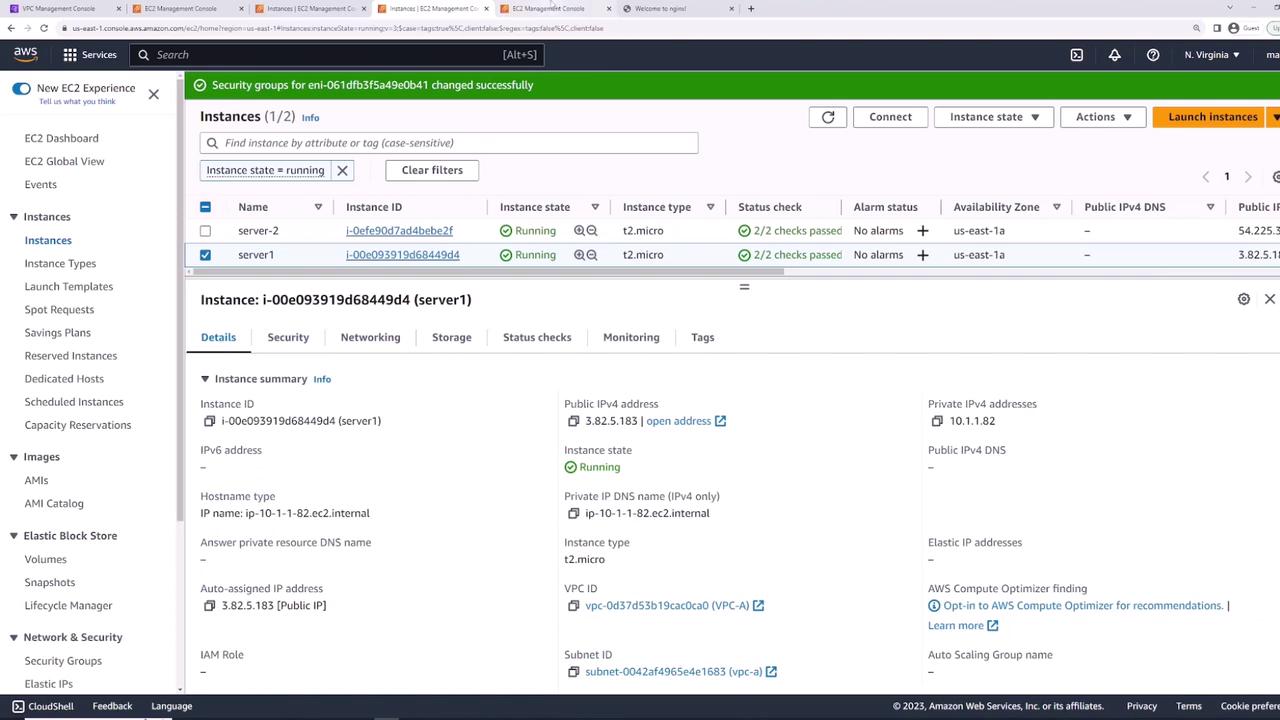
Apply allow-ssh-sg and allow-http-sg to server-two to grant identical access controls.
Referencing Security Groups as Rule Sources
For database connectivity, create db-sg:
- Inbound: PostgreSQL (TCP 5432)\ • Source: allow-http-sg
This ensures any instance with allow-http-sg can connect on port 5432.
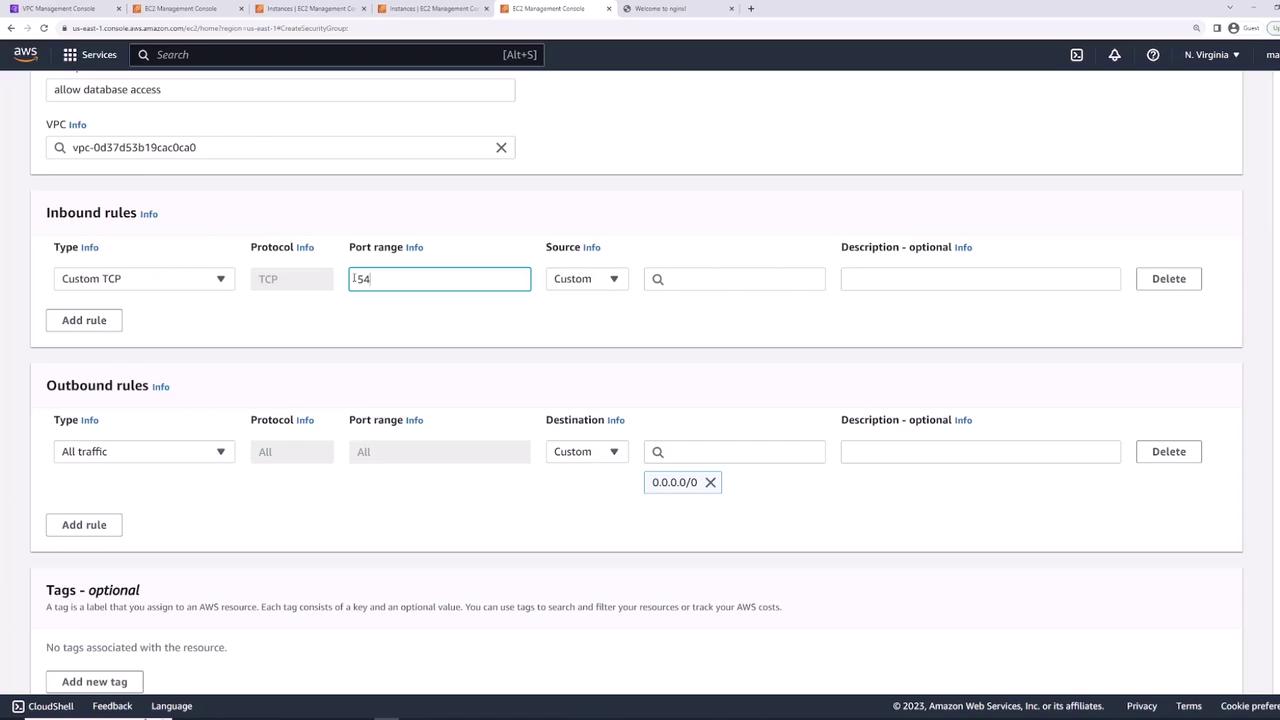
By referencing another group, new web servers automatically gain DB access as soon as they attach allow-http-sg.
Subnet-level filtering with NACLs provides an additional control layer for stateless, rule-based traffic filtering.
Summary of Security Groups
| Security Group | Description | Inbound Rules | Outbound Rules |
|---|---|---|---|
| web-server-sg | Web application servers | SSH (22), HTTP (80), HTTPS (443) | All traffic |
| allow-ssh-sg | Modular SSH access | SSH (22) | All traffic |
| allow-http-sg | Modular HTTP access | HTTP (80) | All traffic |
| db-sg | Database access from web servers | PostgreSQL (5432) from allow-http-sg | All traffic |