Permission Boundaries
This guide explains how to use permission boundaries in IAM to enforce least privilege for new users like interns.
In this guide, you’ll learn how to enforce the principle of least privilege for new IAM users—such as interns—by using permission boundaries. This lets you assign them to existing groups (e.g., Accounting and Dev) without granting any permissions beyond what you intend.
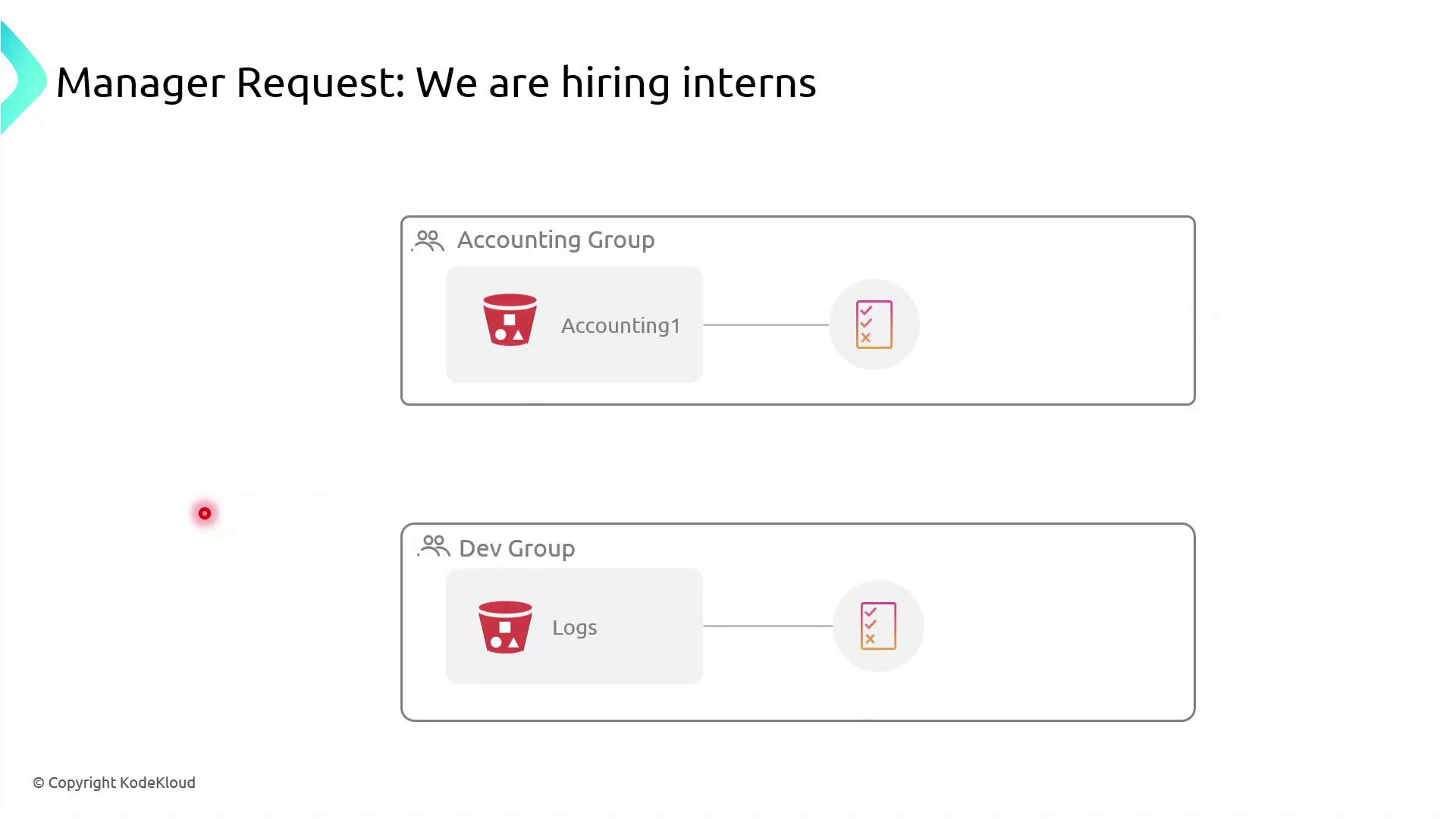
Currently, both the Accounting Group and the Dev Group have rights to specific S3 buckets. If you simply add interns to these groups:
- Accounting interns could view or modify confidential financial data.
- Dev interns could access or change log files in S3.
To prevent over-permissioning, apply a permission boundary that caps the maximum actions an intern can perform—even if their group policies allow more.
What Is a Permission Boundary?
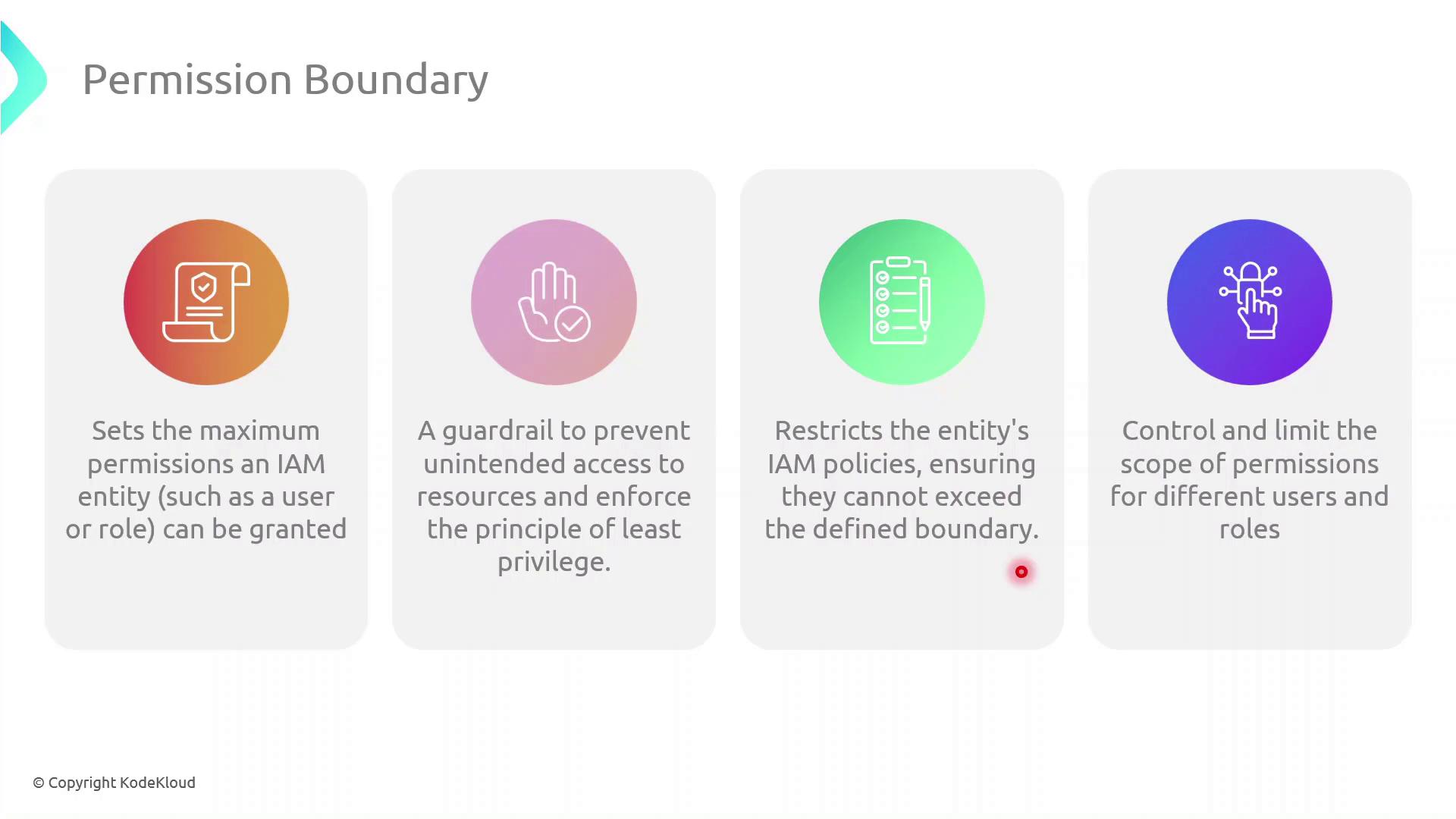
A permission boundary is an advanced IAM feature that specifies the upper limit of permissions an identity (user or role) can have. No matter how many permissions you attach via identity-based or group policies, the boundary ensures the principal cannot exceed its scope.
Step-by-Step: Create and Attach a Permission Boundary
Follow these steps in the AWS Management Console:
| Step | Console Navigation | Action |
|---|---|---|
| 1 | IAM Dashboard | Click Policies → Create policy |
| 2 | JSON tab | Paste the boundary policy definition (see below) |
| 3 | Review policy | Name it InternBoundaryPolicy and create |
| 4 | Users → Select User | Under Permissions pick Add permissions boundary and attach the new policy |
json  theme={null}
{
  "Version": "2012-10-17",
  "Statement": [
    {
      "Effect": "Allow",
      "Action": [
        "s3:ListBucket"
      ],
      "Resource": [
        "arn:aws:s3:::example-log-bucket"
      ]
    }
  ]
}
Assigning Interns to Groups
Once the boundary is in place:
- Attach the
InternBoundaryPolicyas a permissions boundary to each intern’s IAM user. - Add the intern to the relevant group (Accounting or Dev).
- The intern inherits group permissions, but all actions are capped by the boundary.
Benefits of Using Permission Boundaries
| Benefit | Description |
|---|---|
| Enforce Least Privilege | Limits every principal to only the actions you explicitly allow |
| Granular Control | Applies max-permission caps even when multiple policies overlap |
| Risk Mitigation | Prevents accidental or malicious privilege escalation |
References
This tutorial demonstrates enforcing least privilege in AWS IAM using permission boundaries to restrict a new users effective permissions.
In this tutorial, we’ll demonstrate how to enforce the principle of least privilege in AWS IAM by using permission boundaries. You’ll learn how to restrict a new user’s effective permissions so that they can only list S3 buckets without gaining full access.
1. Identify the Target S3 Bucket
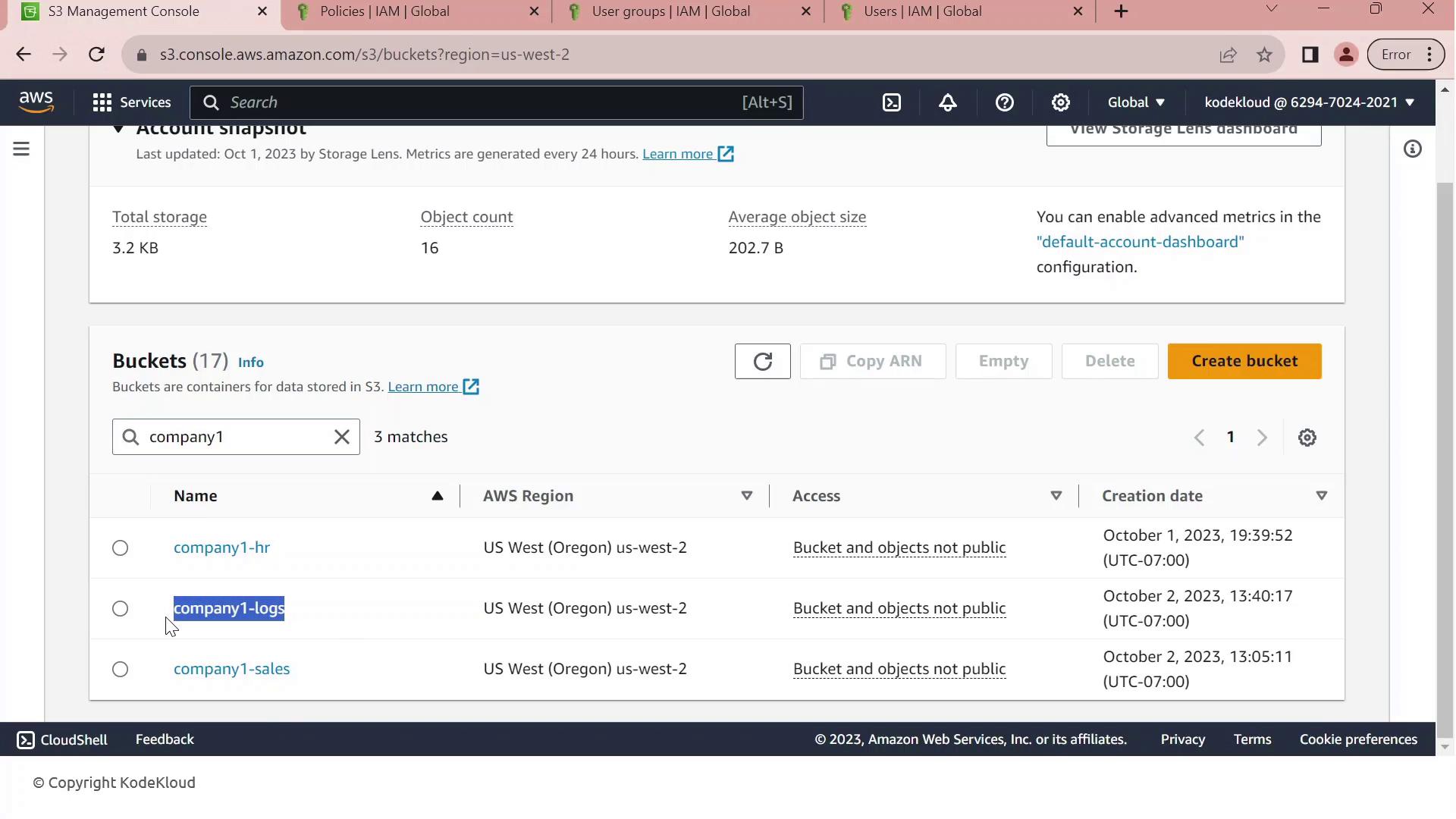
First, open the Amazon S3 Management Console. Filter your buckets by the prefix “Company1” and locate company1-logs, which stores daily logs used by your development team.
2. Review Customer-Managed Policies
Next, navigate to the IAM console and filter customer-managed policies by “company1.” You should see:
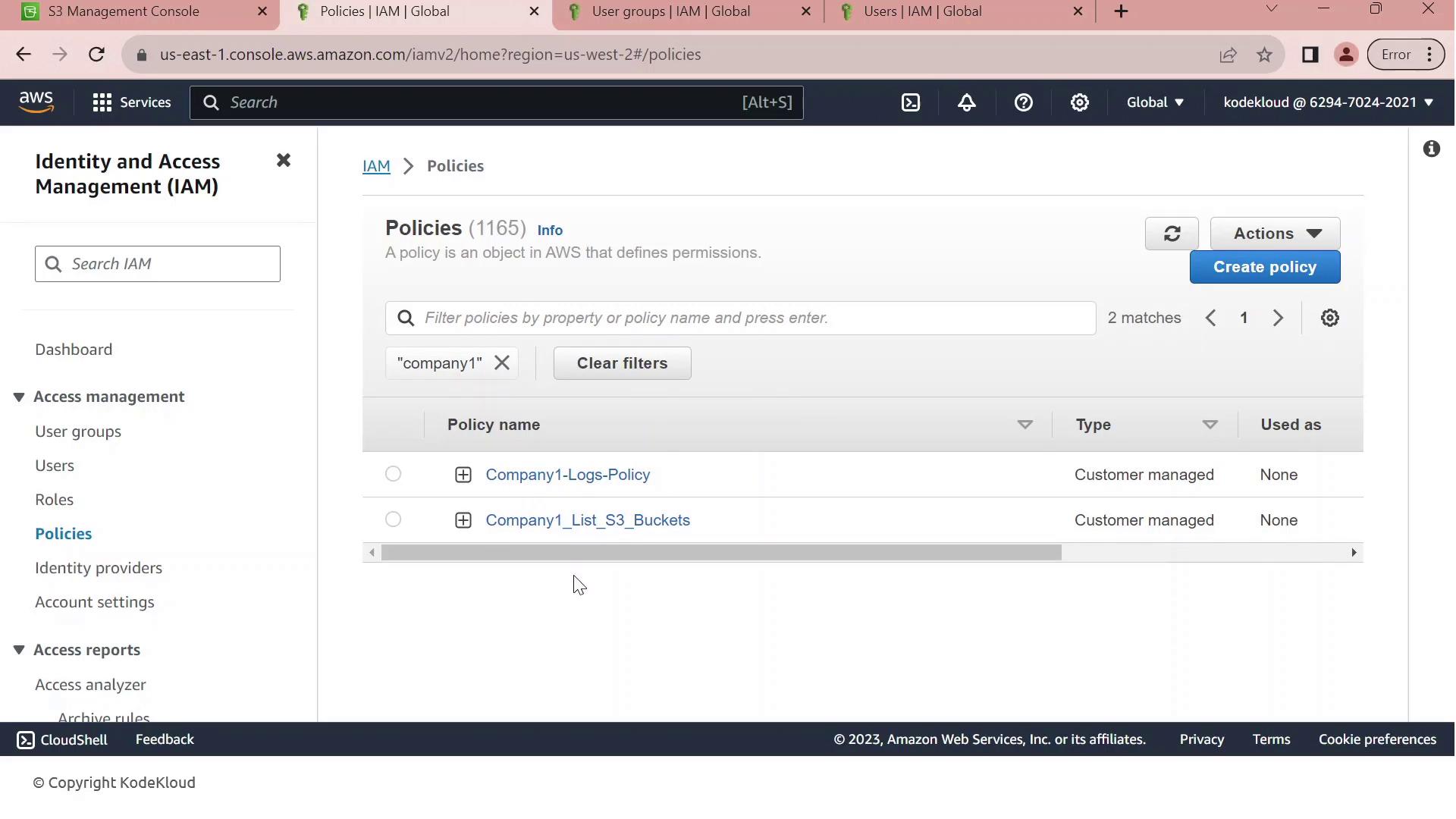
| Policy Name | Purpose | Key Actions |
|---|---|---|
| Company1-Logs-Policy | Full S3 access to company1-logs |
s3:ListBucket, s3:GetObject, s3:PutObject, s3:DeleteObject |
| Company1_List_S3_Buckets | Read-only listing of all S3 buckets | s3:ListAllMyBuckets, s3:GetBucketLocation |
3. Inspect the Full-Access Logs Policy
Click on Company1-Logs-Policy to view its JSON document. This policy grants any principal full control over the company1-logs bucket.
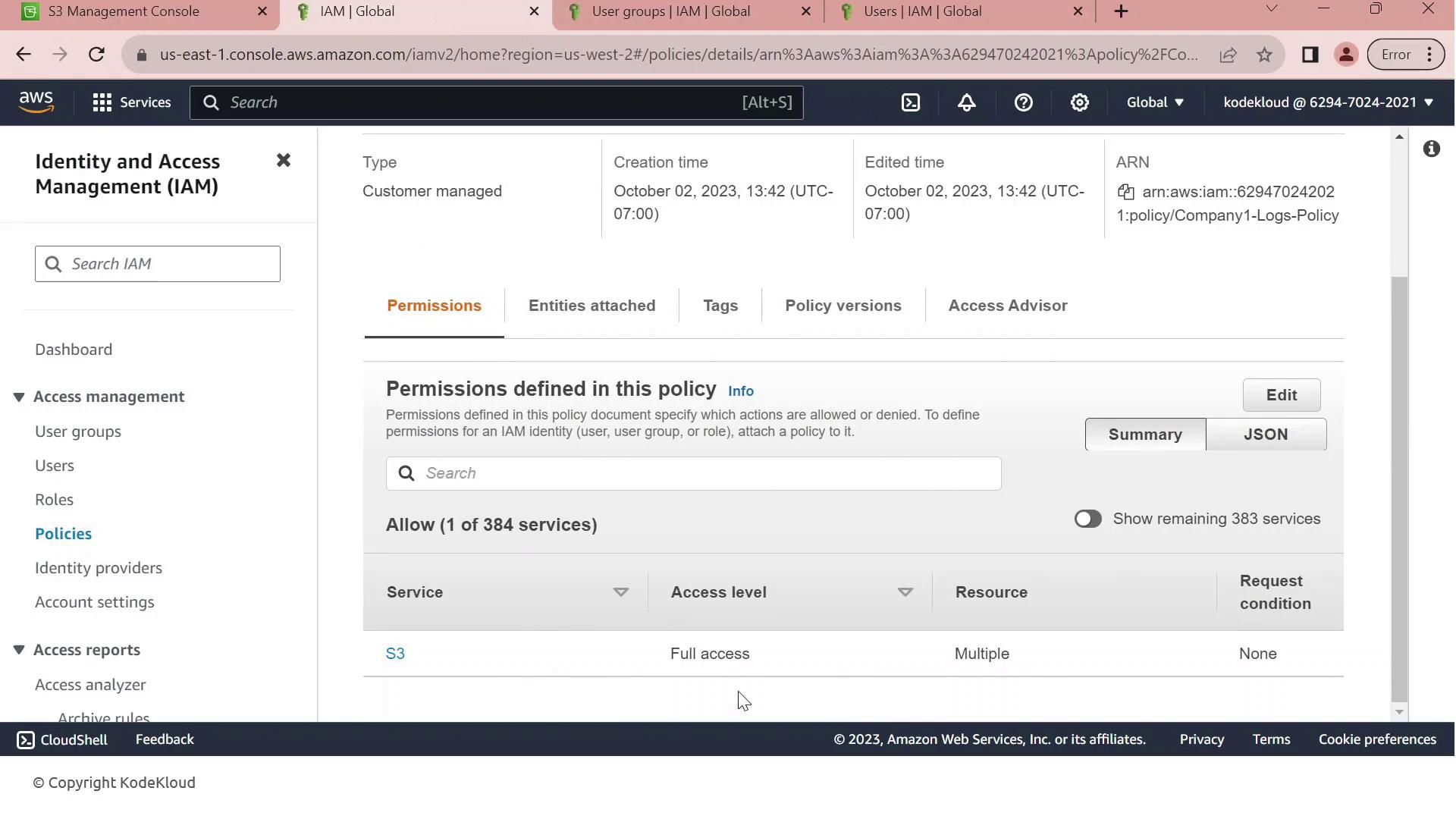
Currently, this policy is attached to the Developers group. All members—like John—inherit full S3 permissions on company1-logs.
4. Scenario: Hiring a New Intern
We’ve hired an intern, Sara, but we want to limit her permissions to bucket listing only. Without adjustments, adding her to the Developers group would grant full S3 access.
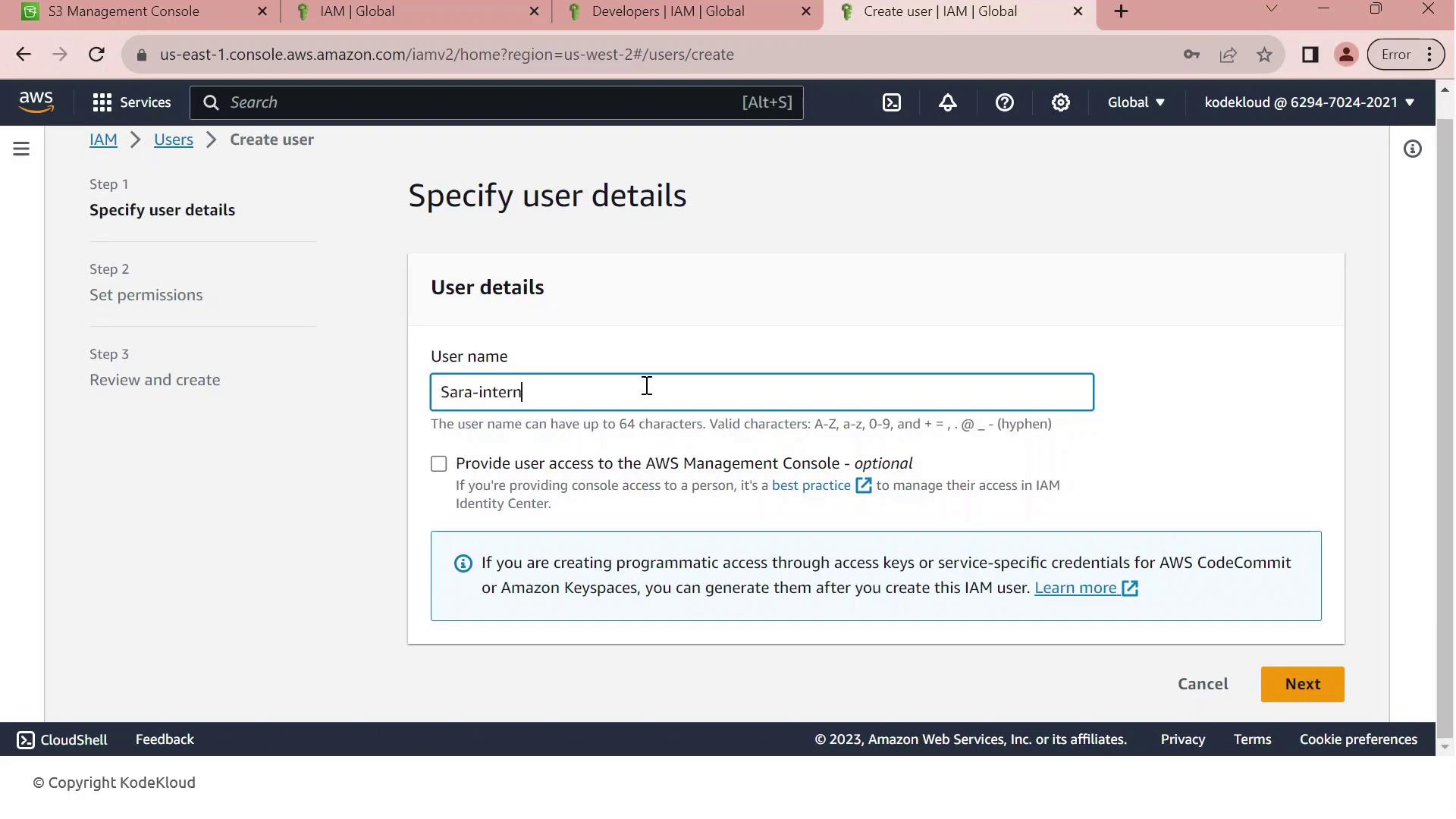
- In the IAM console, click Create User.
- Enter Sara-intern as the username.
- Enable AWS Management Console access, generate a password, and require a reset on first login.
- Add Sara-intern to the Developers group and complete the user creation.
5. Apply the Permissions Boundary
To restrict Sara’s permissions:
- Open Sara-intern’s user summary and go to the Permissions tab.
- Click Set permissions boundary.
- Select Company1_List_S3_Buckets and save.
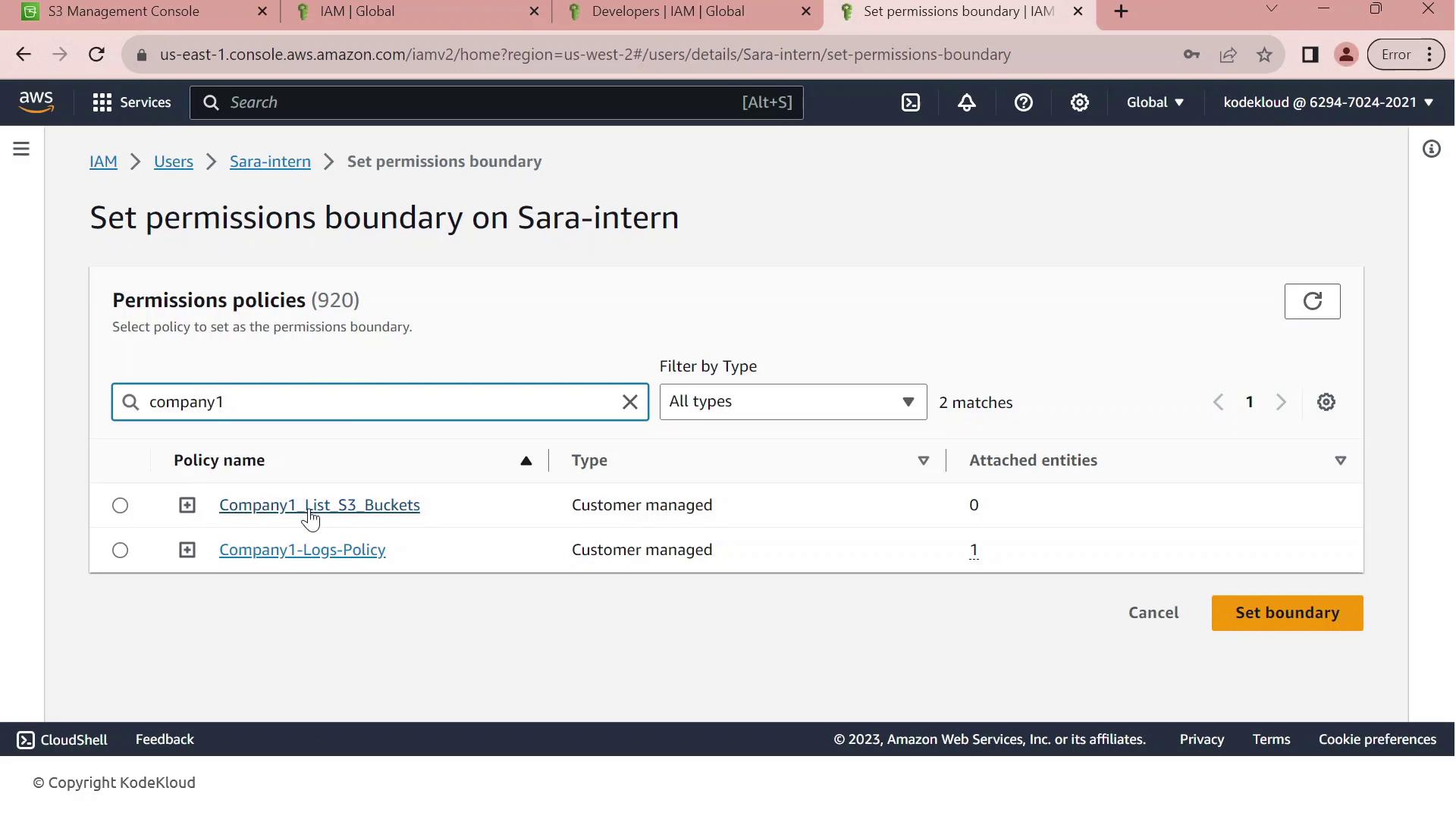
With Company1_List_S3_Buckets as Sara’s boundary, she can list bucket names (s3:ListAllMyBuckets) but cannot read, write, or delete any objects. This enforces least privilege for new users.