MFA and Password Policies
This guide explains enabling MFA and strong password policies in AWS IAM to enhance account security.
Enhancing your AWS account’s security posture involves two critical measures:
- Enabling Multi-Factor Authentication (MFA) for IAM users
- Defining and enforcing a robust password policy
This guide explains why MFA and strong password rules matter, outlines the key policy settings, and provides step-by-step instructions to configure both in the AWS Management Console.
Why Enforce Multi-Factor Authentication?
Multi-Factor Authentication adds an additional proof of identity beyond a username and password. After entering their credentials, users must supply a one-time code from a hardware token or a virtual MFA app like Google Authenticator. This secondary factor dramatically reduces the risk of unauthorized access, even if passwords are compromised.
Understanding IAM Password Policies
By default, AWS IAM does not enforce any password policy. Creating a custom policy allows you to align password complexity, expiration, and reuse rules with your organization’s governance standards.
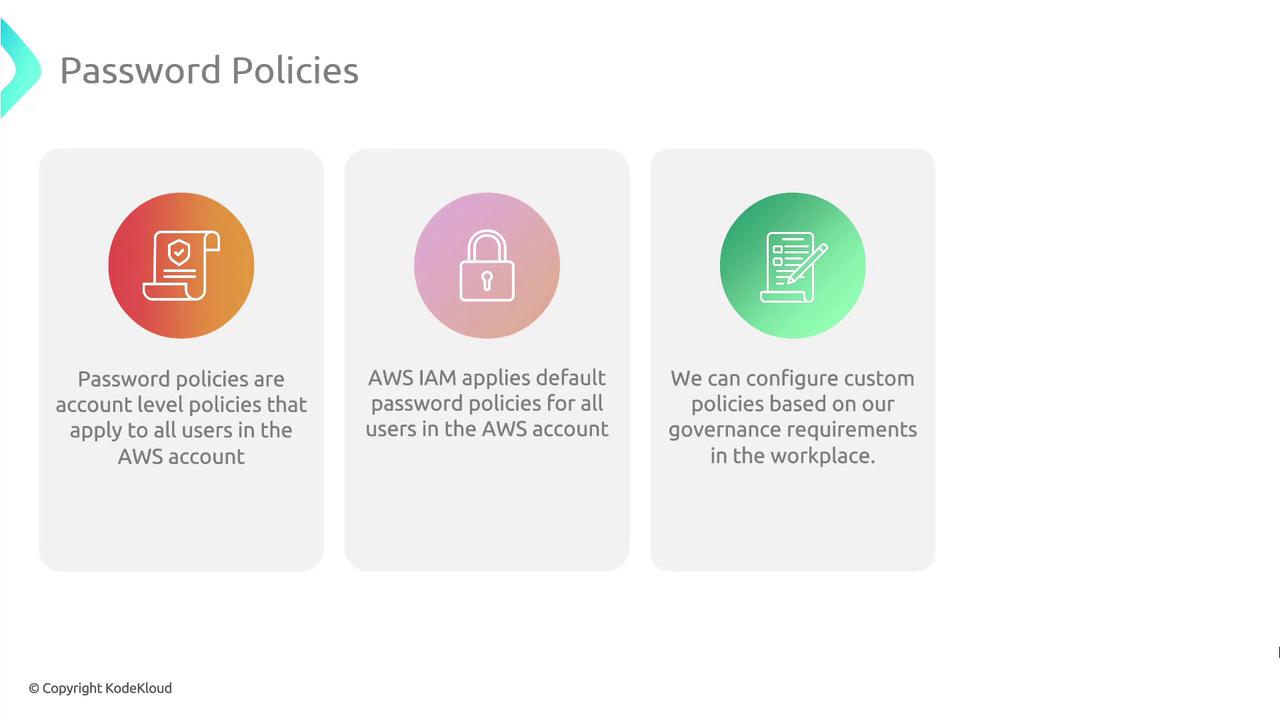
Key Password Policy Settings
| Policy Setting | Description | Example |
|---|---|---|
| Minimum password length | Enforces a lower bound on characters | 12 |
| Maximum password length | (Optional) Caps password size to reduce system load | 128 |
| Require uppercase characters | Ensures at least one A–Z |
Enabled |
| Require lowercase characters | Ensures at least one a–z |
Enabled |
| Require numbers | Ensures at least one digit 0–9 |
Enabled |
| Require non-alphanumeric characters | Ensures at least one symbol (e.g., !@#$%^&*) |
Enabled |
| Password expiration | Forces periodic password updates (in days) | 90 |
| Prevent password reuse | Blocks reuse of the last N passwords | Last 5 |
Step-by-Step: Enable MFA and Configure a Password Policy
Follow these steps in the AWS Management Console:
1. Sign In to the AWS Management Console
- Navigate to https://console.aws.amazon.com/ and open the IAM service.
2. Enable MFA for an IAM User
- In the left sidebar, choose Users.
- Select the target user name.
- Open the Security credentials tab.
- Under Assigned MFA device, click Manage.
- Follow the prompts to activate a hardware or virtual MFA device.
3. Define Your Account Password Policy
- From the IAM dashboard, click Account settings.
- Under Password policy, select Manage.
- Configure the policy using your organization’s minimums for length, complexity, expiration, and reuse.
- Click Save changes to apply.
References and Further Reading
- AWS Identity and Access Management (IAM) Documentation
- AWS MFA Best Practices
- Google Authenticator Overview
This tutorial explains how to secure AWS environments by enabling Multi-Factor Authentication and enforcing custom password policies for IAM users.
In this tutorial, you’ll learn how to secure your AWS environment by enabling Multi-Factor Authentication (MFA) for IAM users and enforcing custom password policies in the AWS Identity and Access Management (IAM) console.
Configuring MFA for an IAM User
- Sign in to the AWS Management Console and open the IAM dashboard.
- Select Users in the navigation pane to view all IAM accounts.
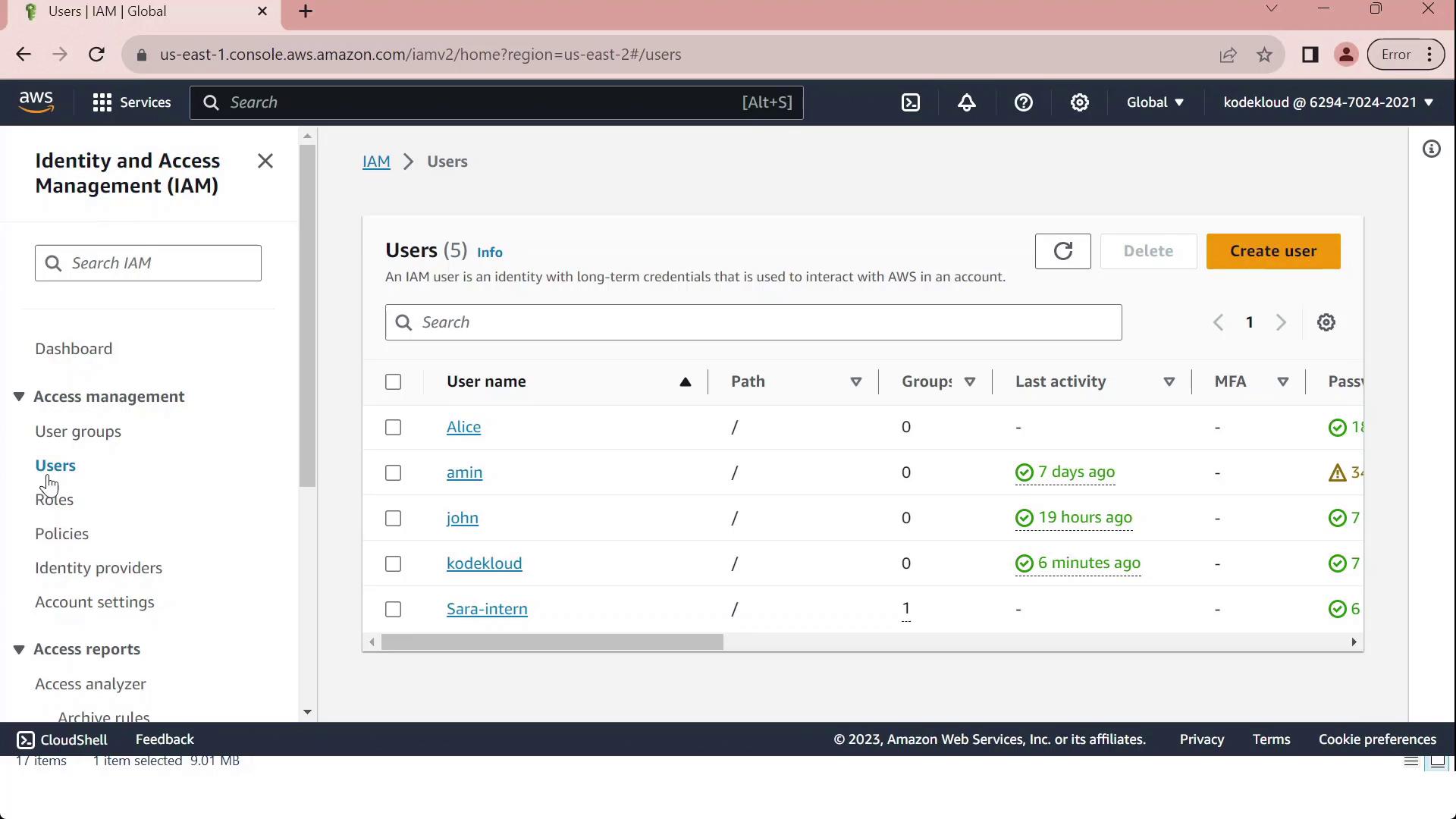
- Click on the user John, then open the Security credentials tab.
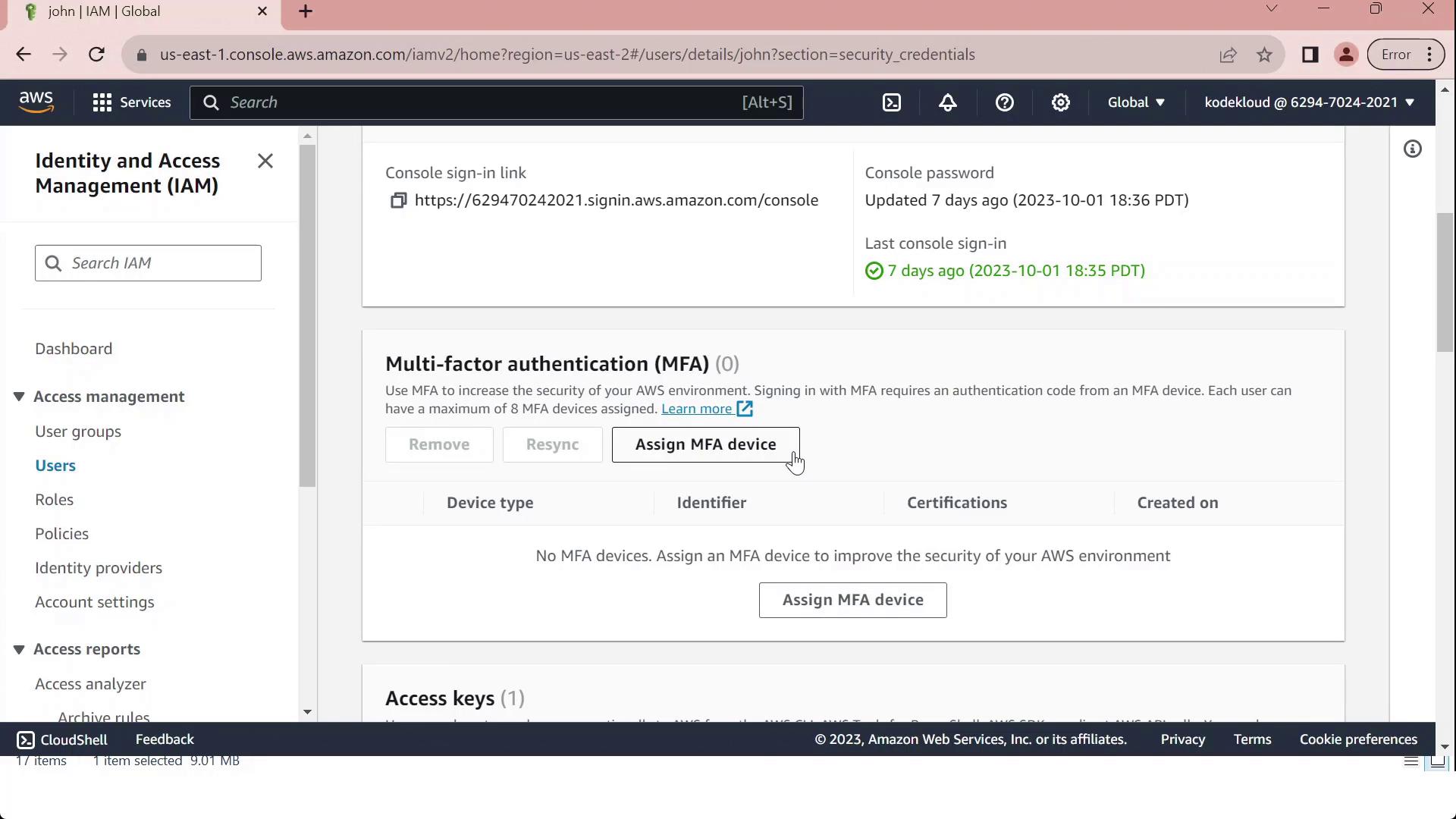
- Under Multi-Factor Authentication (MFA), click Assign MFA device.
- Provide a Device label (for example, “MFA”) and choose your device type from the table below:
| Device Type | Description |
|---|---|
| Virtual MFA device | Software authenticator (Google Authenticator, Authy, Duo Mobile) |
| Security key | FIDO2/WebAuthn hardware key |
| Hardware TOTP token | Physical token generating time-based codes |
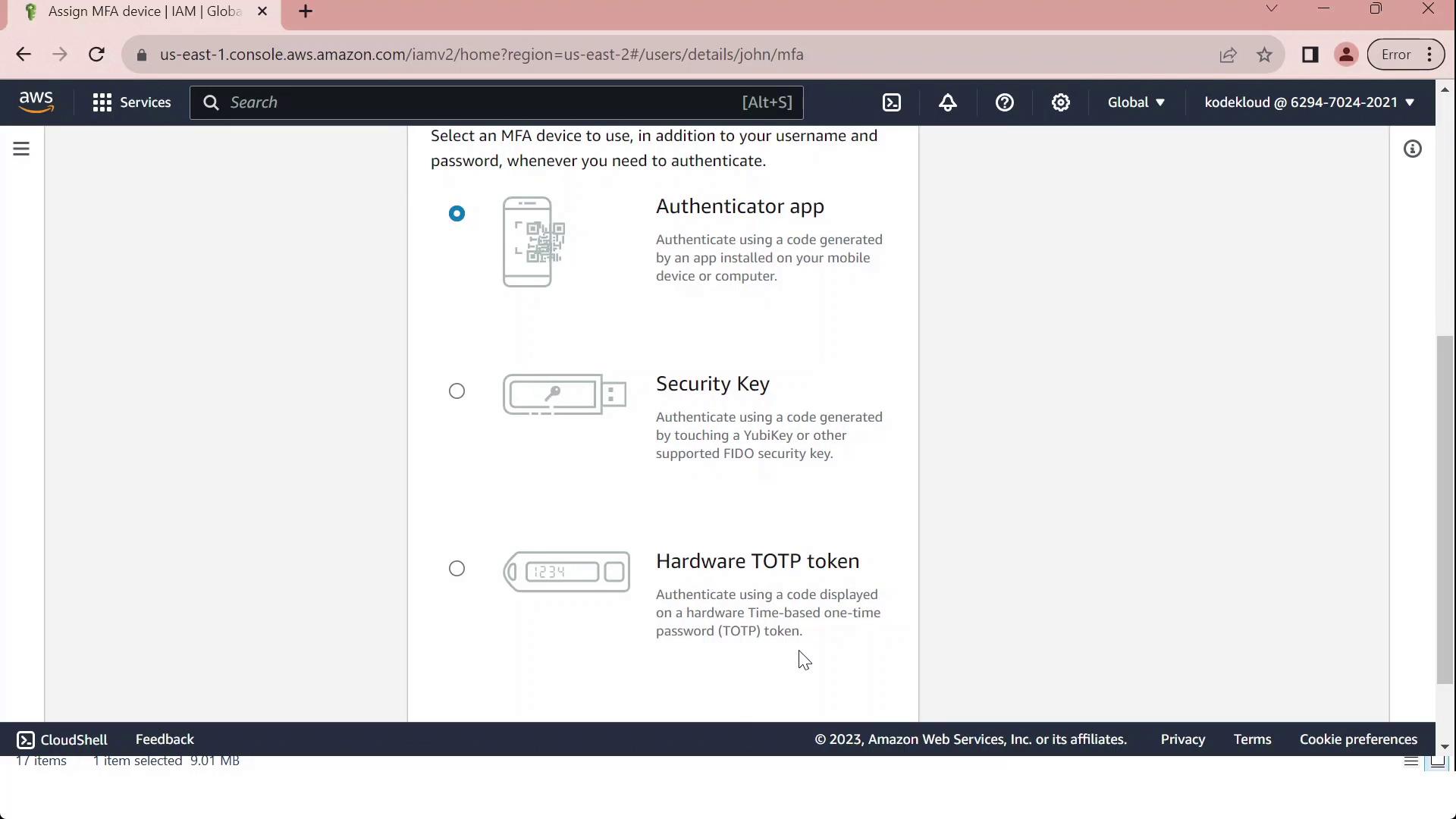
- To set up a Virtual MFA device:
- Install and open a compatible authenticator app.
- Scan the QR code displayed in the console.
- Enter the two consecutive codes from your app (MFA Code 1 and MFA Code 2).
- Click Assign MFA to finalize.
Customizing Password Policies
-
In the IAM console, select Account settings to view the Password policy section.
-
Review the default requirements, which ensure basic password strength:
| Requirement | Default Setting |
|---|---|
| Minimum length | 8 characters |
| Character categories | At least 3 of: uppercase, lowercase, numbers, special characters |
| Exclusions | Cannot match username or email address |
| Password expiration | Disabled |
| Password reuse prevention | None |
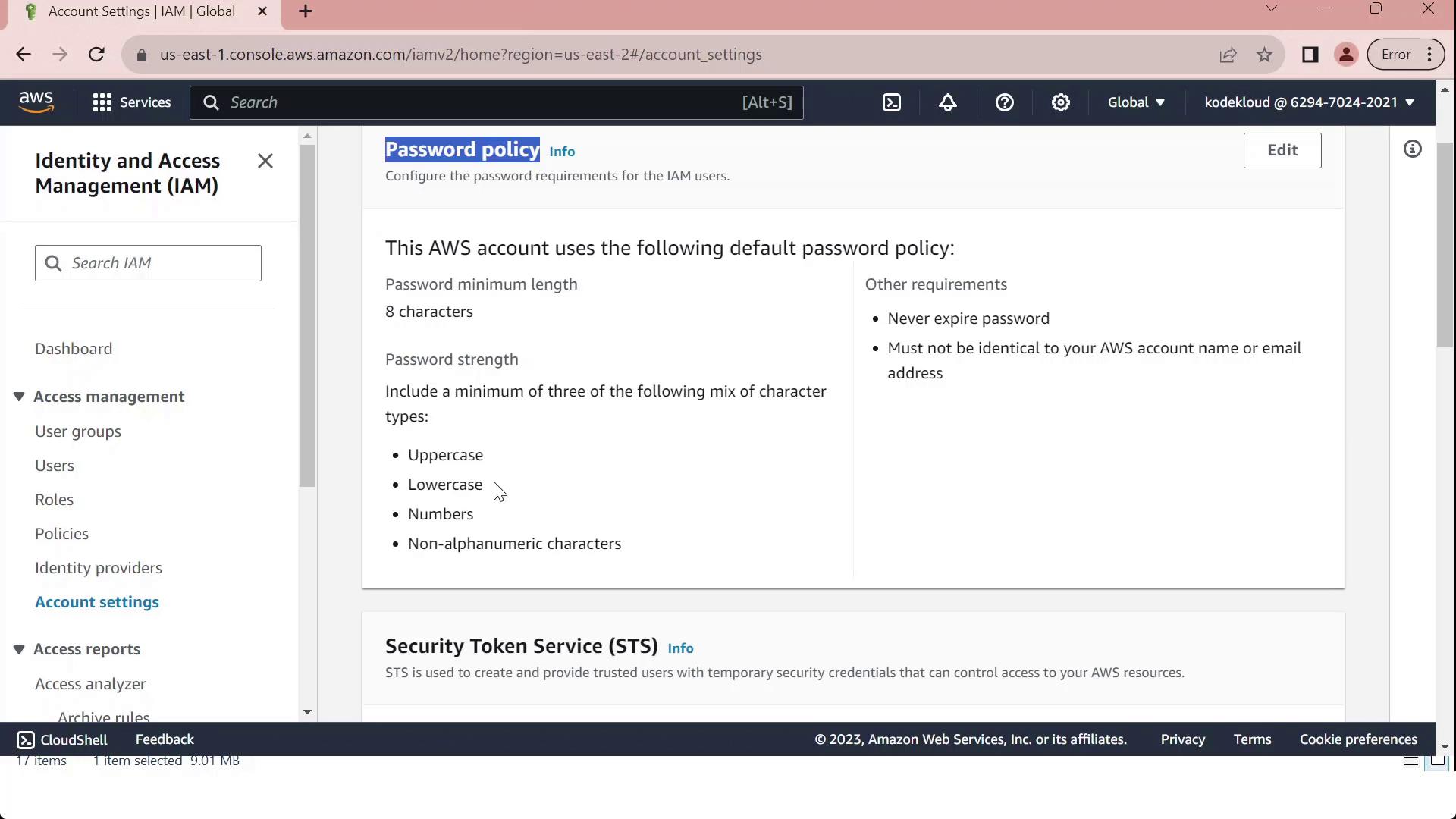
- Click Edit, select Custom, and modify settings such as:
- Minimum password length
- Maximum password age
- Required character types
- Prevent password reuse
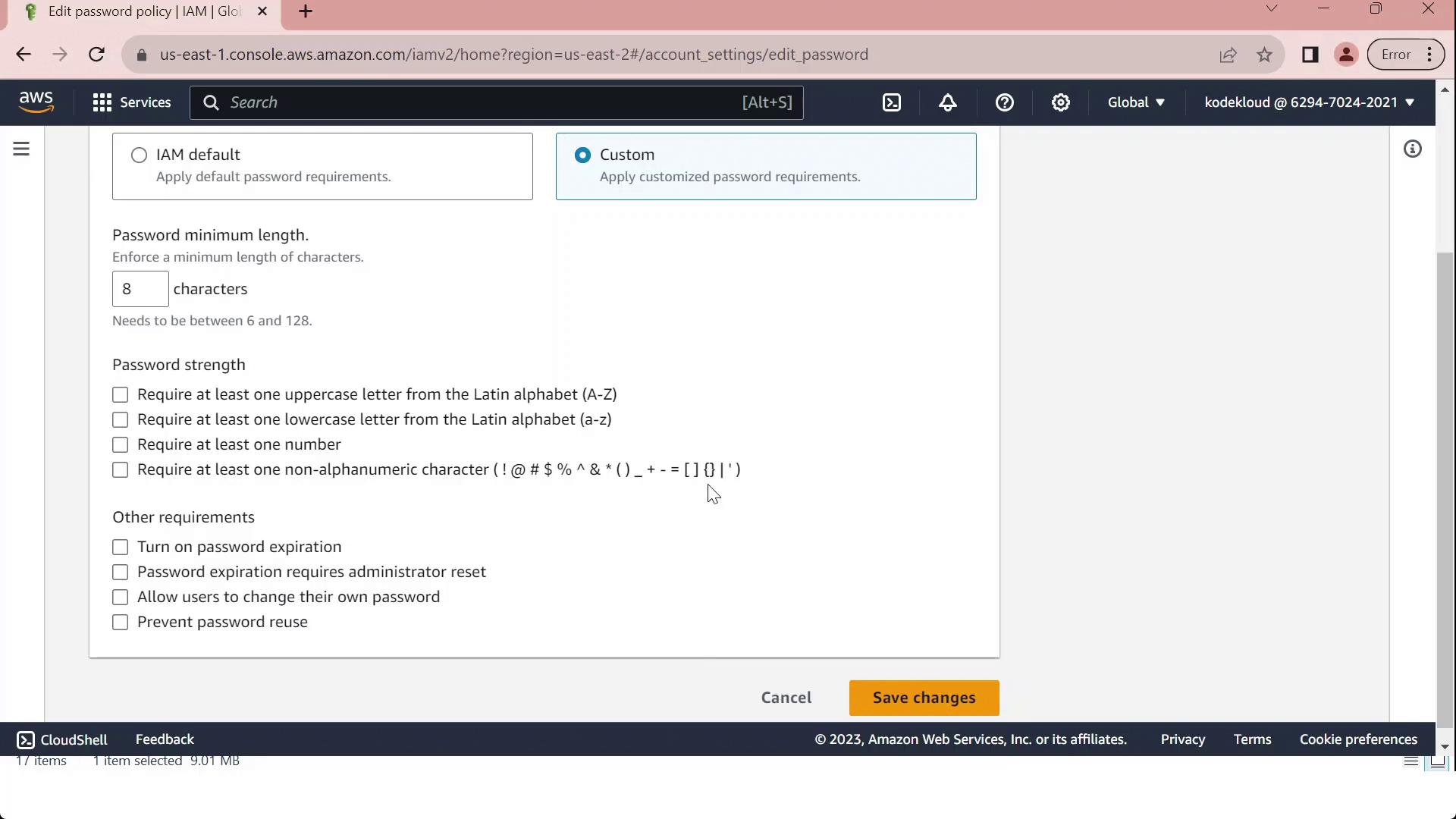
- Once you've tailored the policy to your organizational standards, click Save changes. All IAM users will now be subject to the updated policy.