NAT Gateway
This guide explains NAT Gateways, their importance for private subnet internet access, and how to deploy and manage them in AWS.
In this guide, you’ll learn what NAT Gateways are, why they’re essential for private subnet internet access, and how to deploy and manage them in AWS.
Overview
When you run instances in private subnets, you often still need outbound internet connectivity—for OS updates, package downloads, and API calls—without exposing those instances to inbound traffic. NAT Gateways solve this by enabling secure, outbound-only internet access while keeping your servers hidden from unsolicited inbound connections.
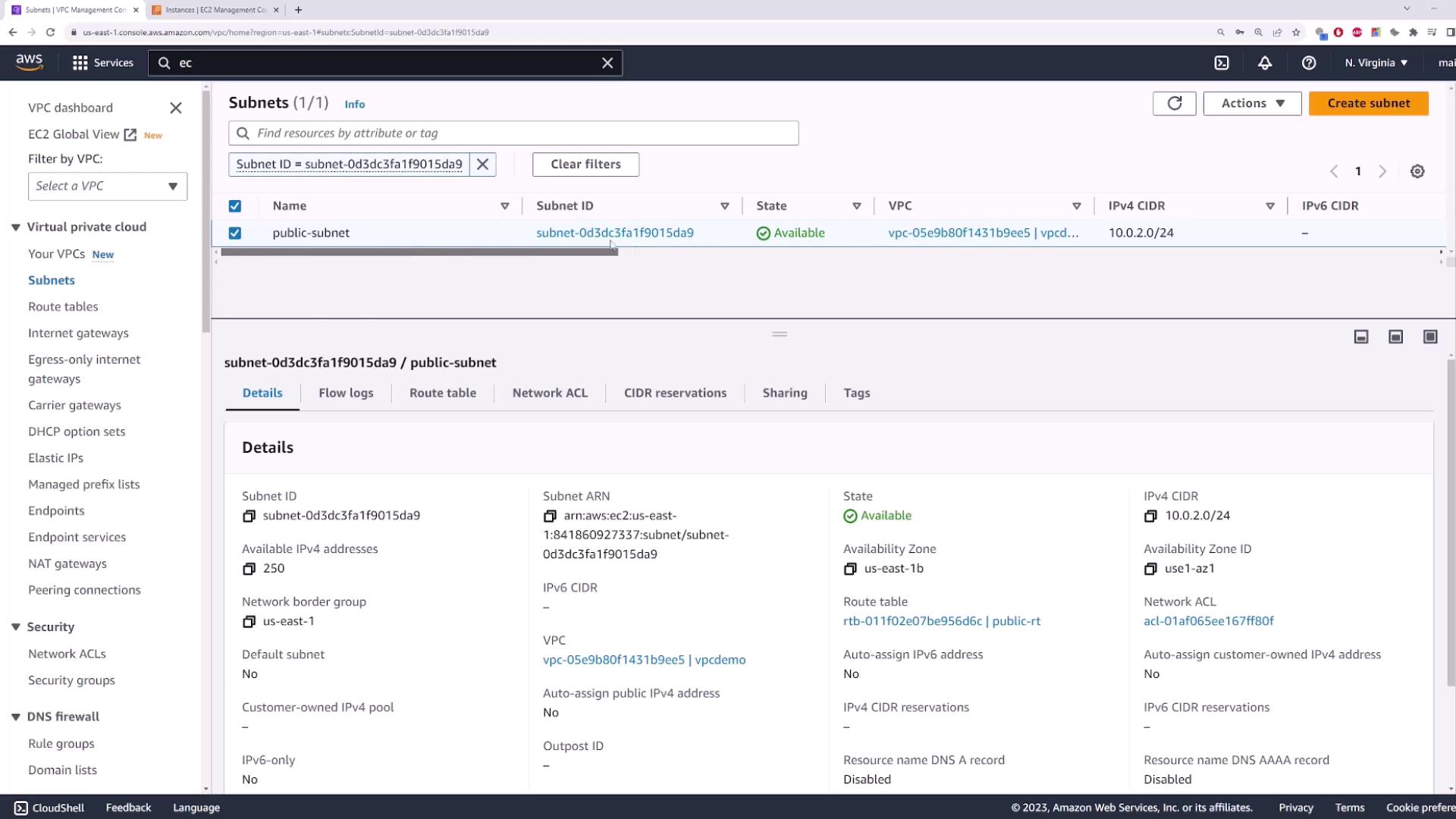
The Challenge
You have an EC2 instance in a private subnet that needs to pull updates from the internet.
- Attaching an Internet Gateway (IGW) and routing traffic through it turns your subnet public.
- A public subnet exposes instances to inbound internet traffic, increasing security risk.
Introducing NAT Gateways
A NAT Gateway is a fully managed AWS service that allows instances in private subnets to send outbound traffic to the internet while blocking inbound traffic initiated from the internet. Key features include:
- Outbound-only traffic with automatic source IP translation
- Requires an Internet Gateway on the VPC for upstream connectivity
- Elastic IP–backed for consistent public IPs
Deployment Steps
- Create or Attach an Internet Gateway
- In the AWS Console under VPC → Internet Gateways, attach the IGW to your VPC.
- Configure a Public Subnet
- Create a subnet and tag it as public.
- Update its route table:
- Destination:
0.0.0.0/0 - Target: your Internet Gateway
- Destination:
- Launch a NAT Gateway
- Go to VPC → NAT Gateways.
- Select the public subnet and assign an Elastic IP.
- Update Private Subnet Routes
- For each private subnet, modify its route table:
- Destination:
0.0.0.0/0 - Target: the NAT Gateway
- Destination:
IGW vs NAT Gateway Comparison
| Feature | Internet Gateway (IGW) | NAT Gateway |
|---|---|---|
| Inbound Connections | Allowed | Blocked (outbound-only) |
| Source IP Preservation | Yes | No (performs source NAT) |
| Managed Service | Yes | Yes |
| Public IP Requirement | No (automatic public IP on ENI) | Elastic IP must be assigned |
| Use Case | Public subnet internet access | Private subnet outbound internet |
Traffic Flow
- Private Instance → NAT Gateway
- NAT Gateway → Internet Gateway → Internet
- Return Traffic → Internet Gateway → NAT Gateway → Private Instance
Key Characteristics
- Fully Managed: AWS handles provisioning, scaling, and health monitoring.
- Automatic Scaling: Starts at 5 Gbps and can scale up to 100 Gbps.
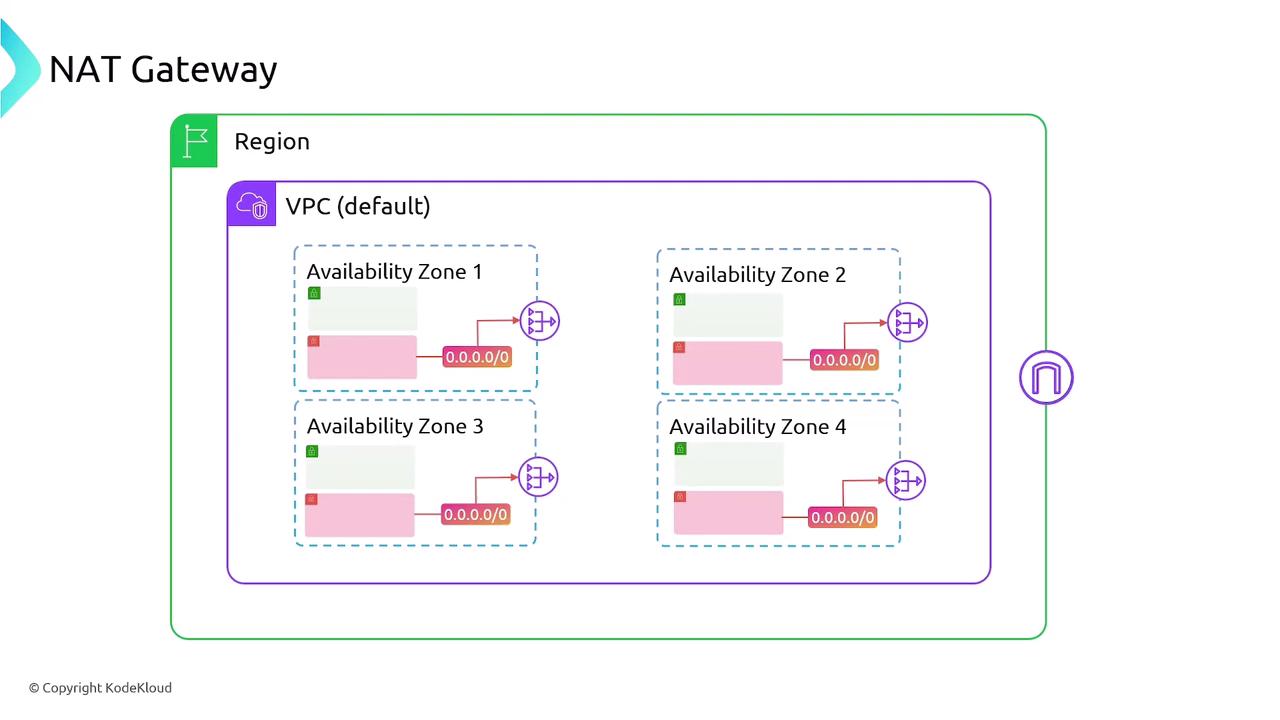
- AZ Isolation: Deploy one per Availability Zone (AZ) for high availability.
- Billing: Hourly NAT Gateway charge + per GB data processed.
Cost Considerations
High Availability
- Deploy a NAT Gateway in each AZ where you have private subnets.
- Update each private subnet’s route table to point to the AZ-specific NAT Gateway.
- Consider combining with AWS Transit Gateway for multi-VPC designs.
Summary
- Purpose: Enable outbound internet access for private subnets without inbound exposure.
- Requirements: Internet Gateway, Elastic IP, public subnet for the NAT Gateway.
- High Availability: One NAT Gateway per AZ.
- Management & Billing: AWS-managed; pay hourly + per GB.
Links and References
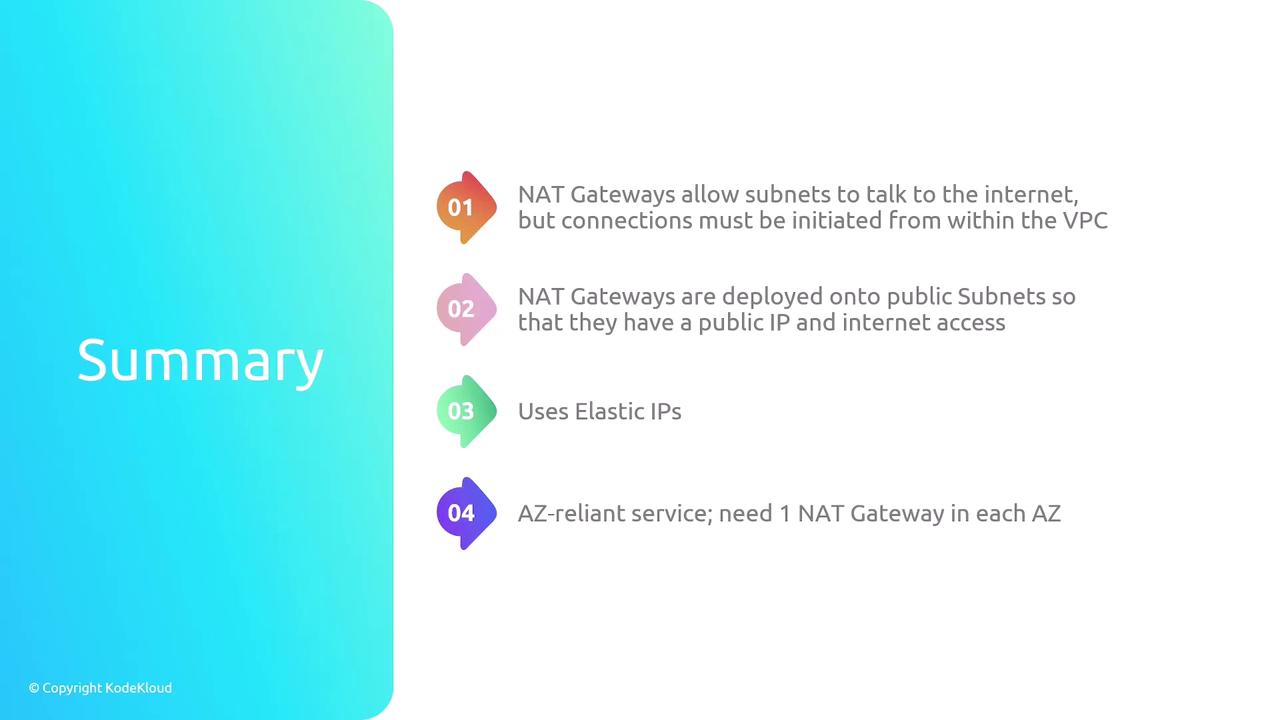
- NAT Gateways allow subnets to talk to the internet but connections must be initiatied from within the VPC
- Nat Gateways are deployed onto public subnets so that they have a public IP and internet access
- Uses Elastic IPs
- AZ-reliant services; need 1 NAT Gateway in each AZ
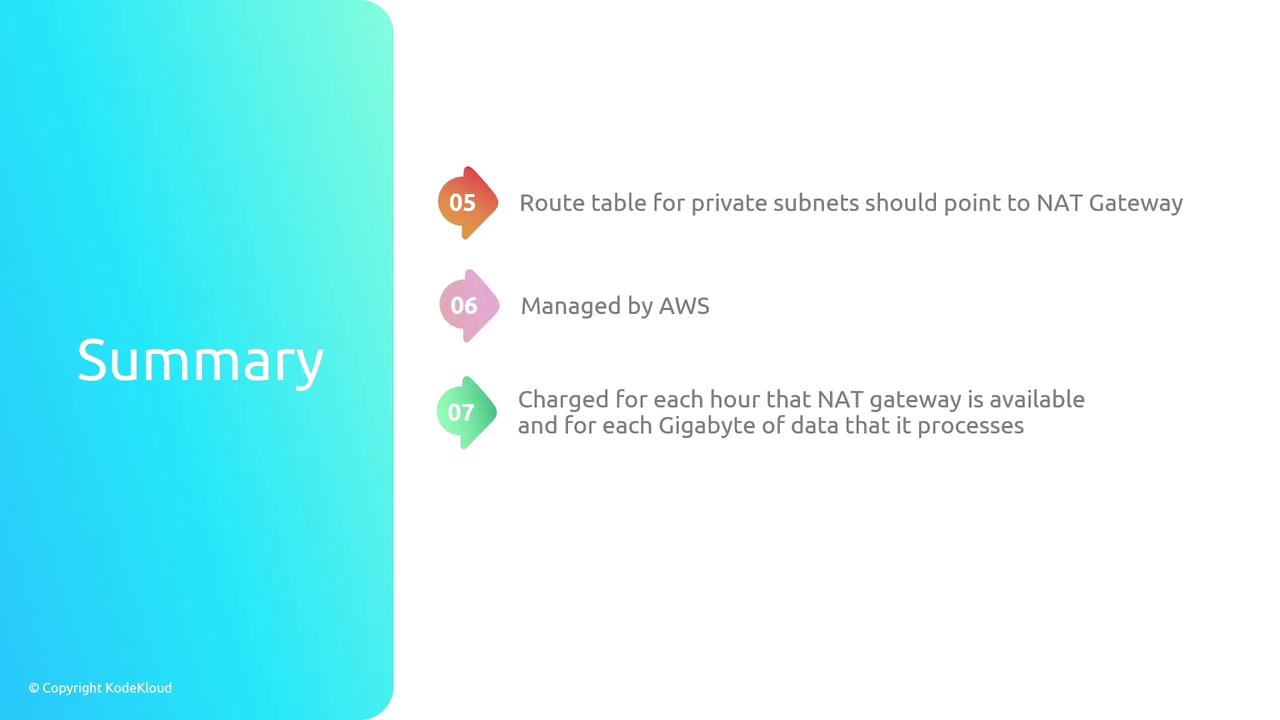
- Route table for private subnets should point to NAT gateway
- Managed by AWS
- Charged for each hour that NAT gateawy is available and for each Gigabyte of data that it processes
- A NAT gateway supports 5 Gbps of bandwidth and automatically scales up to 100 Gbps
This walkthrough explains how to configure an AWS NAT Gateway for internet access in a private subnet while blocking unsolicited inbound connections.
In this walkthrough, you’ll learn how to configure an AWS NAT Gateway to enable internet access for EC2 instances in a private subnet—while preventing unsolicited inbound connections from the internet. By the end, only instances that initiate outbound requests will receive responses.
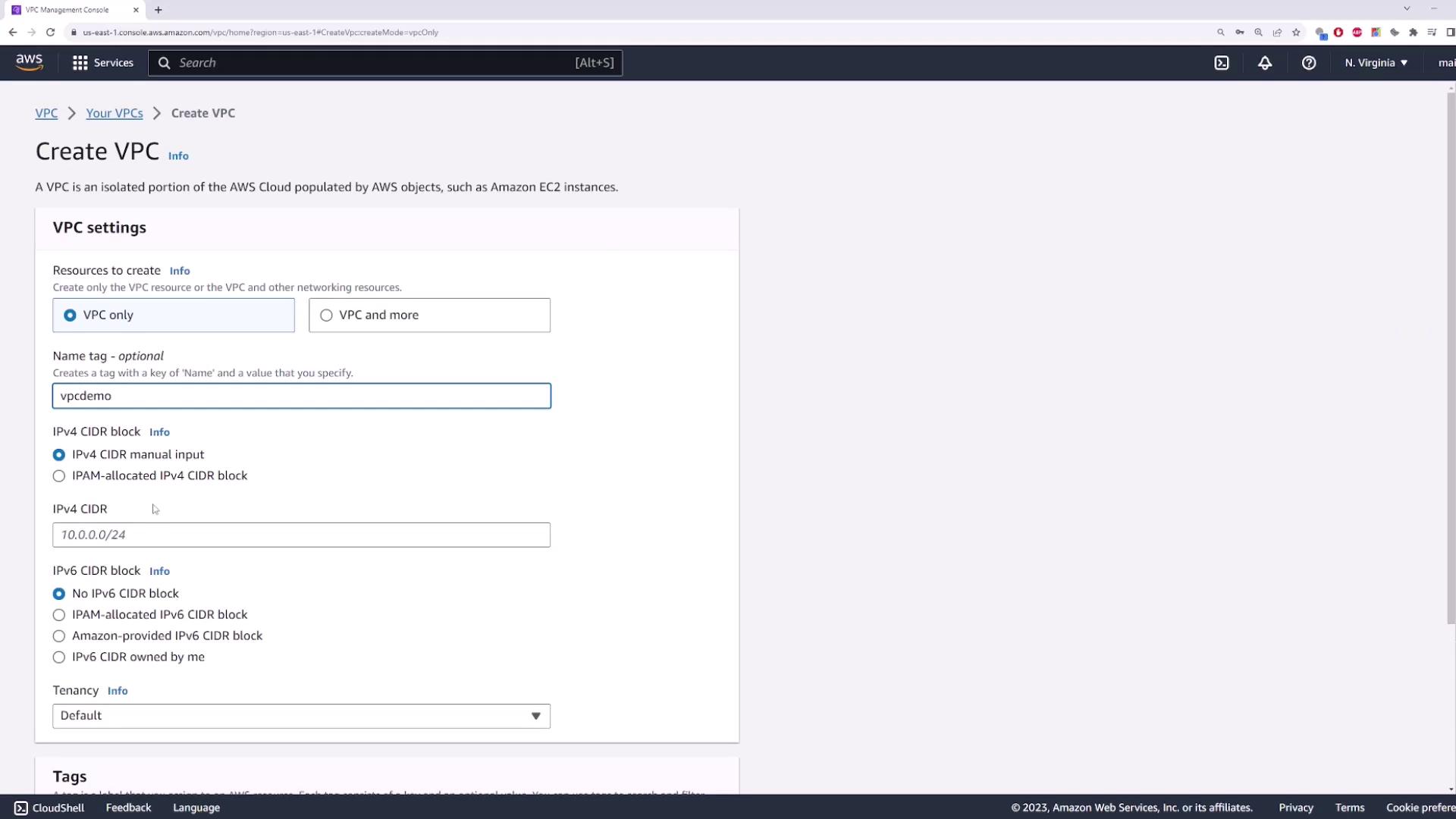
1. Create a New VPC
- Open the VPC console and select Create VPC.
- Enter a Name tag (e.g.,
demo-vpc) and set the IPv4 CIDR block to10.0.0.0/16. - Leave IPv6 settings disabled and click Create.
2. Create a Private Subnet
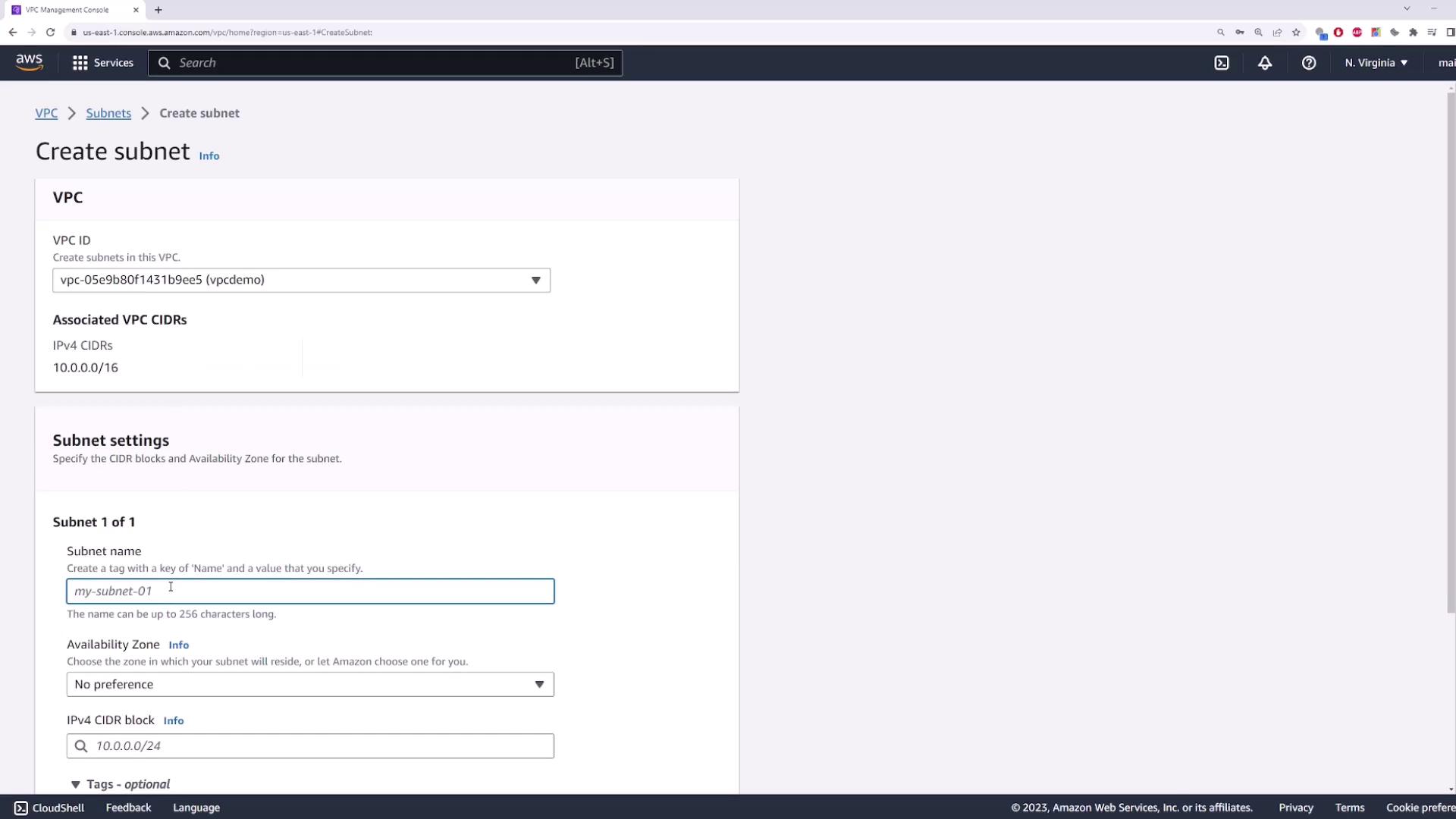
This subnet will host your EC2 instance without a public IP.
- Name:
private-subnet - Availability Zone: e.g.,
us-east-1b - IPv4 CIDR block:
10.0.1.0/24
3. Launch an EC2 Instance in the Private Subnet
- Navigate to the EC2 console → Launch Instance.
- Select the Amazon Linux 2 AMI (or your preferred AMI).
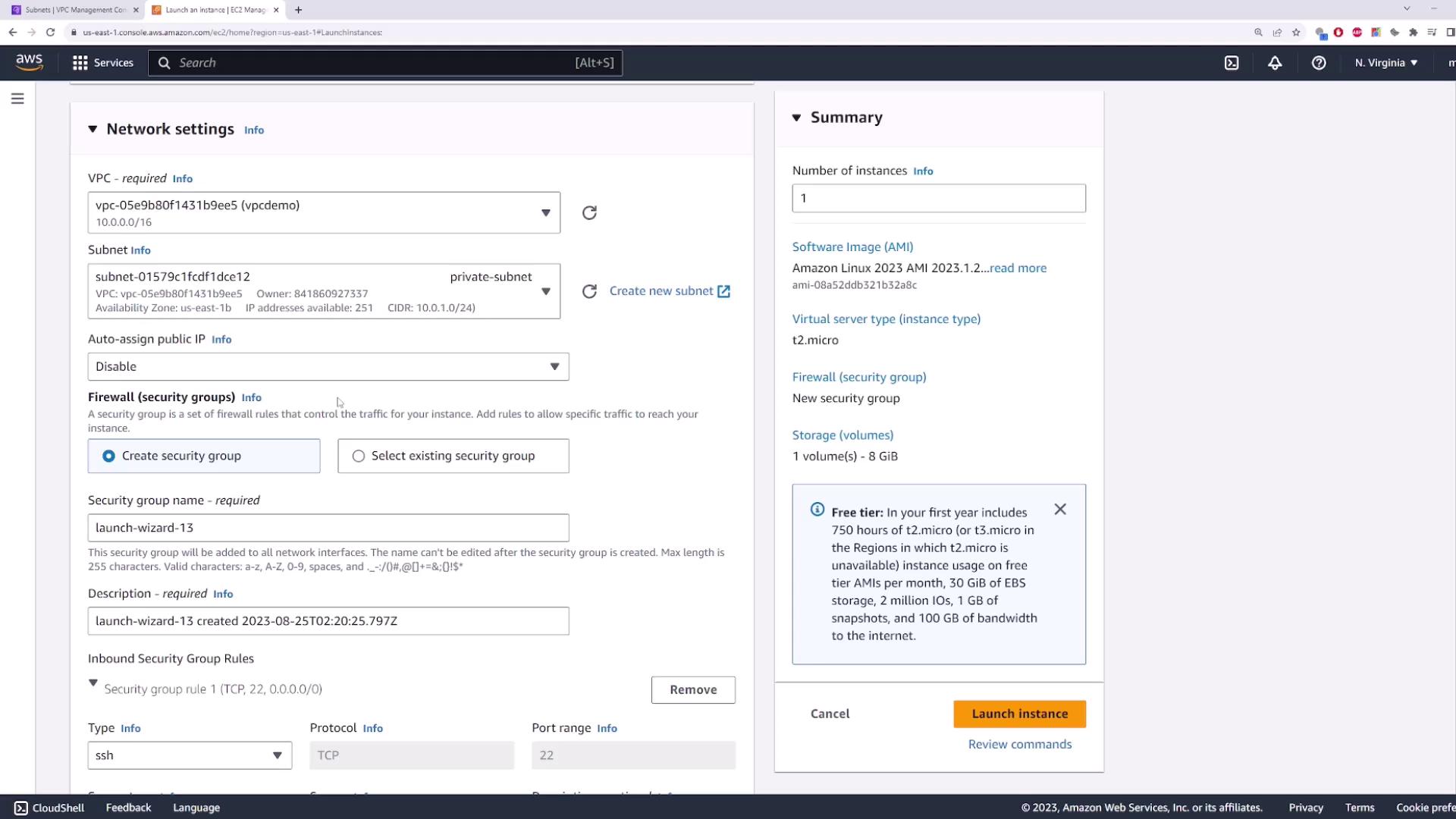
- Under Network settings:
- Choose your demo-vpc and the private-subnet.
- Disable Auto-assign Public IP.
- Configure or select a security group (default settings are fine).
- Review and Launch. Name it
private-server.
Because there’s no public IP, the instance cannot be reached directly from the internet.
4. Create and Attach an Internet Gateway
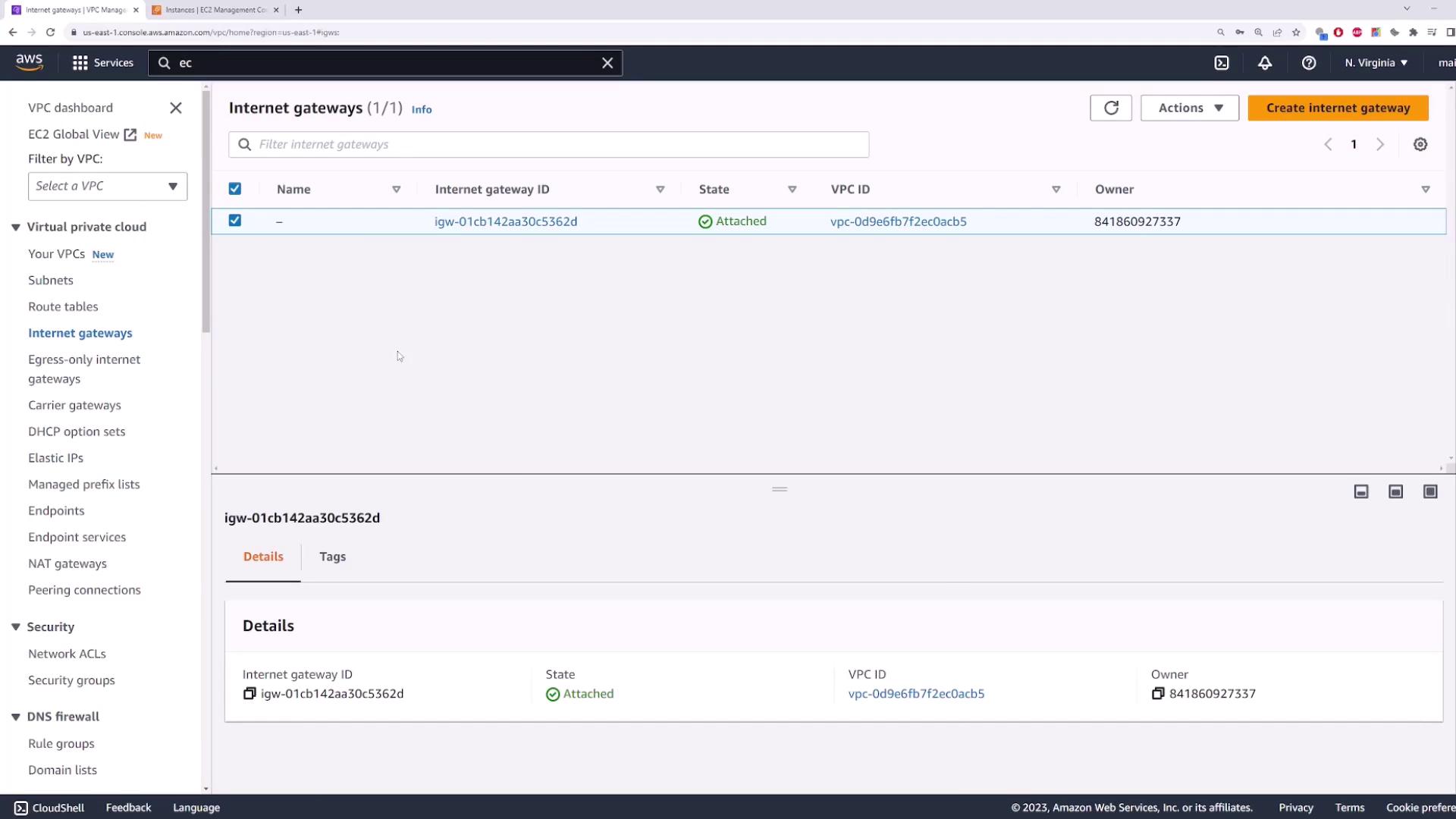
An Internet Gateway (IGW) is required to give public subnets internet access.
- In the VPC console, go to Internet Gateways → Create Internet Gateway.
- Name it
my-igwand click Create. - Select the new IGW → Actions → Attach to VPC → choose
demo-vpc.
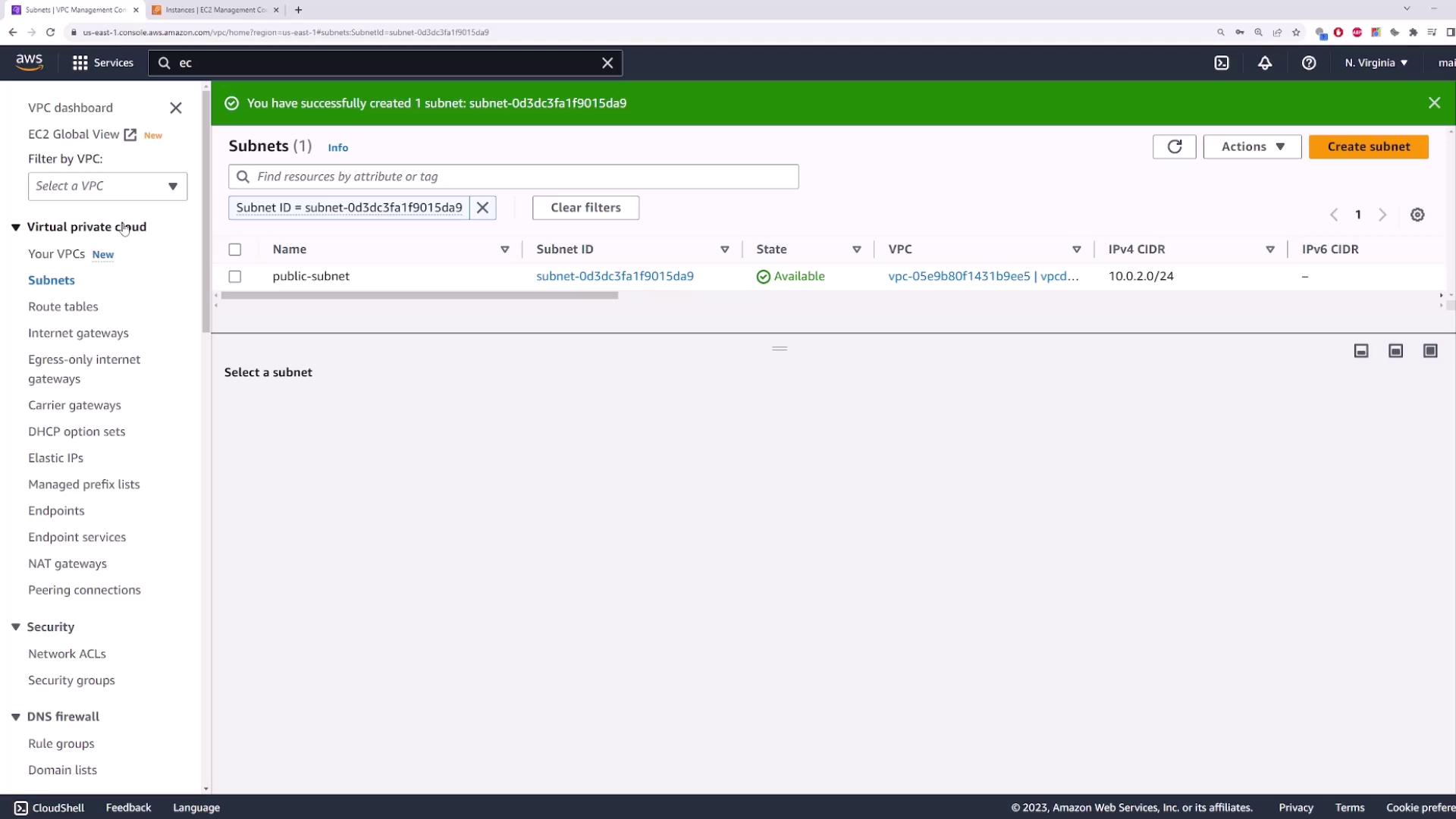
5. Create a Public Subnet
This subnet will host the NAT Gateway and must have a route to the IGW.
- Name:
public-subnet - Availability Zone: same or different (e.g.,
us-east-1b) - IPv4 CIDR block:
10.0.2.0/24
6. Configure Route Tables
You need two route tables: one public and one private.
| Route Table Name | Associated Subnet | Default Route Target |
|---|---|---|
| public-route-table | public-subnet | Internet Gateway (my-igw) |
| private-route-table | private-subnet | (added after NAT creation) |
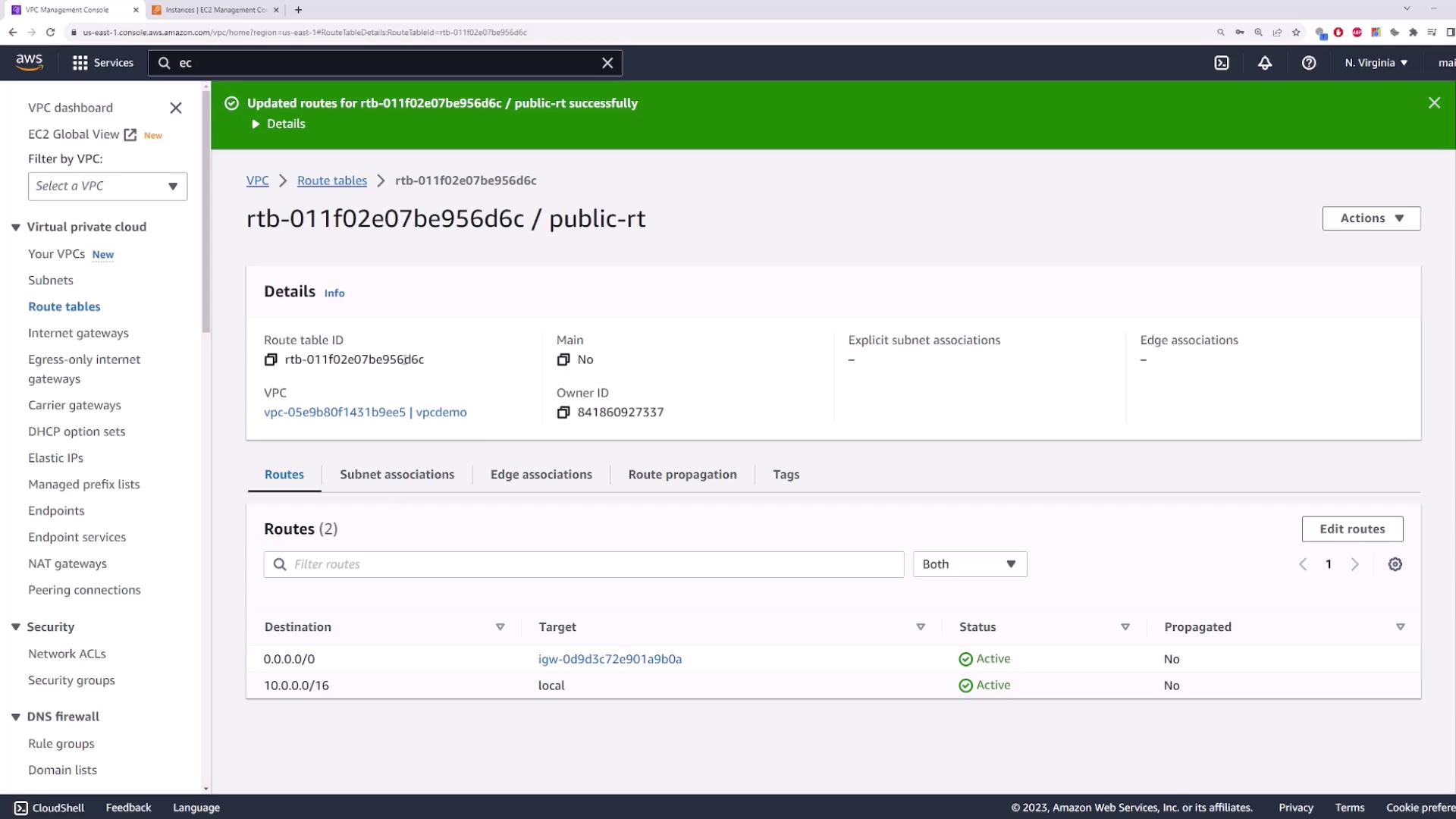
Steps
- Create
public-route-table→ selectdemo-vpc→ Create. - Edit routes → Add route
0.0.0.0/0→ Target: Internet Gateway → choosemy-igw→ Save. - Associate with
public-subnet. - Create
private-route-table→ selectdemo-vpc→ Create. - Associate with
private-subnet(no default route yet).
7. Deploy a NAT Gateway
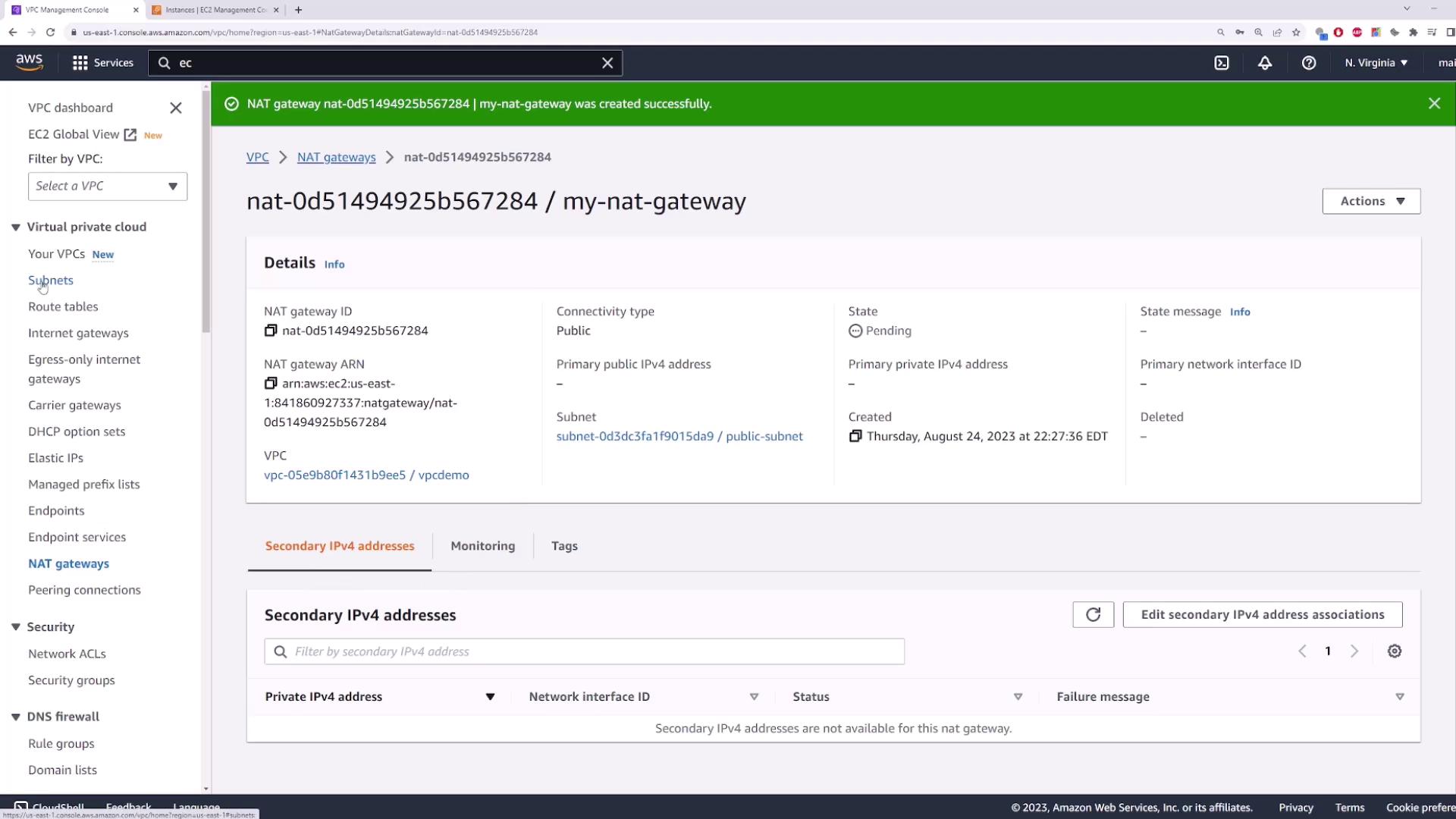
In a public subnet, NAT Gateways allow private instances to access the internet securely.
- Go to NAT Gateways → Create NAT Gateway.
- Name it
my-nat-gateway. - Subnet: public-subnet.
- Allocate a new Elastic IP.
- Click Create NAT Gateway.
You can also use the AWS CLI:
bash  theme={null}
aws ec2 create-nat-gateway \
  --subnet-id <public-subnet-id> \
  --allocation-id <eip-allocation-id>
8. Update the Private Route Table
After the NAT Gateway becomes available:
- Open
private-route-table→ Edit routes. - Add route
0.0.0.0/0→ Target: NAT Gateway → selectmy-nat-gateway. - Save.
Now, instances in private-subnet will send outbound traffic through the NAT Gateway while remaining inaccessible from the internet.
9. Plan for High Availability
NAT Gateways are zonal resources. To avoid a single point of failure:
- Deploy one NAT Gateway per Availability Zone.
- Update each private route table to point to the NAT Gateway in its own AZ.