Inline Policy
This guide explores differences between AWS managed policies, customer managed policies, and inline policies, including when to use each type and a demo for granting temporary S3 access.
AWS Identity and Access Management (IAM) offers flexible controls to secure resources. In this guide, we explore the differences between AWS managed policies, customer managed policies, and inline policies. You'll learn when to use each type and see a hands-on demo for granting temporary S3 access.
Scenario: Organizing Roles and Permissions
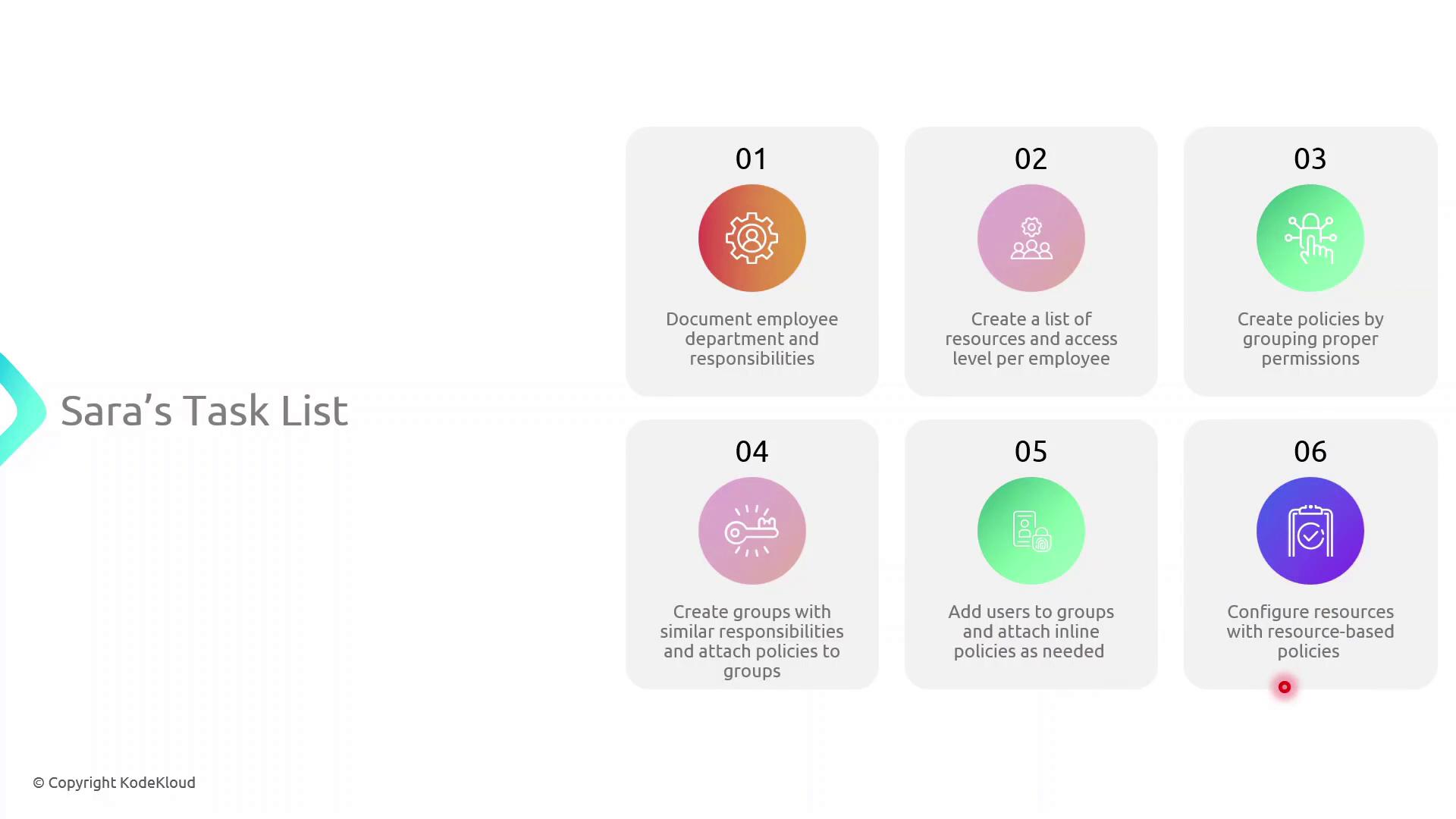
Sarah must implement access controls across multiple departments. Her workflow includes:
- Mapping each department and listing team members’ responsibilities (e.g., John in HR handles onboarding).
- Identifying required AWS resources and permission levels for every user.
- Crafting IAM policies—collections of permissions tied to resources.
- Creating IAM groups for teams with similar roles and attaching the appropriate policies.
- Attaching inline policies to users, groups, or roles for unique scenarios.
- Applying resource-based policies (e.g., for S3 buckets) where needed.
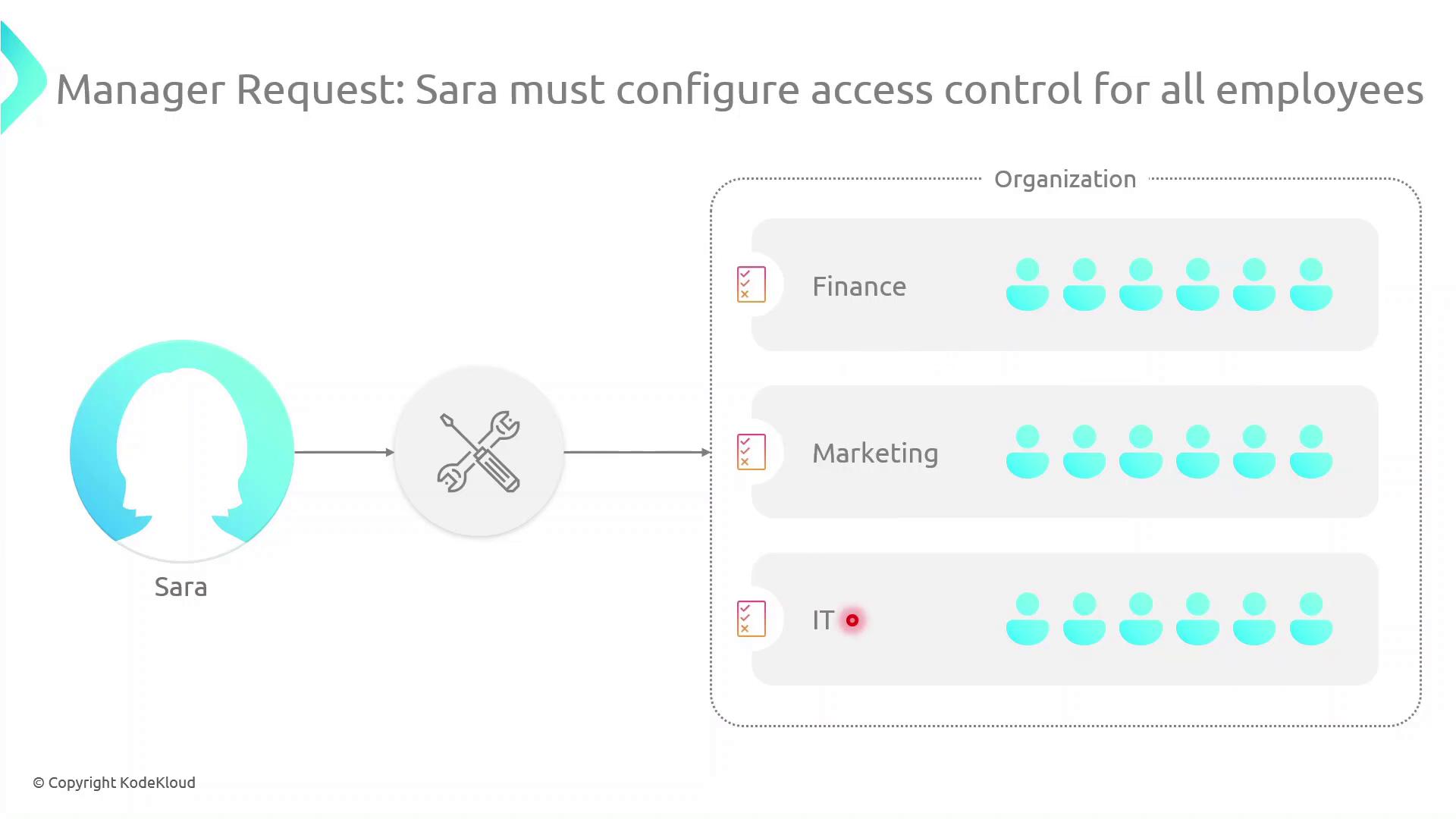
Her manager has also requested a consolidated access control plan spanning Finance, Marketing, and IT:
Types of Identity-Based Policies
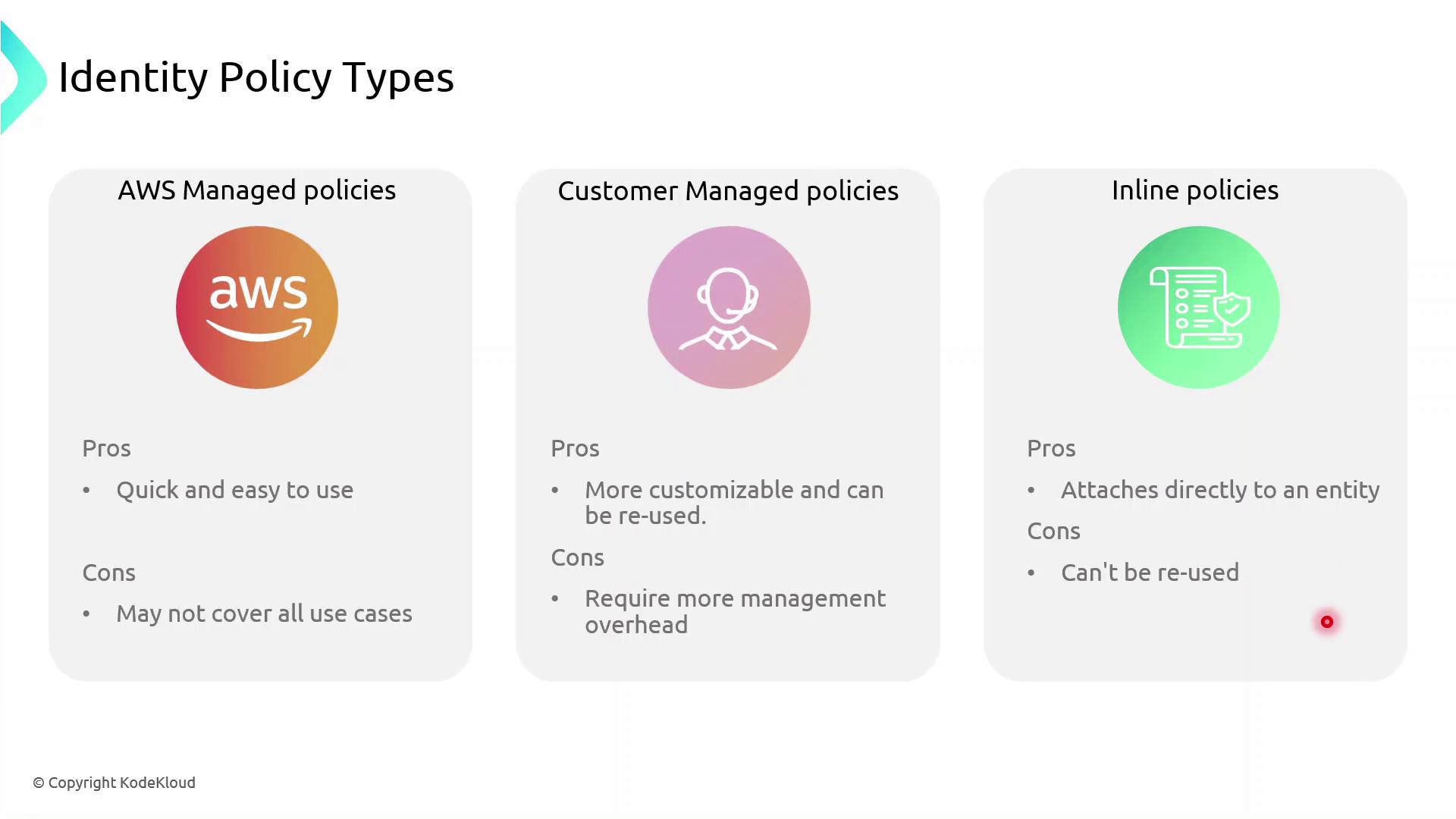
AWS IAM supports three identity-based policy types:
- AWS Managed Policies: Predefined and maintained by AWS.
- Customer Managed Policies: Custom, reusable policies you create and maintain.
- Inline Policies: Embedded within a single user, group, or role; not reusable.
Policy Comparison Table
| Policy Type | Maintenance | Reuse | Best For |
|---|---|---|---|
| AWS Managed Policy | AWS-maintained | High | Common permissions across multiple accounts |
| Customer Managed Policy | Customer-maintained | Medium | Tailored permissions shared across teams or projects |
| Inline Policy | Entity-specific | None | One-off exceptions and tightly scoped use cases |
Inline vs Managed: Key Differences
- Inline Policies attach directly to a single IAM entity (user, group, or role).
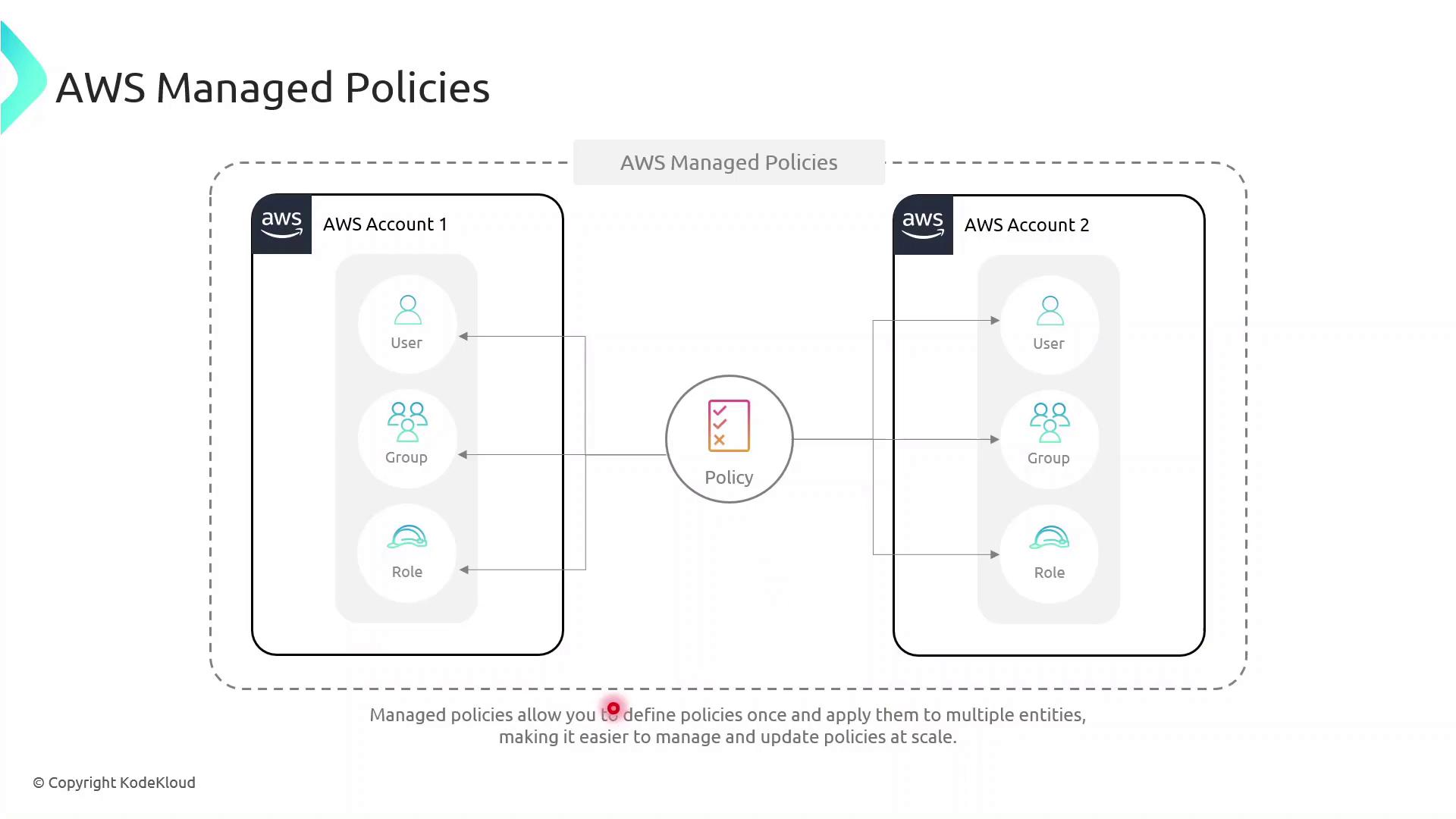
- AWS Managed Policies exist as separate objects and can be attached to multiple entities, even across AWS accounts, reducing duplication.
Demo: Granting Temporary S3 Access
In this example, we give the DevOps engineer, Alice, limited S3 access until year-end using a customer managed policy with a date-based condition.
Create the JSON policy document temporary_s3_access_policy.json:
```json theme={null} { "Version": "2012-10-17", "Statement": [ { "Sid": "TemporaryS3Access", "Effect": "Allow", "Action": [ "s3:GetObject", "s3:ListBucket" ], "Resource": [ "arn:aws:s3:::example-bucket", "arn:aws:s3:::example-bucket/*" ], "Condition": { "DateLessThanEquals": { "aws:CurrentTime": "2023-12-31T23:59:59Z" } } } ] }
Then use the AWS CLI to create and attach the policy:

```bash  theme={null}
aws iam create-policy \
  --policy-name TemporaryS3AccessPolicy \
  --policy-document file://temporary_s3_access_policy.json

aws iam attach-user-policy \
  --user-name Alice \
  --policy-arn arn:aws:iam::123456789012:policy/TemporaryS3AccessPolicy
123456789012 with your actual AWS account ID before running these commands.
Next Steps
- Explore multi-factor authentication (MFA) to add an extra layer of security.
- Learn about identity federation and STS for single sign-on.
- Configure AWS Resource Access Manager to share resources across accounts.
- Set up VPC endpoints to control network traffic to AWS services.
Links and References
This article explains how to create an inline IAM policy for time-limited S3 uploads by a specific user.
In this walkthrough, we’ll attach an inline IAM policy to our DevOps engineer, Alice, allowing her to upload objects to the my-deployment-bucket S3 bucket only until December 31, 2023. Inline policies are embedded directly on a single IAM identity—ideal for granting one-off or time-limited permissions.
Policy Structure
Below is an overview of the key elements in our inline policy:
| Field | Description | Example |
|---|---|---|
| Version | Specifies the policy language version. | 2012-10-17 |
| Statement | Container for one or more individual permission statements. | See breakdown below |
| Effect | Whether the statement allows or denies access. | Allow |
| Action | The specific API call(s) permitted. | s3:PutObject |
| Resource | The ARN of the S3 bucket (and objects) to which it applies. | arn:aws:s3:::my-deployment-bucket/* |
| Condition | Optional restrictions (e.g., time, IP) on when the action applies. | DateLessThan with aws:CurrentTime |
Statement Breakdown
- Effect:
Allow - Action:
s3:PutObject - Resource: All objects in my-deployment-bucket
- Condition: Only if the request timestamp is before 2023-12-31T23:59:59Z
Steps to Create the Inline Policy
-
Open the IAM console and select the user Alice.
-
Go to the Permissions tab, then click Add permissions → Create inline policy.
-
Switch to the JSON editor and paste the following policy:
json  theme={null}
   {
     "Version": "2012-10-17",
     "Statement": [
       {
         "Effect": "Allow",
         "Action": "s3:PutObject",
         "Resource": "arn:aws:s3:::my-deployment-bucket/*",
         "Condition": {
           "DateLessThan": {
             "aws:CurrentTime": "2023-12-31T23:59:59Z"
           }
         }
       }
     ]
   }
-
Provide a name for the policy (e.g., Alice-S3-Access-Inline-Policy) and click Create policy.
-
Back under Alice’s Permissions tab, verify the new inline policy appears in the list.
Verification
- Use the AWS CLI or console to attempt an S3 upload as Alice:
bash theme={null} aws s3 cp ./local-file.txt s3://my-deployment-bucket/ --profile alice - Before the expiration date, the upload should succeed. Afterward, you’ll receive an
AccessDeniederror.