Create Application using UI
Learn to create an ArgoCD application using its UI, focusing on deploying a demo application with Gitea as the Git service.
In this lesson, you will learn how to create an ArgoCD application using its user interface. For demonstration purposes, we will use Gitea—a self-hosted Git service—for all labs and demo sessions. Although any Git service (such as GitHub, Bitbucket, or GitLab) can be used, this guide will focus on Gitea.
After signing into Gitea, locate the repository named gitops-argocd. This repository contains the demo exercises for the training. For our example, we will deploy an application using the "solar system" manifest stored inside the repository.
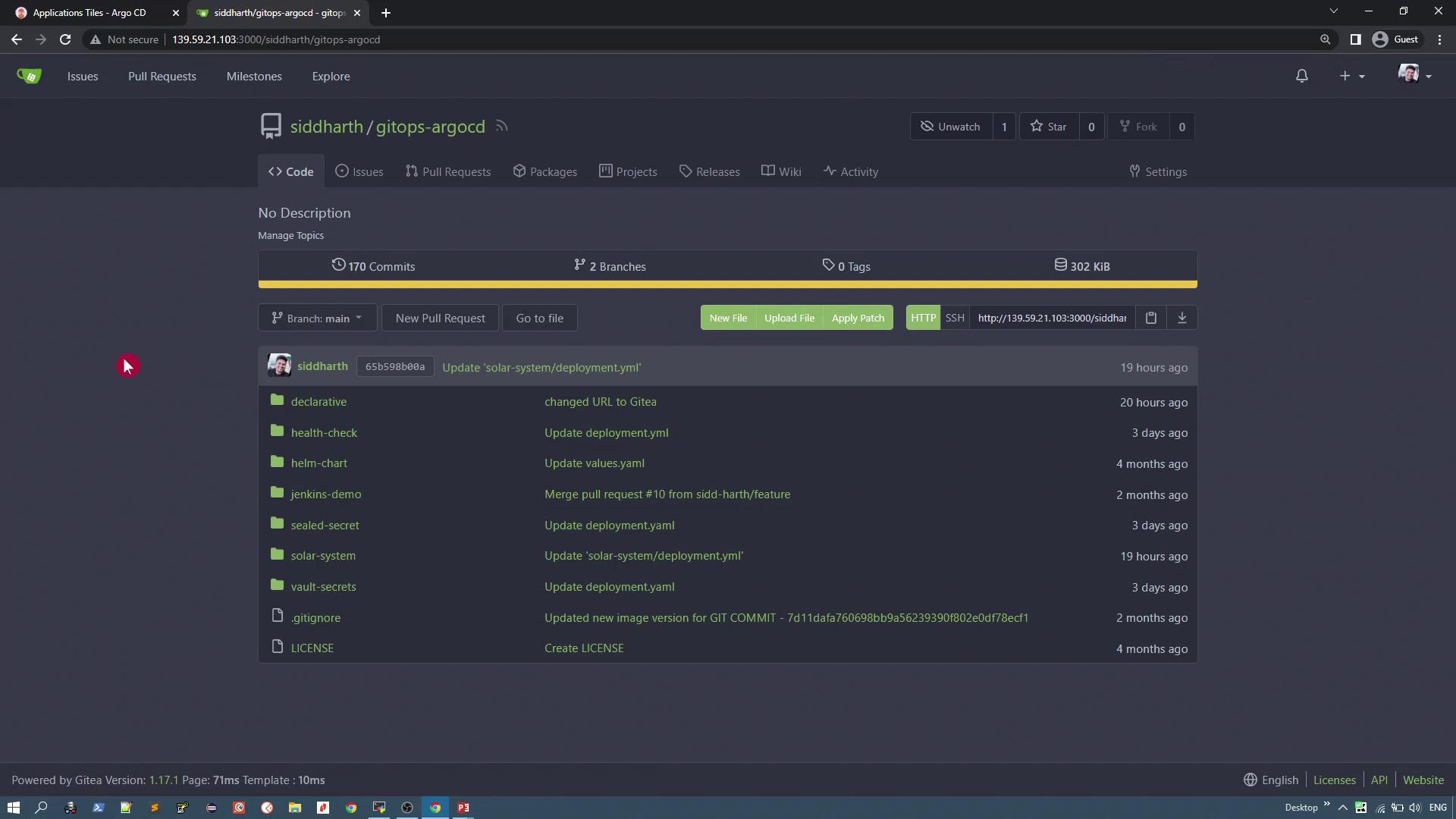
Within the repository, navigate to the solar system directory to find two Kubernetes manifests:
- Deployment Manifest: Configures a deployment that uses a custom image (version v3), deployed as a single replica, and exposes port 80.
- Service Manifest: Exposes the application via a NodePort.
Below is the content of the deployment manifest:
```yaml theme={null} apiVersion: apps/v1 kind: Deployment metadata: labels: app: solar-system name: solar-system spec: replicas: 1 selector: matchLabels: app: solar-system strategy: {} template: metadata: labels: app: solar-system spec: containers: - image: siddharth67/solar-system:v3 name: solar-system imagePullPolicy: Always ports: - containerPort: 80
And here is the service manifest:

```yaml  theme={null}
apiVersion: v1
kind: Service
metadata:
  labels:
    app: solar-system
  name: solar-system-service
spec:
  ports:
    - port: 80
      protocol: TCP
      targetPort: 80
  selector:
    app: solar-system
  type: NodePort
Creating the ArgoCD Application
To create an application using the ArgoCD UI:
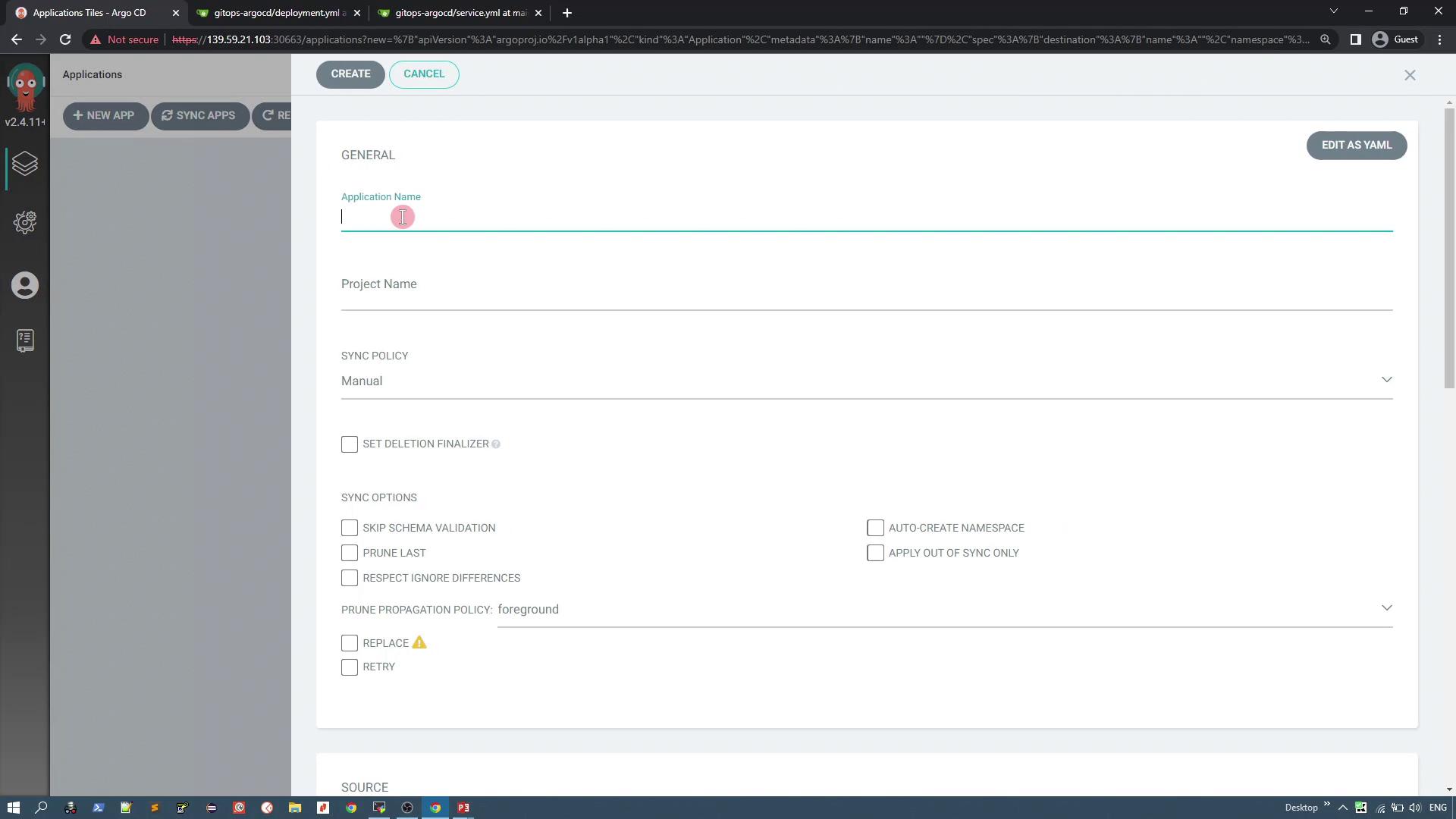
- Click on + New App.
- Enter an application name (for example, "solar-system-app-1").
- Select an ArgoCD project. By default, the "default" project is available.
- Choose the synchronization policy. For this guide, select Manual.
- Under Source Settings, select the repository you previously configured.
Repository Configuration
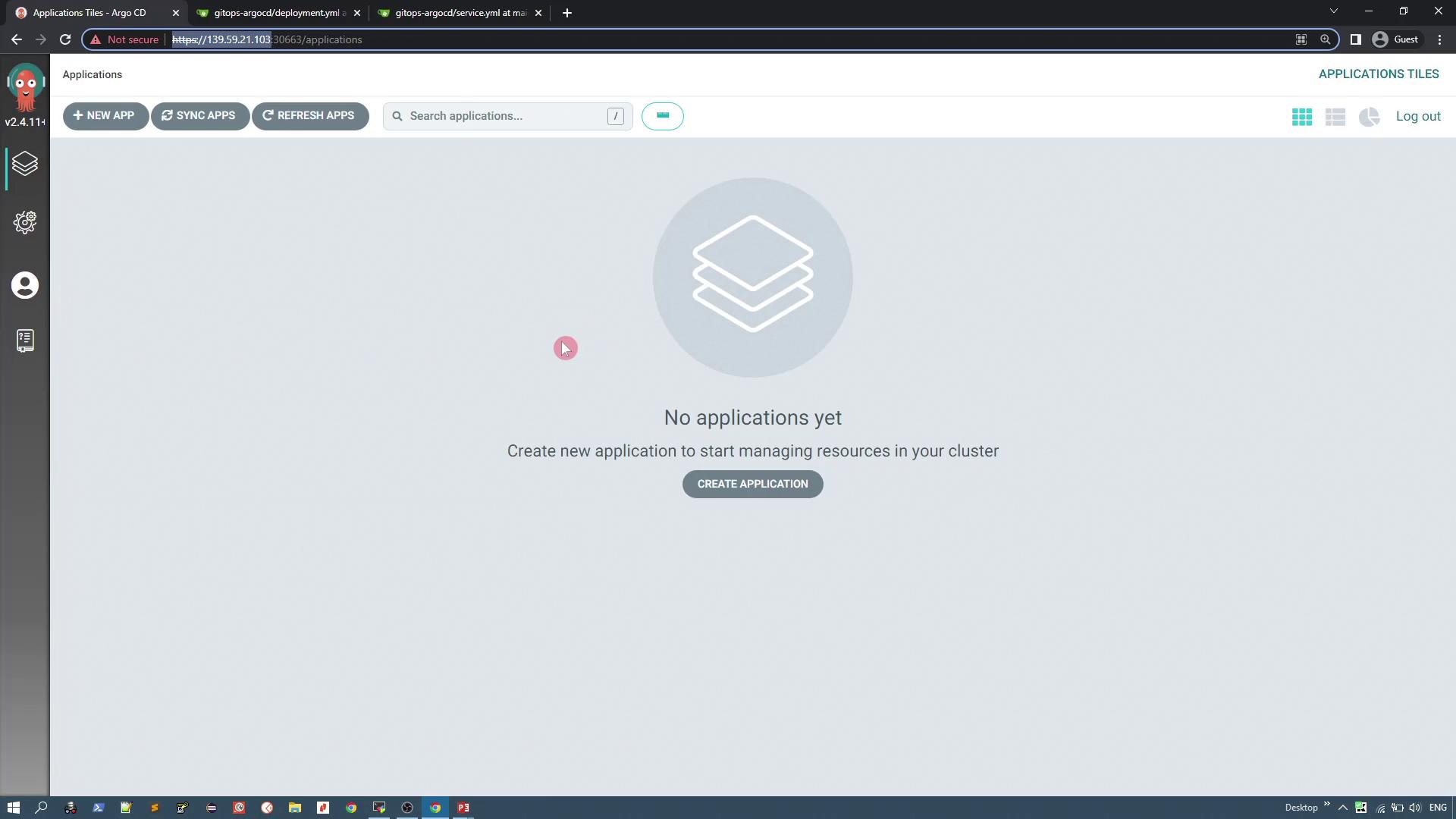
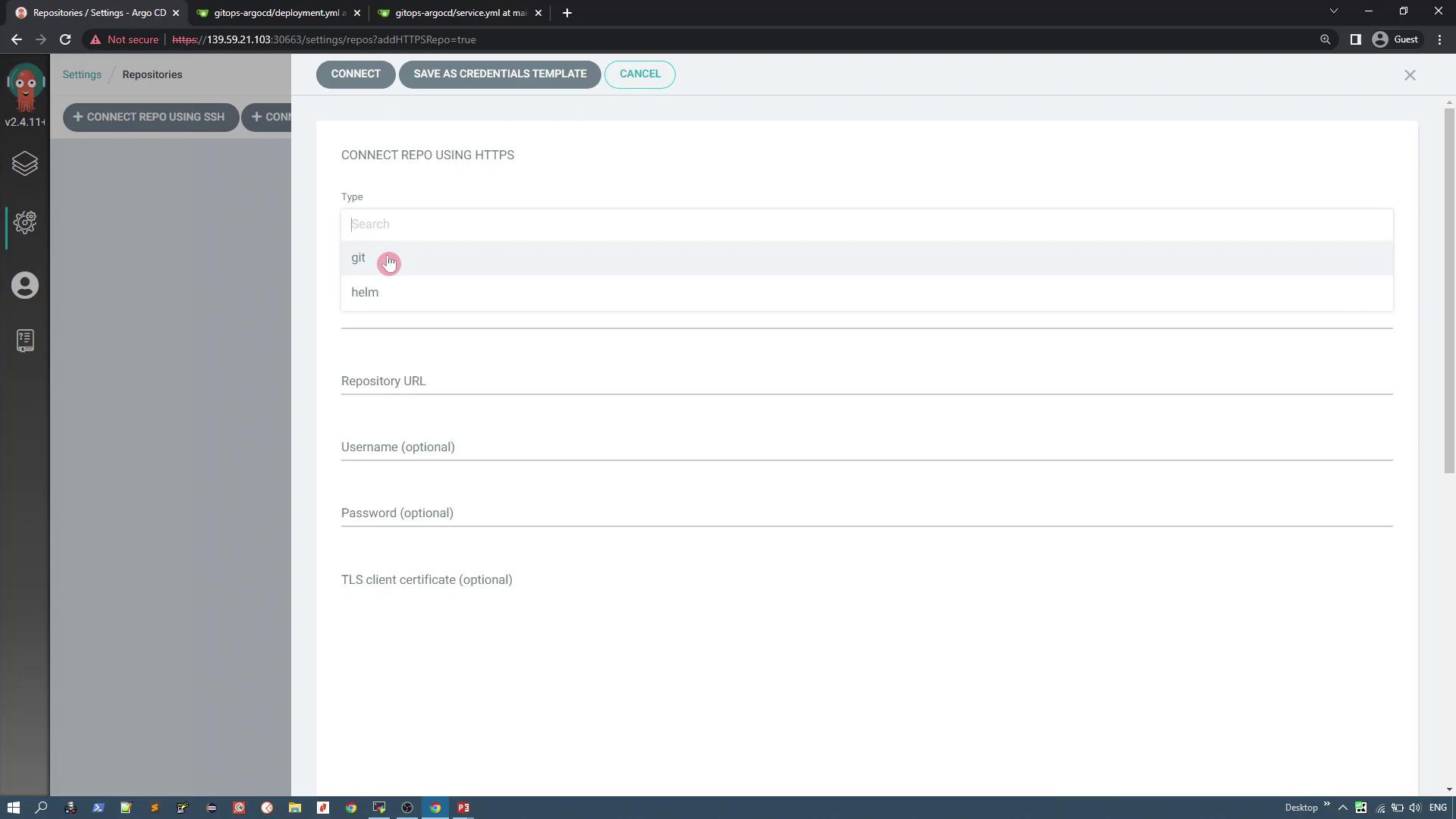
To connect your Git repository in ArgoCD, navigate to the Manage Repositories section. ArgoCD supports SSH, HTTPS, and GitHub App integrations. This demo uses HTTPS.
When configuring repository connections, enter the repository URL (up to the GitOps part of your URL). Username, password, and TLS certificates are optional and only required for private repositories.
After providing proper details, click Connect. A successful connection status will be displayed.
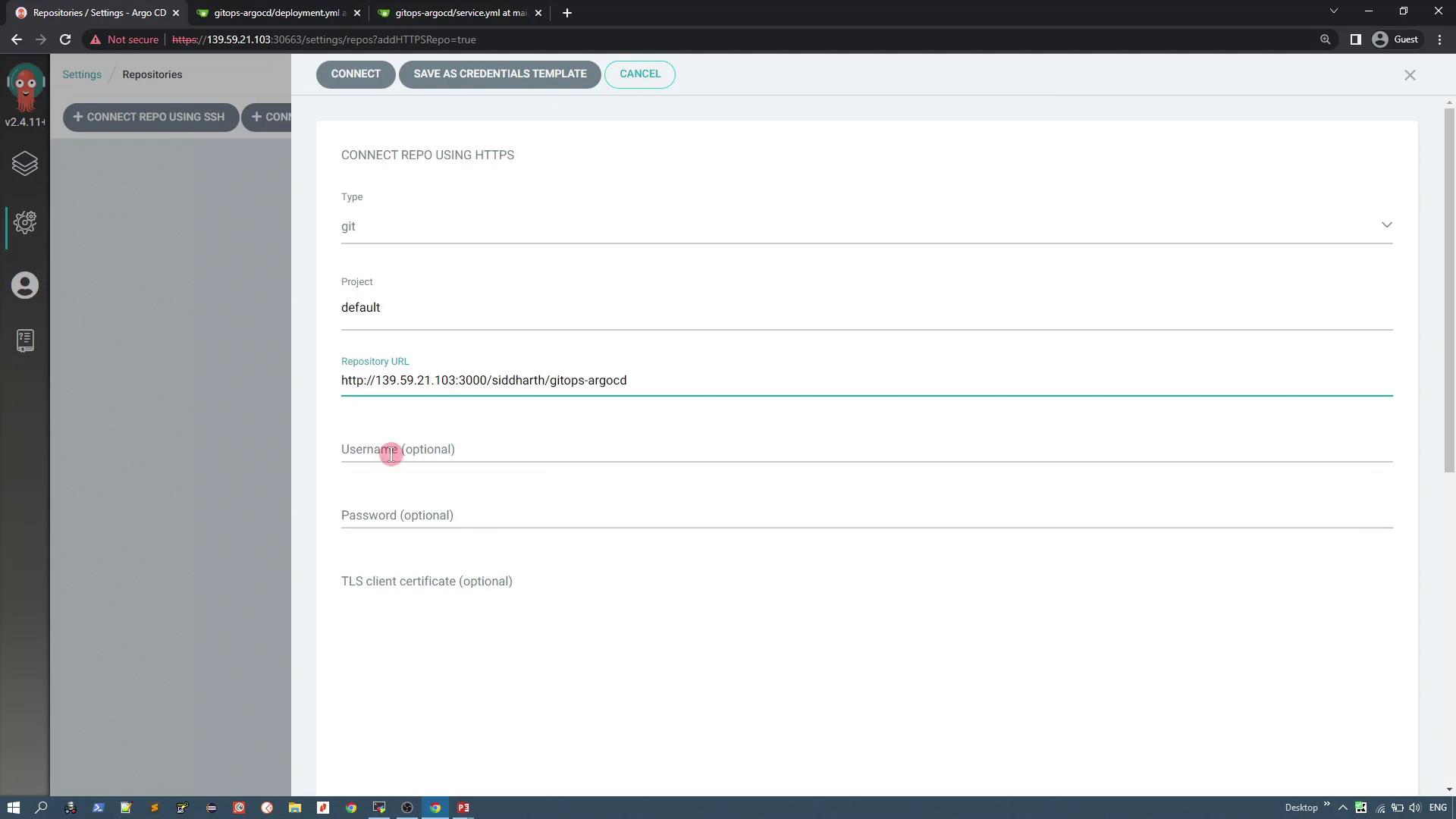
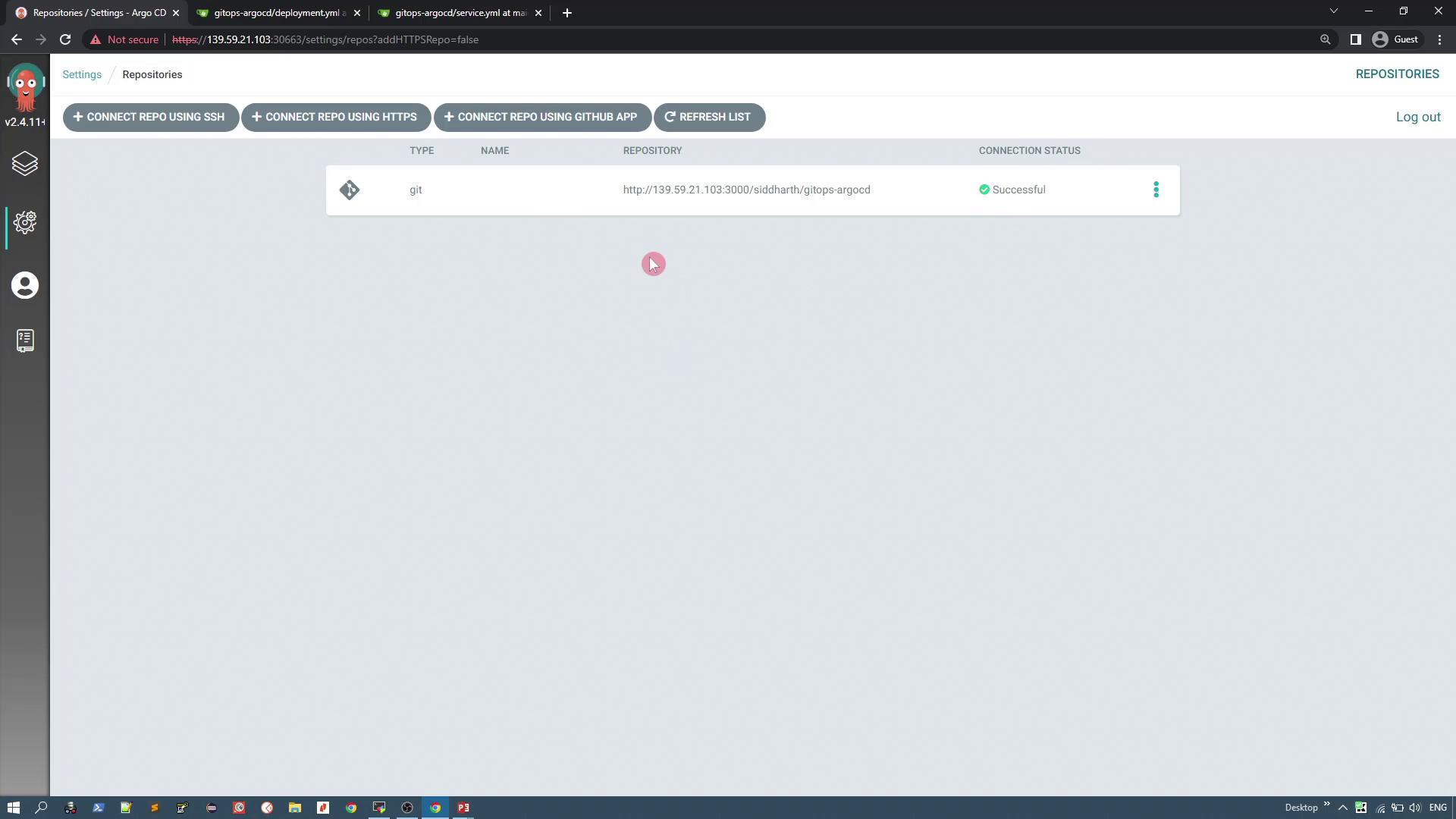
ArgoCD stores these connection details securely in Kubernetes secrets. To inspect these secrets, use the command below:
```bash theme={null} kubectl -n argocd get secrets
For example, you might see:

```bash  theme={null}
NAME                              TYPE    DATA  AGE
argocd-initial-admin-secret       Opaque  1     60m
argocd-secret                     Opaque  5     61m
repo-3254474260                   Opaque  3     52s
To view the details of a secret:
```bash theme={null} kubectl -n argocd get secrets repo-3254474260 -o json
This secret includes fields such as "project", "type", and "url" (all base64 encoded), ensuring sensitive information remains secure.
Return to the ArgoCD UI and complete the application creation process:
1. Under **Source Configuration**, select the repository you connected.
2. Set the **Path** to the `solar system` directory within your repository.
3. Configure the **Destination** by selecting the Kubernetes cluster where ArgoCD is installed and specifying a namespace (e.g., "solar-system"). You can opt to auto-create the namespace during synchronization if it does not exist.
4. Leave additional plugin or directory options at their default values.
5. Click **Create**.
<Frame>
</Frame>
After creation, the application status may appear as "Missing" and the sync status as "OutOfSync" because the defined Kubernetes resources are not yet deployed. Verify by running:
```bash theme={null}
kubectl get ns
kubectl get pod -A
At this point, the "solar-system" namespace and its resources should not be present.
Synchronizing the Application
To deploy the application:
- Click the Sync button in the ArgoCD UI.
- ArgoCD will detect two Kubernetes resources from your Git repository: the deployment and the service.
Missing Namespace Alert
If the target namespace ("solar-system") does not exist during sync, the process may fail. Ensure you have either created the namespace manually or enabled the Auto-create namespace option.
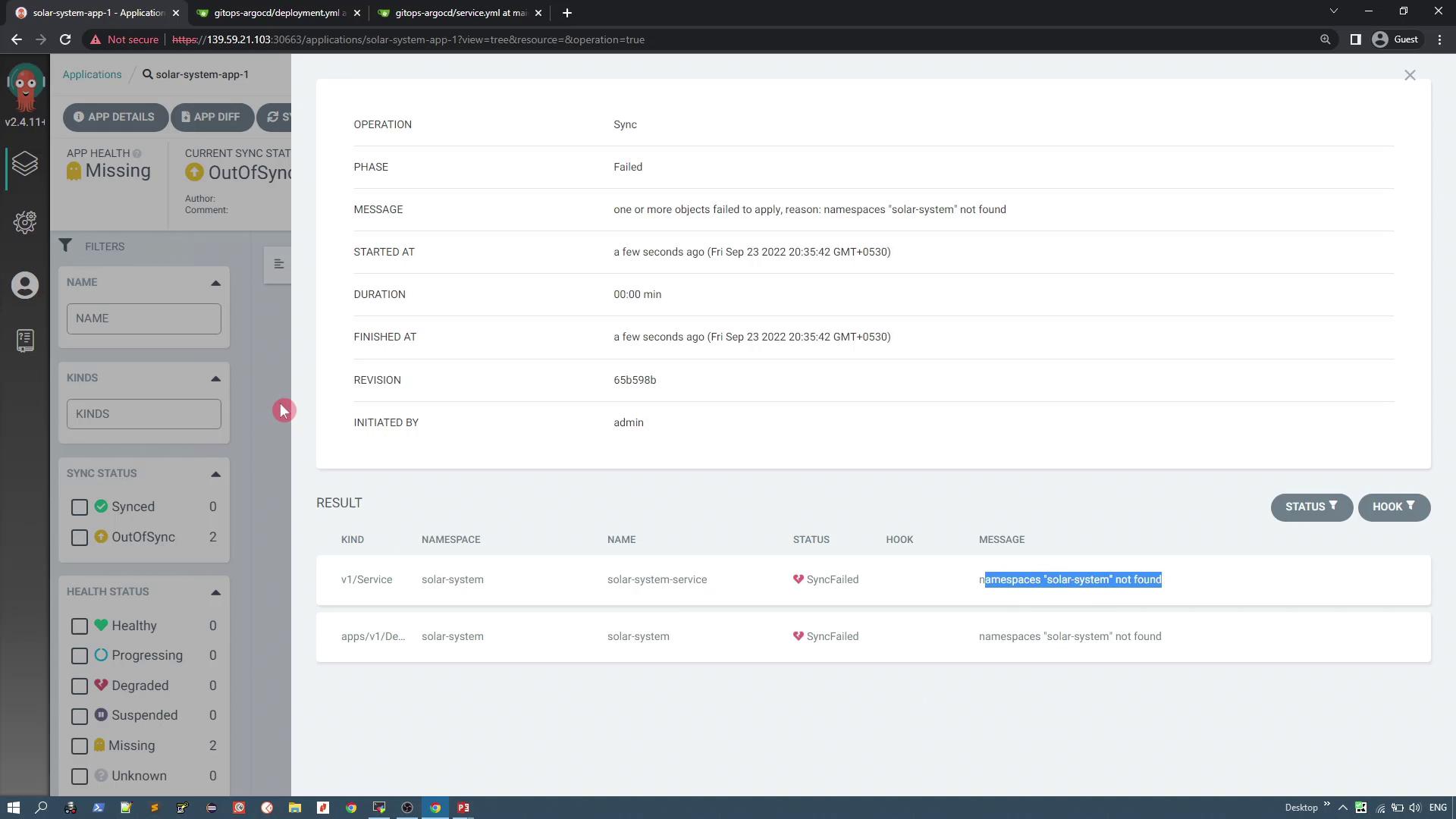
Once the namespace is available, ArgoCD will deploy the resources. The application health changes to "Healthy" and the sync status updates to "Synced".
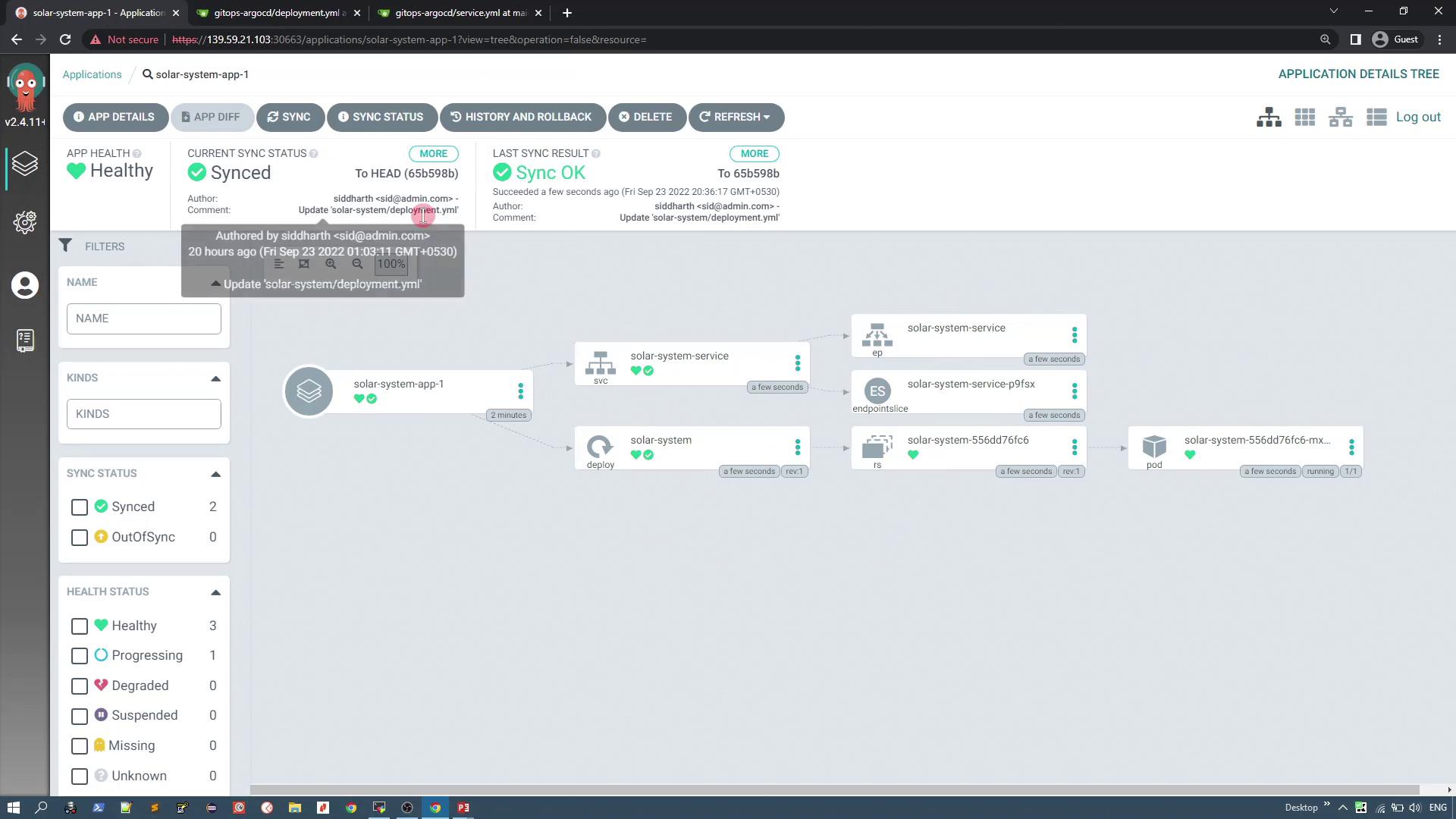
Verify the deployment by inspecting the namespace:
```bash theme={null} kubectl get ns kubectl -n solar-system get all
You can also inspect the live manifest details in ArgoCD by clicking on the service resource. A typical service manifest will resemble the following:

```yaml  theme={null}
apiVersion: v1
kind: Service
metadata:
  annotations:
    kubectl.kubernetes.io/last-applied-configuration: >-
      {"apiVersion":"v1","kind":"Service","metadata":{"annotations":{},"labels":{"app":"solar-system","app.kubernetes.io/instance":"solar-system-app-1"},"name":"solar-system-service","namespace":"solar-system"}}
  labels:
    app: solar-system
  name: solar-system-service
  namespace: solar-system
spec:
  clusterIP: 10.108.211.169
  ports:
    - nodePort: 30280
      port: 80
      protocol: TCP
      targetPort: 80
  selector:
    app: solar-system
  type: NodePort
Access the service via the NodePort (for example, 30280) to view a PHP application representing the solar system. With the v3 image, the UI displays a limited set of planets (the Sun, Mercury, Venus, and Earth).
Updating the Application Image
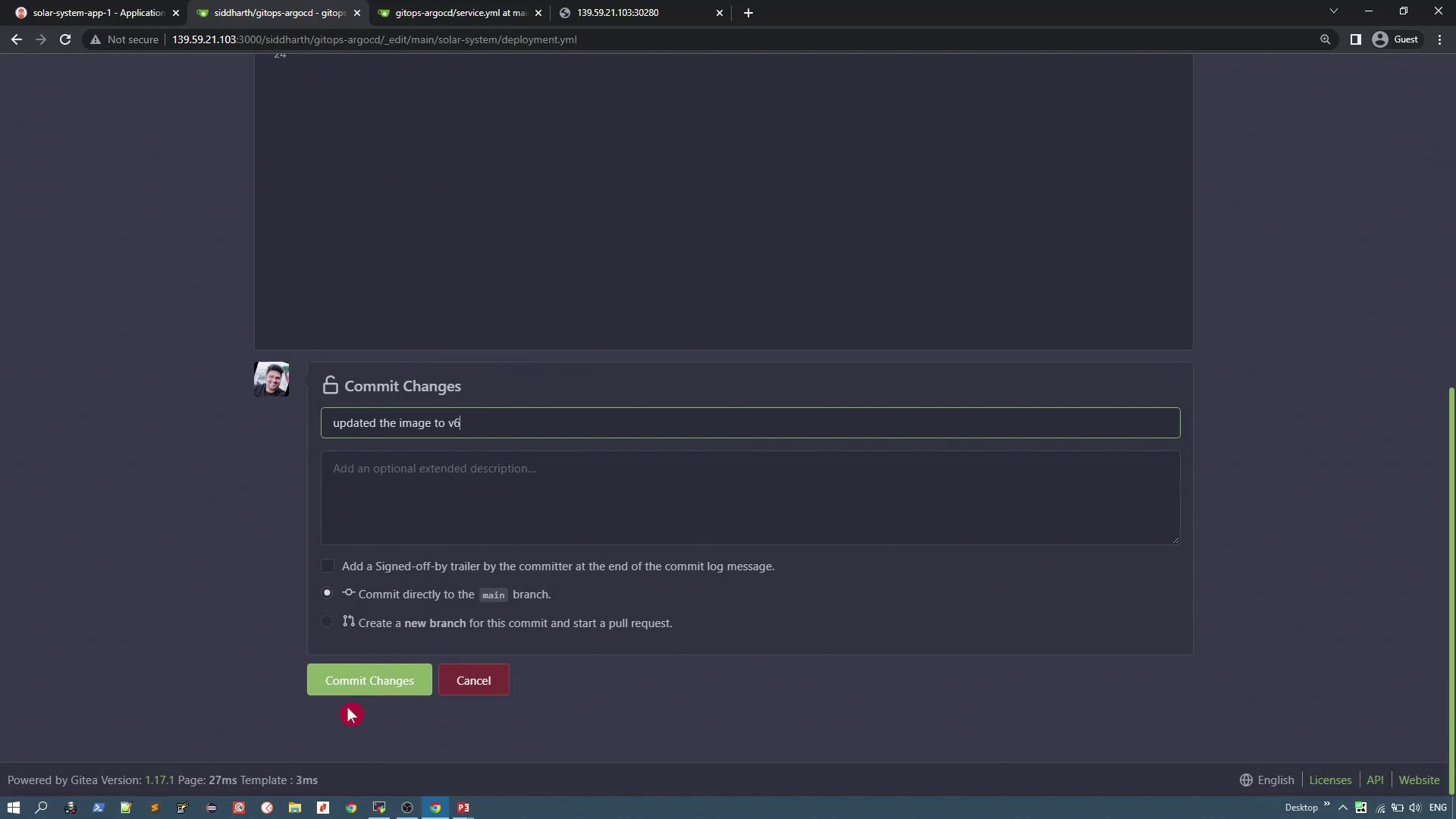
To simulate an update, modify the deployment manifest in your Git repository to change the image version from v3 to v6 (which displays six planets). Edit the deployment manifest as follows:
```yaml theme={null} apiVersion: apps/v1 kind: Deployment metadata: labels: app: solar-system name: solar-system spec: replicas: 1 selector: matchLabels: app: solar-system strategy: {} template: metadata: labels: app: solar-system spec: containers: - image: siddharth67/solar-system:v6 name: solar-system imagePullPolicy: Always ports: - containerPort: 80
Commit your changes with a message like "Updated the image to v6".
<Frame>
</Frame>
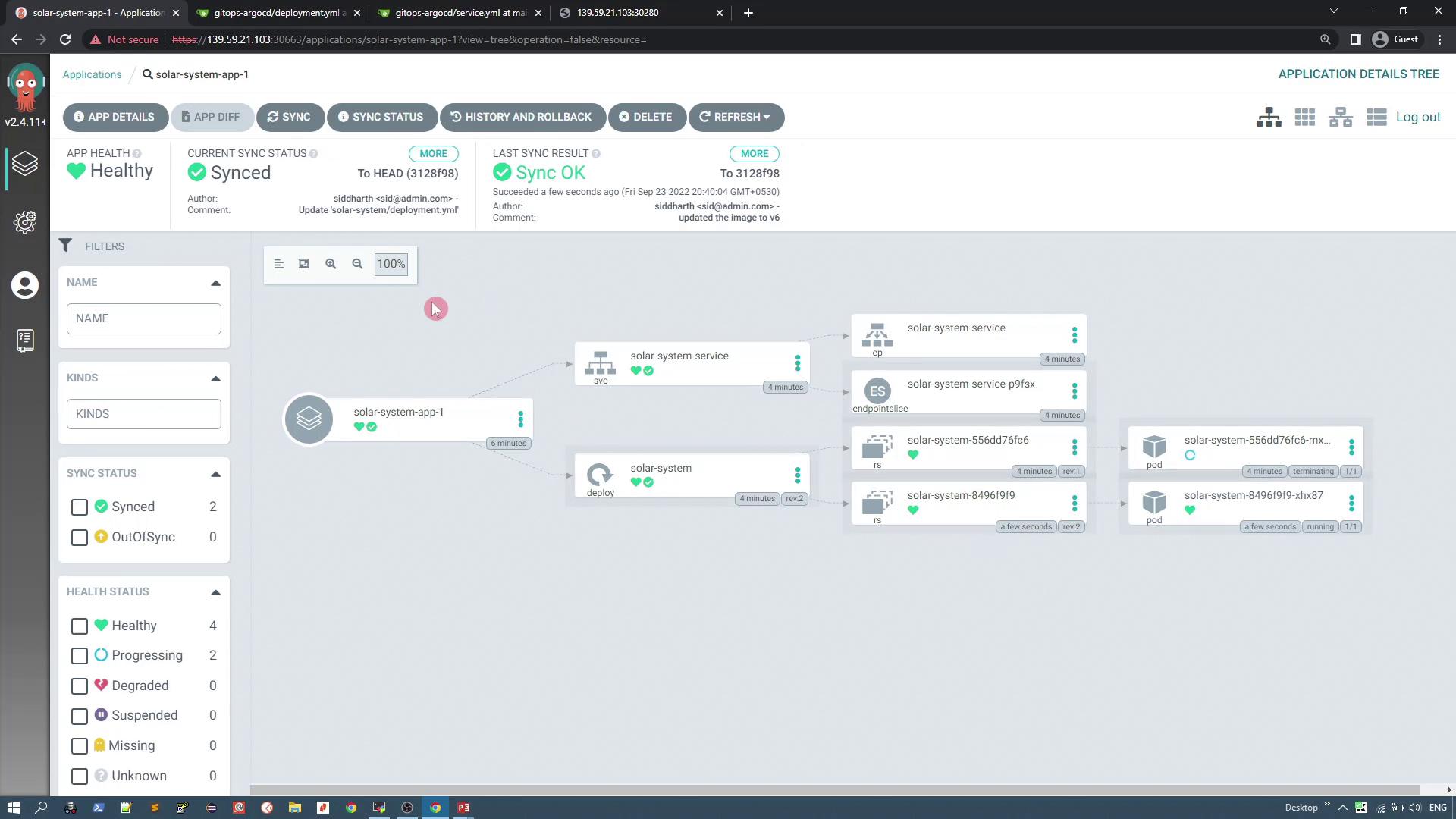
After committing, ArgoCD automatically checks the repository at regular intervals. To expedite the update, perform a hard refresh in the UI so that ArgoCD detects the changes. The sync status will once again be marked as "OutOfSync".
Click the **Synchronize** button. ArgoCD then deploys the updated resources, creates a new replica set, and starts a new pod with the updated image.
<Frame>
</Frame>
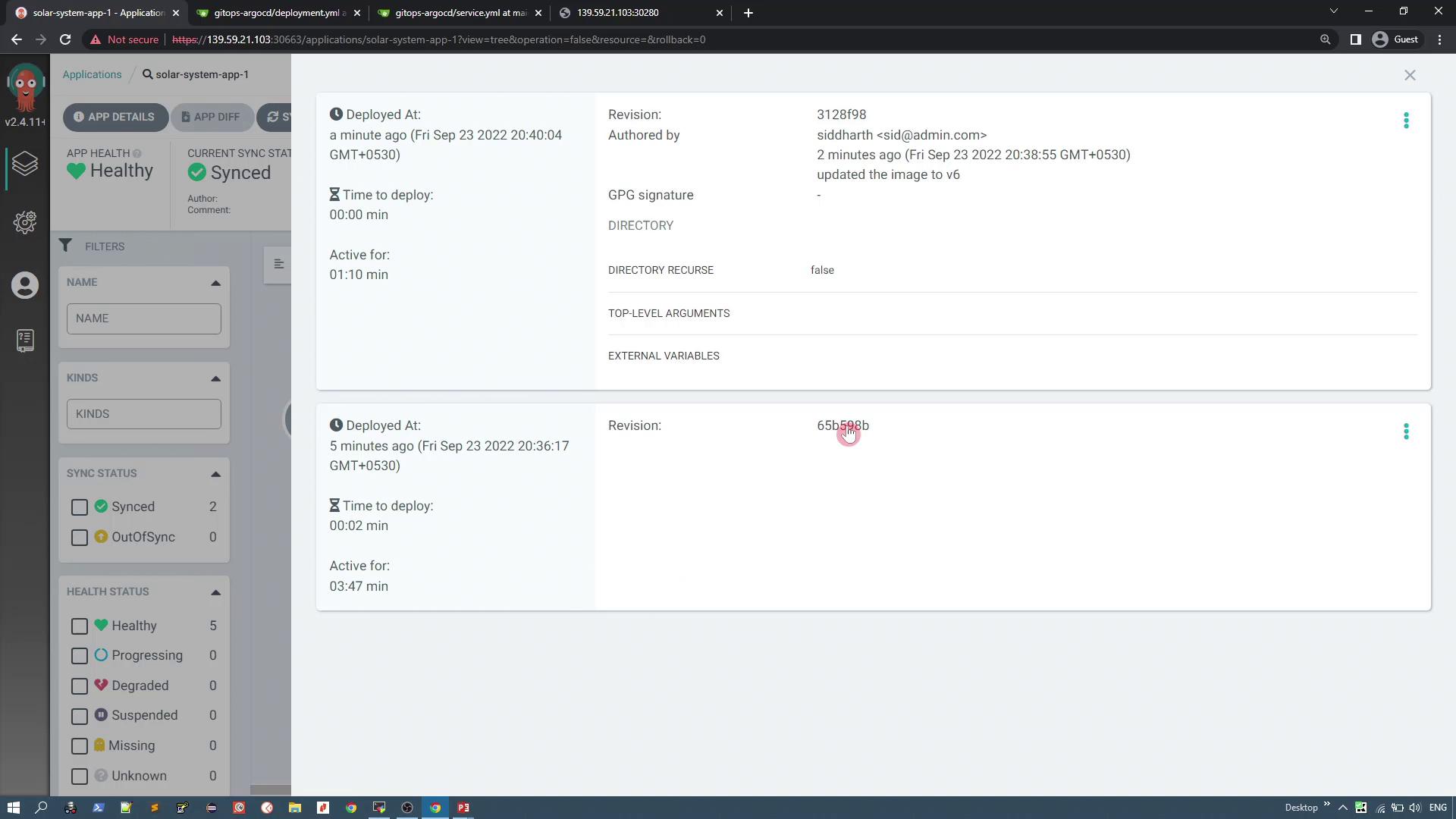
If the update results in unexpected behavior—such as an incorrect display of planets—you can roll back to a previous version. In the ArgoCD UI, click **History and Rollbacks**, select a previous revision (for example, the one deployed five minutes ago), and confirm the rollback.
<Frame>
</Frame>
After the rollback, the application status updates accordingly and the original display of planets is restored.
## Deleting the Application
To delete the application in ArgoCD:
1. Delete the application via the ArgoCD UI.
2. All the associated Kubernetes resources (deployment, replica set, pod, and service) are automatically removed from the cluster.
3. Note that the target namespace (e.g., "solar-system") remains intact.
Verify the deletion by running the following commands:
```bash theme={null}
kubectl get ns
kubectl -n solar-system get all
Expected output before deletion:
```bash theme={null}
kubectl -n solar-system get all
NAME READY STATUS RESTARTS AGE
pod/solar-system-556d76fc6-mxk6z 1/1 Running 0 34s
service/solar-system-service NodePort 10.108.211.169
Listing namespaces will confirm that "solar-system" still exists:
bash  theme={null}
kubectl get ns
NAME             STATUS   AGE
argocd           Active   71m
default          Active   19h
kube-node-lease  Active   19h
kube-public      Active   19h
kube-system      Active   19h
solar-system     Active   6m40s
In upcoming lessons, you will explore creating the same application using the ArgoCD CLI and further automating the continuous deployment process.
Thank you.