VPC Peering
VPC Peering establishes a private network connection between two VPCs, enabling communication as if on the same network.
In AWS, each Virtual Private Cloud (VPC) is an isolated network boundary. By default, resources in one VPC cannot reach resources in another VPC without an explicit link.
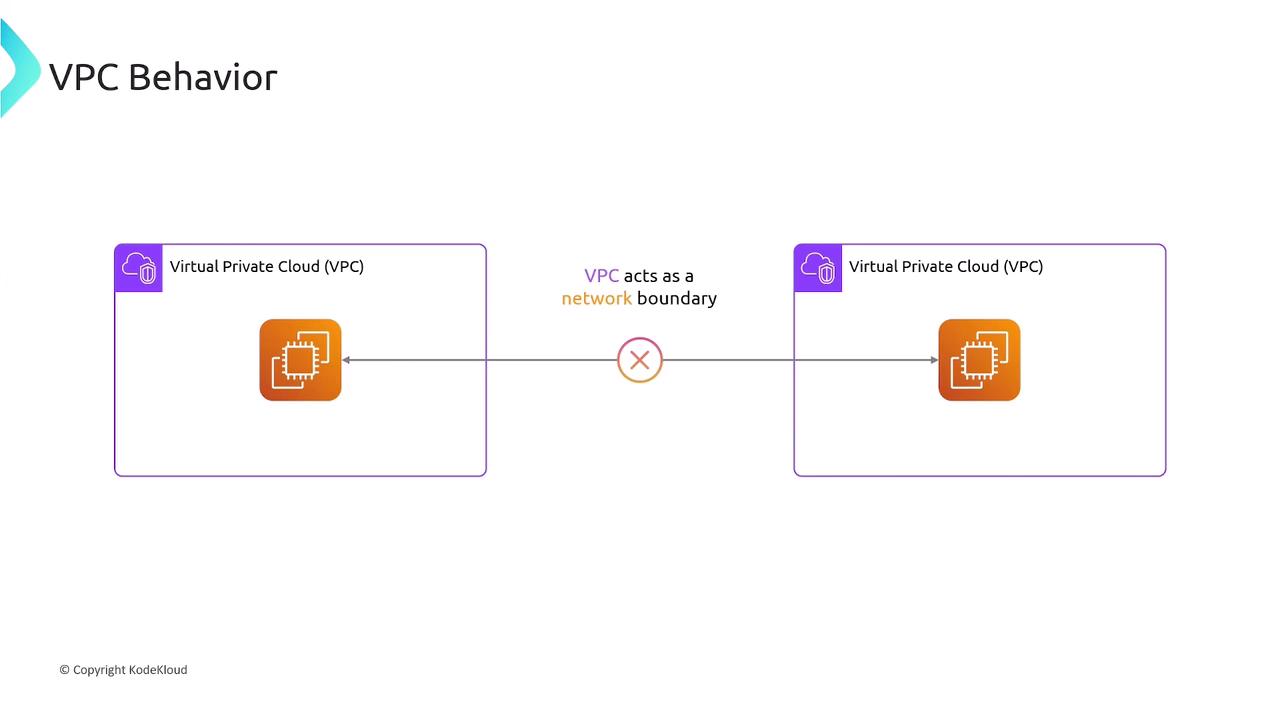
What Is VPC Peering?
VPC Peering establishes a private network connection between two VPCs, allowing instances to communicate as if they were on the same network. You can peer:
- VPCs within the same AWS Region
- VPCs across different regions (Inter-Region Peering)
- VPCs in separate AWS accounts
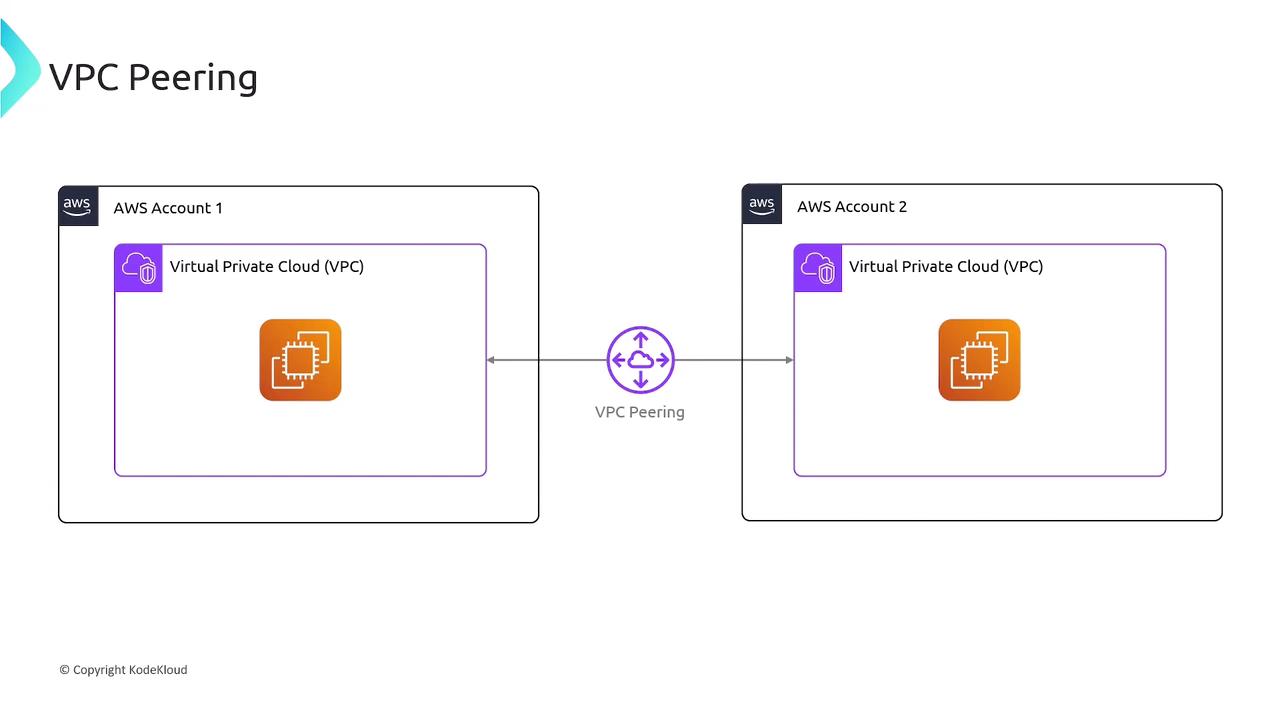
Pricing Overview
| Charge Type | Details |
|---|---|
| Peering Connection | No setup fee or hourly rate |
| Intra-AZ Data Transfer | Free (within the same Availability Zone over a peering connection) |
| Inter-AZ Data Transfer | Standard cross-AZ rates apply |
Establishing a VPC Peering Connection
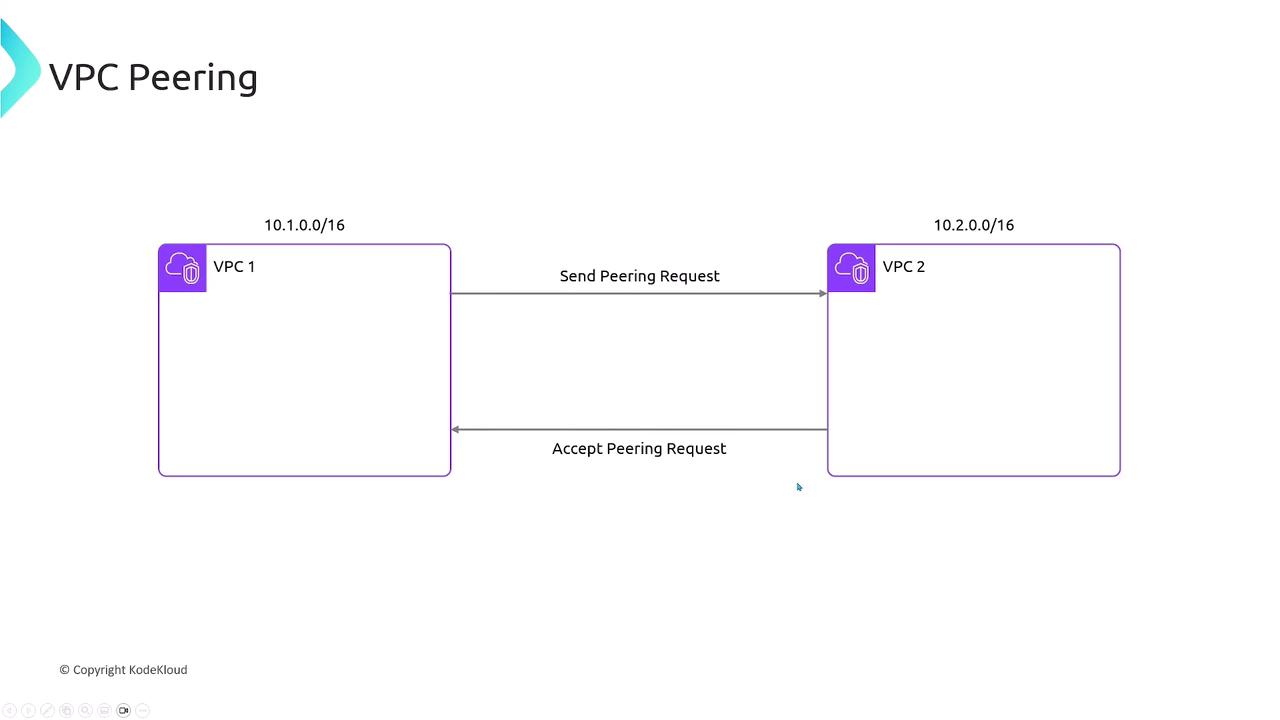
Assume two VPCs with non-overlapping CIDR blocks:
- VPC1:
10.1.0.0/16 - VPC2:
10.2.0.0/16
Steps to create the peering link:
- Request Peering
- AWS Console: VPC dashboard → Peering Connections → Create Peering Connection
- AWS CLI:
bash theme={null} aws ec2 create-vpc-peering-connection \ --vpc-id vpc-01234567 --peer-vpc-id vpc-089abcdef - Accept Peering
- Console or CLI (
accept-vpc-peering-connection) by the peer VPC owner. - Verify Connection
- Status changes to
activein the Peering Connections list—but routing is still pending.
Configuring Route Tables
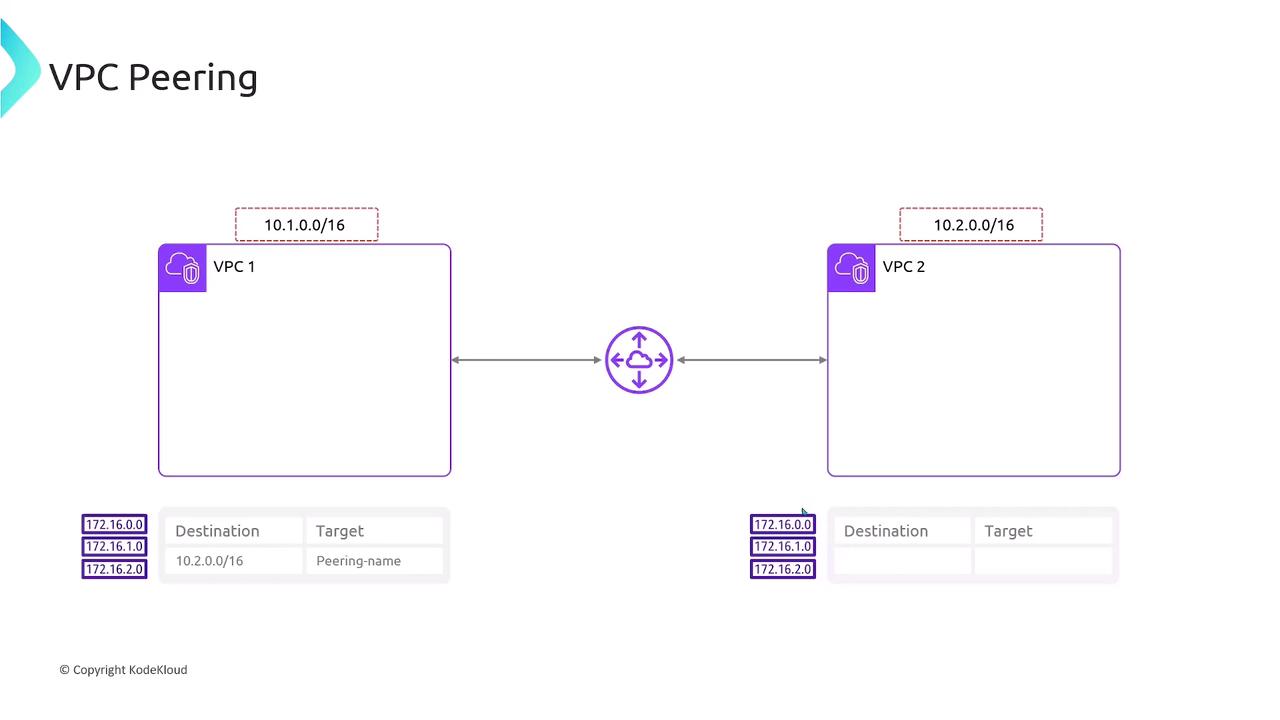
After peering is active, add routes in each VPC’s route table:
VPC1 route table
```text theme={null} Destination Target 10.2.0.0/16 pcx-0a1b2c3d4e5f6g7h
This ensures traffic flows over the peering link instead of the internet gateway.
Transitive Peering Is Not Supported
- VPC1 ↔ VPC2
- VPC2 ↔ VPC3
- No indirect VPC1 ↔ VPC3 communication
Summary
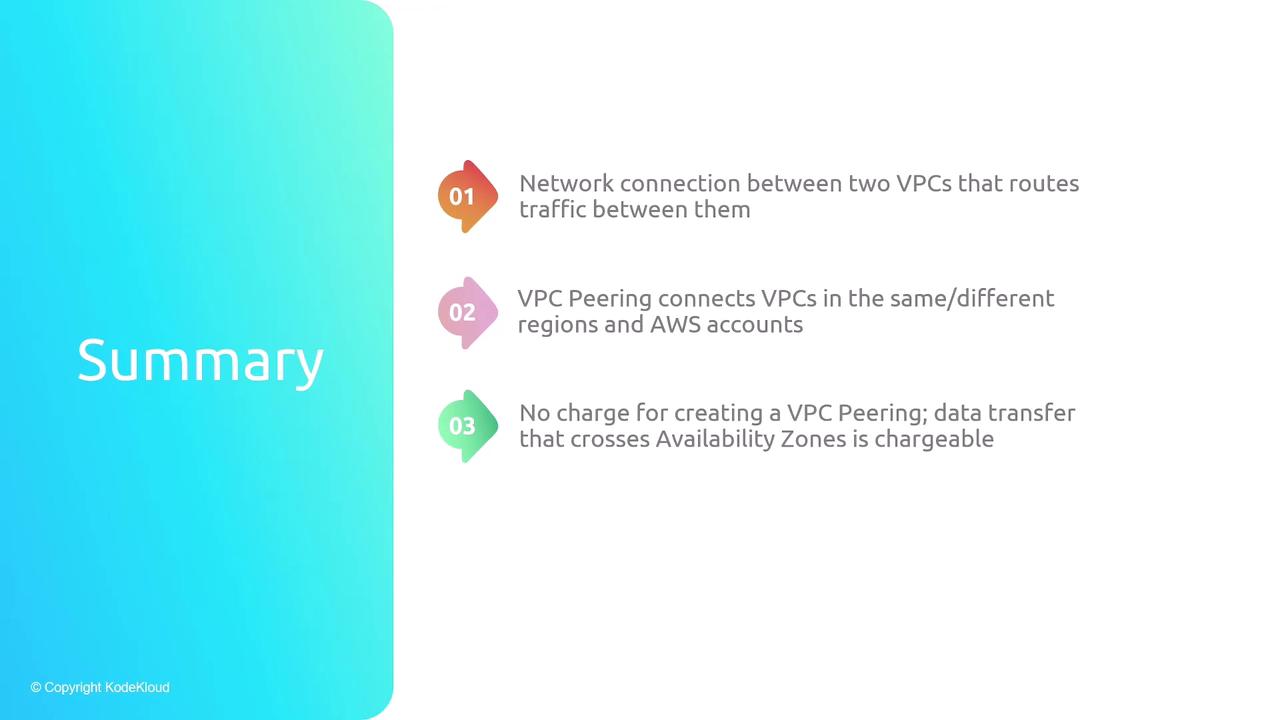
- VPC Peering connects two VPCs privately.
- Peerings can span regions and AWS accounts.
- No cost for the connection itself; data transfer pricing applies.
- Each VPC pair requires its own peering link—no transit routing.
Links and References
This tutorial explains how to establish a VPC peering connection between two AWS VPCs for EC2 instance communication.
In this tutorial, you’ll learn how to establish a VPC peering connection between two AWS VPCs so that their EC2 instances can communicate over the private AWS network:
| VPC Identifier | CIDR Block | EC2 Instance | Private IP |
|---|---|---|---|
| VPC-A | 10.1.0.0/16 | server1 | 10.1.1.13 |
| VPC-B | 10.2.0.0/16 | server2 | 10.2.1.139 |
Since VPCs are isolated by default, pinging from server1 to server2 will initially fail:
```bash theme={null} [ec2-user@ip-10-1-1-13 ~]$ ping 10.2.1.139 PING 10.2.1.139 (10.2.1.139) 56(84) bytes of data. ^C --- 10.2.1.139 ping statistics --- 195 packets transmitted, 0 received, 100% packet loss
## 1. Create the VPC Peering Connection
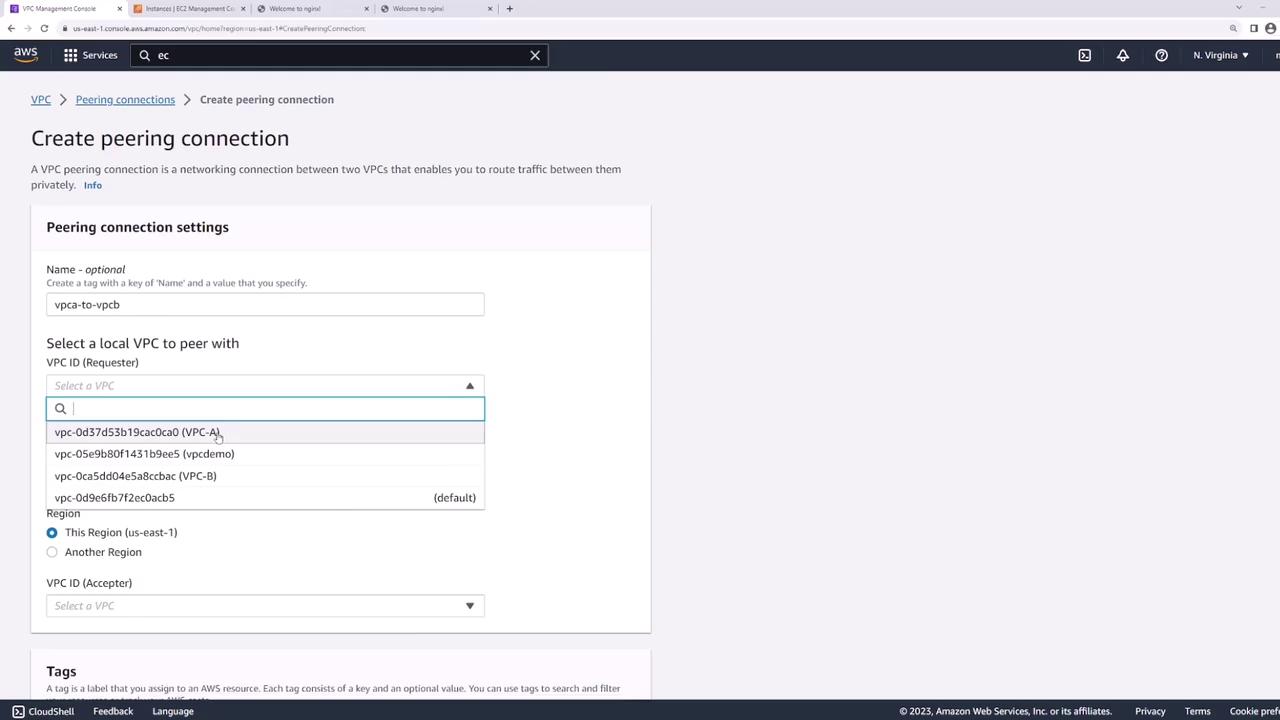
1. Open the AWS VPC console and select **Peering Connections** → **Create Peering Connection**.
2. Name the connection `VPC-A-to-VPC-B`.
3. Under **Requester**, choose **VPC-A**.
4. Under **Accepter**, select your account and region, then choose **VPC-B**.
5. Click **Create Peering Connection**.
<Frame>
</Frame>
<Callout icon="lightbulb" color="#1CB2FE">
You can also provision VPC peering using Infrastructure as Code tools like Terraform or AWS CloudFormation.
</Callout>
## 2. Accept the Peering Request
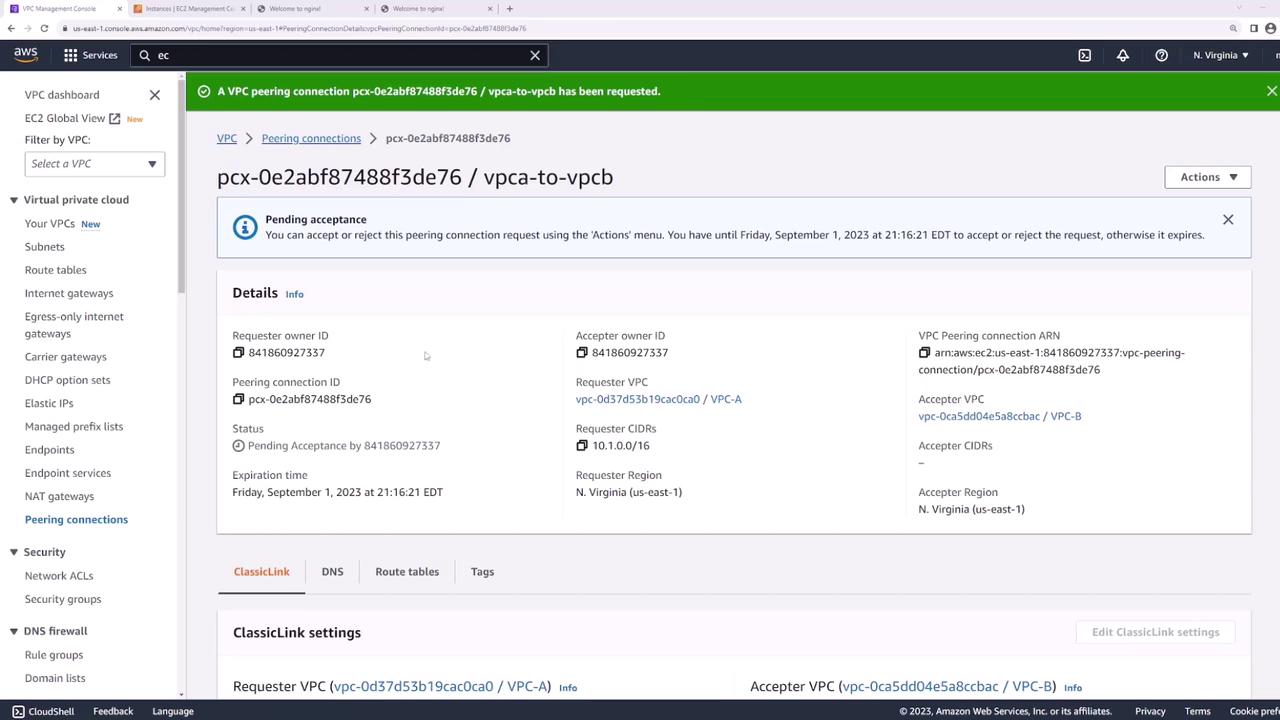
1. In **Peering Connections**, locate the new connection in **Pending Acceptance**.
2. Select it, then choose **Actions** → **Accept Request**.
<Frame>
</Frame>
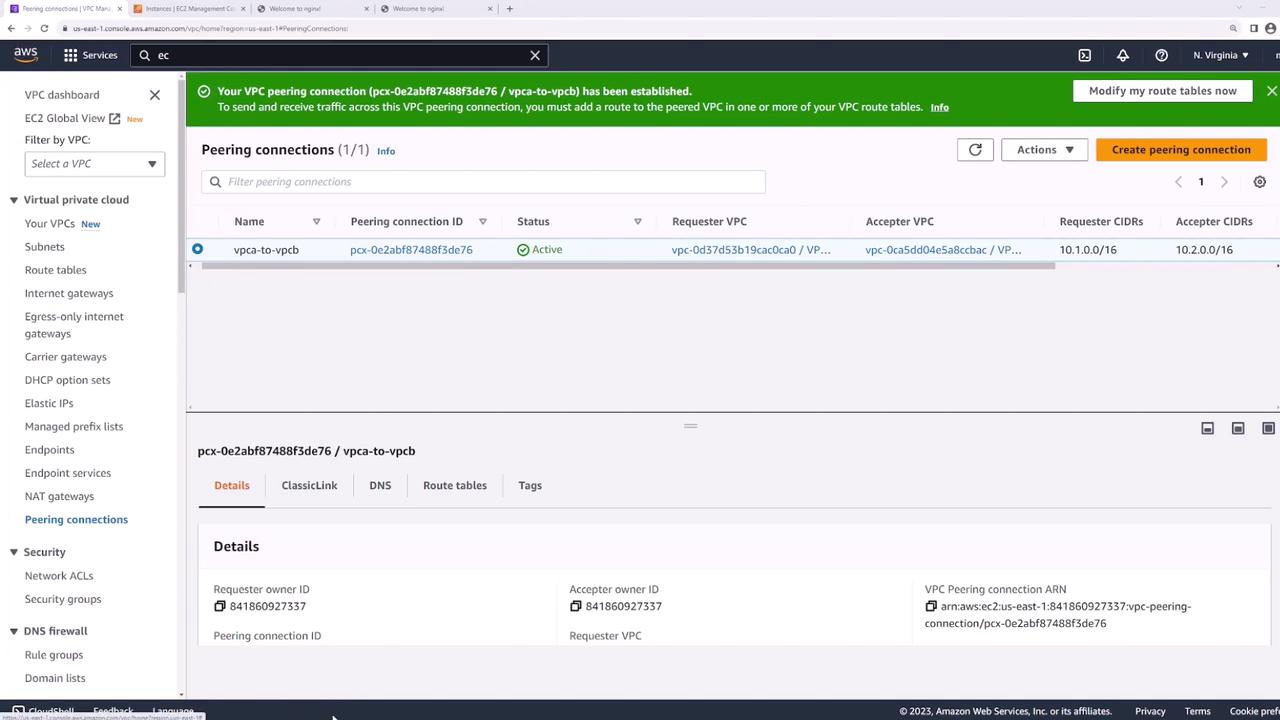
Once accepted, its status changes to **Active**:
<Frame>
</Frame>
<Callout icon="triangle-alert" color="#FF6B6B">
Even after peering is active, traffic won’t flow until you update each VPC’s route tables.
</Callout>
## 3. Update Route Tables
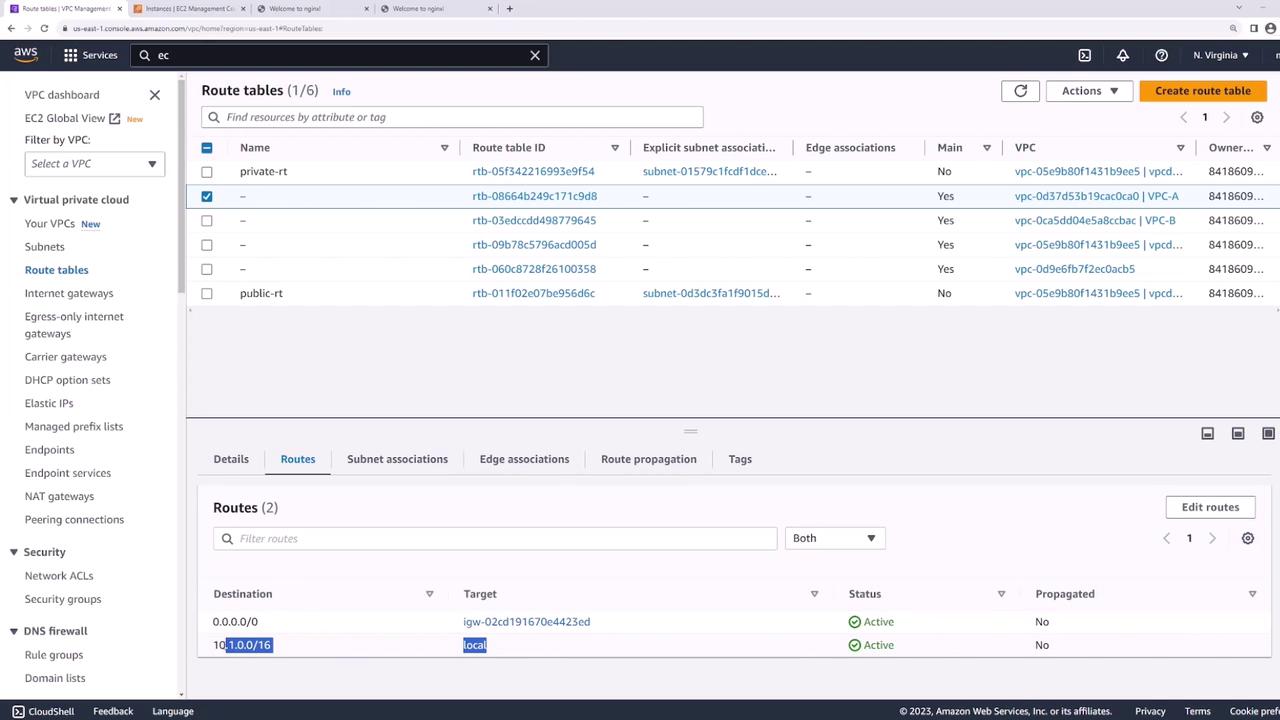
Each VPC needs a route pointing to the other VPC’s CIDR block through the peering connection:
1. In the VPC console, go to **Route Tables**.
2. Select the route table for **VPC-A**.
<Frame>
</Frame>
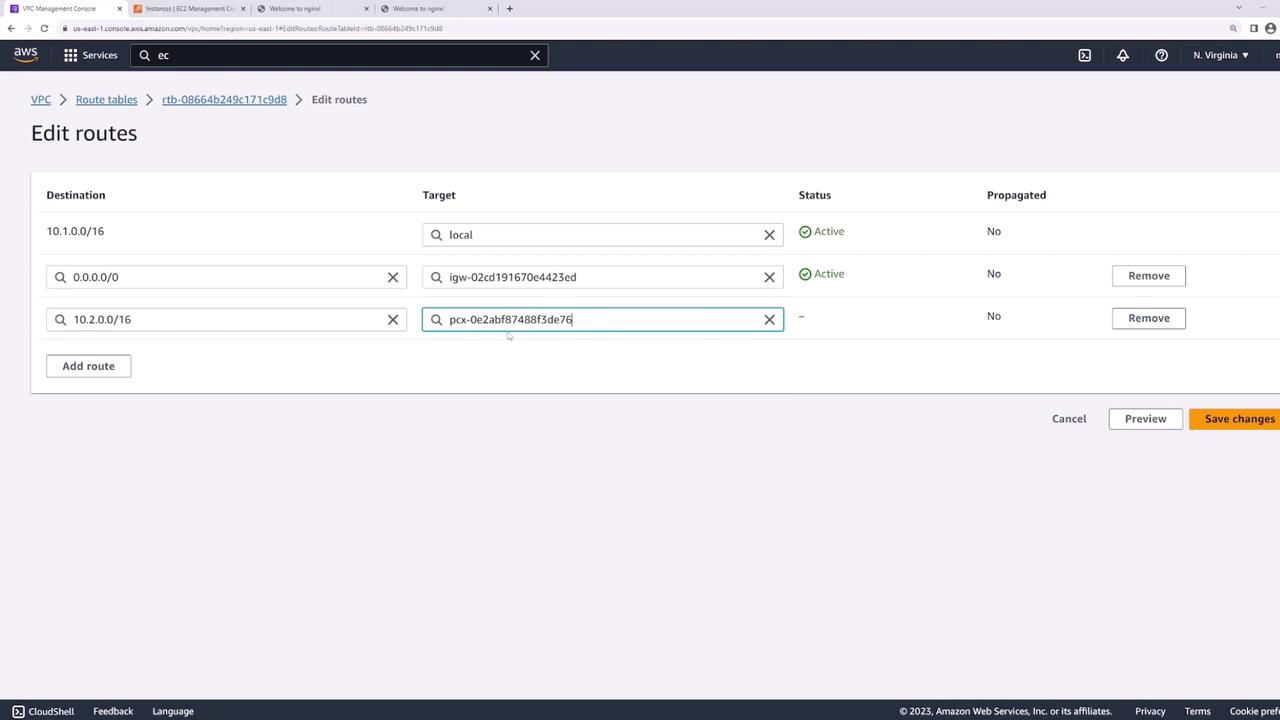
3. Under **Routes**, click **Edit routes** → **Add route**:
* Destination: `10.2.0.0/16`
* Target: the peering connection (`VPC-A-to-VPC-B`)
4. Save changes.
<Frame>
</Frame>
5. Repeat these steps on **VPC-B**’s route table, adding a route to `10.1.0.0/16` via the same peering connection.
## 4. Verify Connectivity
Return to **server1** and ping **server2**:
```bash theme={null}
[ec2-user@ip-10-1-1-13 ~]$ ping 10.2.1.139
PING 10.2.1.139 (10.2.1.139) 56(84) bytes of data.
64 bytes from 10.2.1.139: icmp_seq=1 ttl=127 time=1.88 ms
64 bytes from 10.2.1.139: icmp_seq=2 ttl=127 time=1.43 ms
64 bytes from 10.2.1.139: icmp_seq=3 ttl=127 time=1.38 ms
^C
--- 10.2.1.139 ping statistics ---
3 packets transmitted, 3 received, 0% packet loss, time 2002ms
rtt min/avg/max/mdev = 1.382/1.563/1.882/0.187 ms
Your EC2 instances can now communicate across VPCs using the private AWS backbone.